A disconnected server in Office for Mac's recent-file list can trigger a server connection error even while you're editing a local document. Update Office first. Updating from 16.28 to 16.29 fixed this fault for one owner.
On an older installation that can't update yet, reconnect the trusted server or remove its recent entries. On current Office, check whether the message follows one unavailable server before resetting settings.
In this guide
Does the error come from Recent files?
Watch for a pause followed by a message saying there was a problem connecting to a named server. It can happen shortly after starting Word, Excel or PowerPoint, or when opening File > Open Recent.
The local document in front of you doesn't have to live on that server. The affected Office version can be trying to reach a different document remembered in its recent list. That's why the message can seem unrelated to your current work.
Record the server name in the message and compare it with places you've opened Office documents from. A work file server that is unreachable while traveling fits this pattern better than an ordinary local-file permission problem.
Check the version through the application menu next to the Apple symbol, such as Excel > About Microsoft Excel. The original fault affected 16.28. Record the full version you see before deciding whether an old workaround applies.
When the message appears only as you open a file stored on a disconnected share, check access to that share first. A server can really be unavailable; the recent-file fault is the unexpected attempt while doing something else.
For an Upload Blocked message involving OneDrive instead, use the Office for Mac upload checks. That is a different message and storage workflow from an unavailable network server in Recent files.
1. Update the Office apps before clearing settings
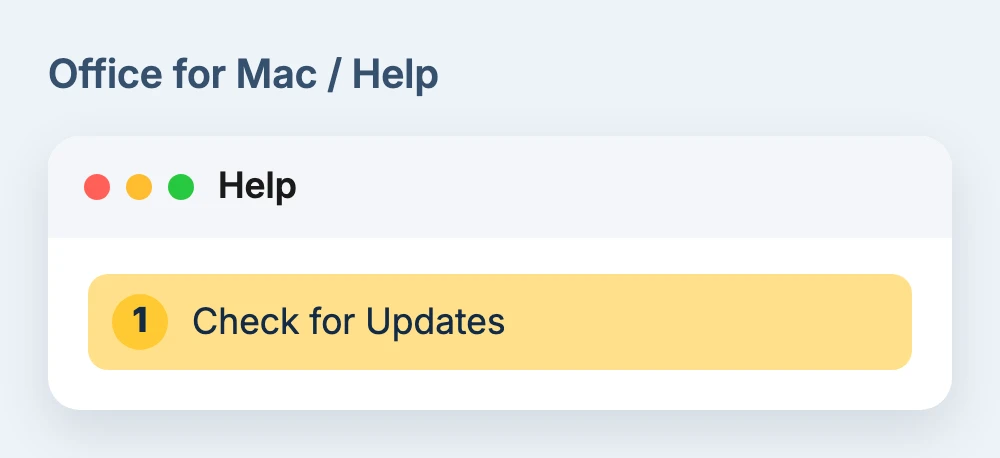
Save open documents, then choose Help > Check for Updates from an Office app. In Microsoft AutoUpdate, install the offered updates. When asked, quit whichever Office apps are listed.
Microsoft's Mac update instructions distinguish apps installed from its website from App Store installations. Choose your update route based on where your Office apps came from.
For Mac App Store installations, open App Store > Updates and install the offered Office app updates. For a workplace-managed Mac, use the update process IT provides if your update controls are restricted.
Updating from 16.28 to 16.29 removed the server error in the old thread. Install whichever supported release your updater offers today. Don't seek out that old release for a new installation.
After updating, keep the server disconnected and reopen the app. Try a local document, then Open Recent. If the update fixed it, both should work without the server error.
If the error persists on a current build, record that version and continue with the server-specific checks. A version number starting with 16 doesn't by itself mean you're running the affected 16.28 release.
2. Reconnect the server when it is still available
If the server belongs to your organization and is still in use, reconnect through its normal approved route. Connect to the workplace VPN first when that is required, then open the same share you normally use for those files.
Use the server address supplied by your organization. If you need Finder's connection dialog, choose Go > Connect to Server, enter that known address, then use your authorized account to connect.
The original report said connecting to the server avoided the failure. While you're connected, Office can reach the location it's trying to check instead of waiting for an unavailable server.
Keep the connection active long enough to open the affected app and inspect its recent-file list. If the error disappears only while connected, you have a useful result to give IT even if reconnecting isn't practical every time you travel.
A retired or failed server won't return through repeated password attempts. Remove its remembered entries instead. Ask IT about document recovery separately if that server held the only copy.
I'd update before using reconnection as a daily workaround. A recent-file list should remain usable when a work share is offline, and the old thread has a successful update report for that exact behavior.
3. Remove the unavailable server's recent entries
In the affected app, open File > Open Recent > More on the older interface described in the report. Look for documents whose locations point to the server named in the error, rather than removing unrelated local documents.
Remove those entries from the recent list using its removal control. You're removing remembered shortcuts to documents, not choosing to delete the documents from their storage location. Read the command before confirming it.
Quit and reopen the app, then check whether a local file still produces the error. If several apps show it, inspect each app's list. Removing an Excel entry need not clear a PowerPoint entry.
The reporting owner had partial success with this route. One server item remained in the submenu but didn't appear in the larger Recent list, so it couldn't be removed through that screen. That limited what this workaround could fix.
Inspect pinned items too if the entry is pinned. If Office freezes before the list opens or you can't reach the entry, don't keep forcing that menu. Give IT the app version and inaccessible server name.
Our Office update guide explains the normal update routes if the updater itself is the obstacle. Removing a recent item doesn't repair a server or restore a missing file.
4. Get help with a list that cannot be opened
After a server drive failure, another owner couldn't reconnect or keep Office open long enough to remove entries. Clearing its recent-file data helped them, but also removed pinned and shared-list history.
Have IT or Microsoft 365 support handle that deeper cleanup for your installed version. The thread's temporary preference-file deletion wasn't a lasting repair: reopening a server document and disconnecting could bring the fault back.
Don't roll a supported installation back to the old 16.27 release. Send support the server name, Office build, macOS version and update result. Say whether connecting the share or removing recent entries stopped the pause.
The Short Version
For the 16.28 recent-file bug, start with an Office update. Reconnect the trusted server or remove unreachable recent entries if needed. If Recent won't open, ask for version-specific support instead of broad Office-data deletion.
Checked November 27, 2026.
 If you have any business, I can build it online