Quick Notes stuck loading in OneNote 2016 was a known bug, fixed in build 16.0.7466.2038 and later. Install the update before closing all your notebooks. That older workaround could stop helping as soon as notebooks synced again.
First check whether the actual Quick Notes section opens from its notebook. A broken shortcut, a notebook sync error and the old loading bug need different next steps. Keep any notes that haven't synced safe before closing their notebook.
In this guide
1. Update the desktop app for the known loading bug
Start OneNote or Word on your Windows PC, then choose File > Account > Update Options > Update Now. Let the updater finish, close apps when requested, and open OneNote again.
The OneNote team announced the fix for OneNote 2016 for Windows desktop in November 2016. Build 16.0.7466.2038 was the stated threshold. For a modern PC, install the currently supported app instead of looking for that historical release.
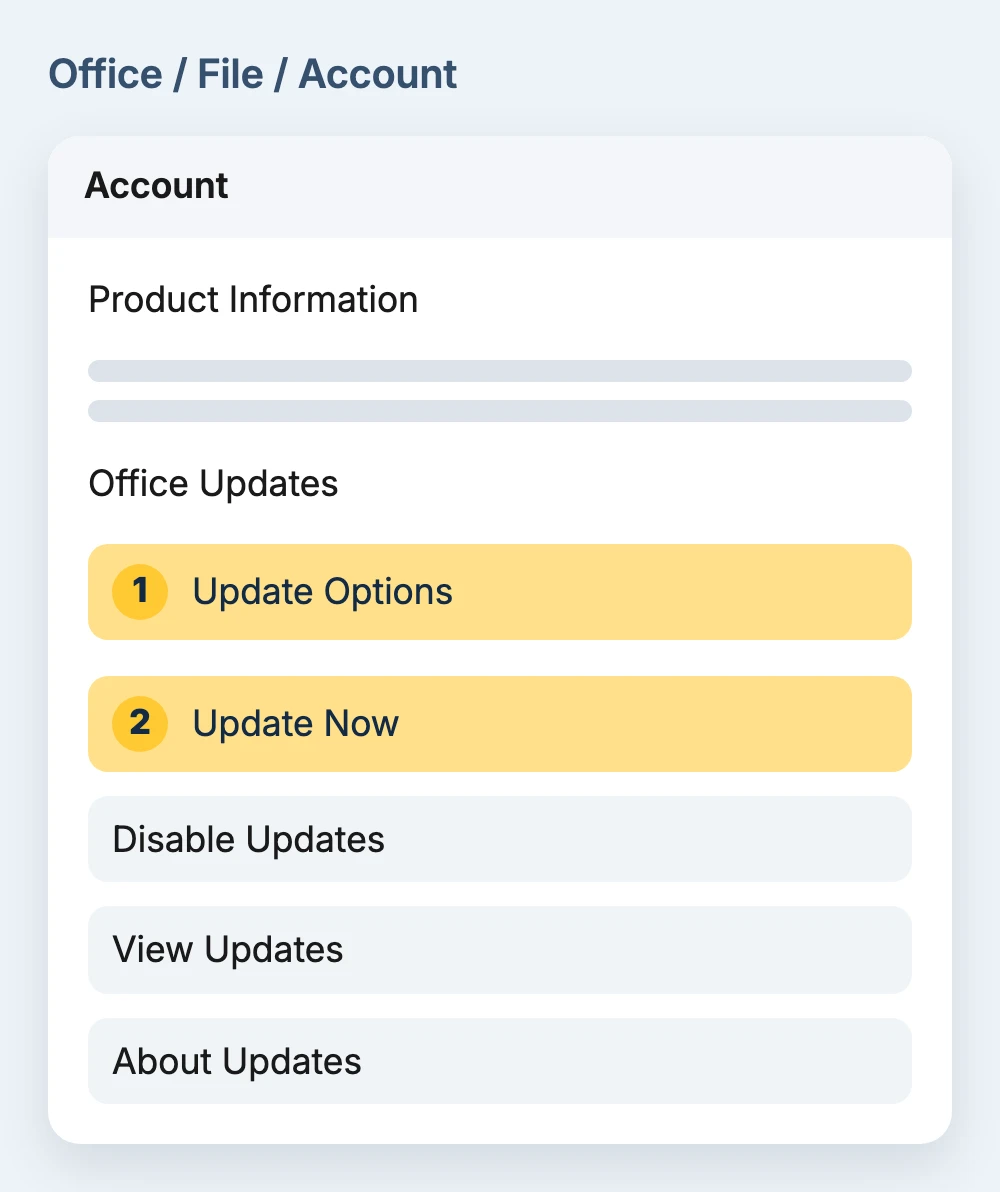
Check File > Account > About OneNote for your installed version. If Update Options is missing, follow the update method for your Office installation or ask IT whether your organization controls its updates.
Microsoft's Office update instructions explain the different installation routes. Repairing Office is a different action from installing a released update.
After updating, open Quick Notes from the notebook list and wait for the section to finish loading. Select an existing page, then try a small new note. Check whether both opening and saving work normally.
If you're already using a supported current version, record the full build and move to the section check. A similar loading screen today doesn't mean the old bug or its exact cause has returned.
2. Open the section through its notebook
Quick Notes are notebook pages, not disposable windows. Find the notebook containing Quick Notes in the notebook list. Select its section directly instead of the shortcut that keeps loading.
If the section opens, check a recent note's content. Use an ordinary page in that notebook for urgent notes while checking the shortcut. That lets you reach your notes without using the button that's stuck.
If the section doesn't open either, check whether other sections in the same notebook work. Tell support whether just Quick Notes fails or the whole notebook won't open. They can then check the failing section or notebook.
For cloud notes, sign into the web app as the notebook owner and open that notebook. Compare its newest note against your desktop copy. Preserve local-only changes before closing the desktop notebook.
Copy unsynced text and save essential attachments separately, then open those saved items to check them. Our OneNote sync-recovery guide covers handling a notebook whose latest work hasn't reached the server.
If the online section works but the desktop shortcut hangs, report that difference. That helps support focus on how the desktop app opens your notes, since the notebook is still available online.
3. Check a new Quick Note and its saved location
Choose View > New Quick Note in desktop OneNote. Type a short, recognizable test line into the small window, then close that window. Closing it saves the note; it doesn't discard it.
Open the notebook list and look for Quick Notes. The Quick Notes instructions describe their storage in the default notebook and how to review them from the notebook list.
Current desktop OneNote also offers Windows+Alt+N to create a note without first opening the main window. Use the app's View command for a straightforward test if the keyboard shortcut behaves differently on an older PC.
If the test page appears in the section and opens normally, note creation and storage are working. The original Quick Notes shortcut might still hang even though the note saved. Tell support exactly which action still fails.
For a missing test note, inspect the default notebook and its sections before making more test notes. Several open notebooks can make it easy to look in the wrong place while troubleshooting a shortcut.
If the only problem is the small icon beside the Windows clock, use the OneNote tray-icon checks. Restoring an icon won't fix a section that remains stuck loading inside the main app.
4. Treat closing notebooks as a temporary workaround
An owner initially restored Quick Notes by closing all notebooks, restarting OneDrive, and reopening the notebooks. Their next report said the problem returned after synchronization. Other replies also described only temporary relief.
I'd try the released update before closing notebooks you can still use. The first reply said the workaround helped, but later replies showed the hang could return after reopening everything.
If you're working with an old installation and need to try that workaround, first record the notebooks' locations and protect unsynced pages. Right-click a notebook's name and choose Close This Notebook, then repeat for the others.
Restart the OneDrive sync app if that installation uses it, reopen OneNote, and check Quick Notes. Reopen your notebooks from their known locations. Test again after synchronization, since that is when the reported failure returned.
Don't delete the notebooks from OneDrive to close them in the app. Closing removes a notebook from the app's open list; deleting removes stored content. Stop if the command you're about to use says Delete.
Another owner moved the section into a separate notebook and kept it closed. That helped their old setup, but start with the released fix. You don't need to reorganize all your notebooks to recreate the workaround.
5. Report what still fails after the update
The reports included local and OneDrive notebooks, and even nearly empty sections could fail. Don't delete attachments because Quick Notes is stuck. The thread didn't identify large notes as the cause.
Report current hangs to your IT helpdesk or Microsoft 365 support. Include the OneNote build, notebook location, whether the section opens directly or online, and whether a new note works or syncing triggers the hang.
Include failed repairs too. Owners reported Quick Repair and Online Repair making no difference in the old case. Tell support what you've tried to avoid repeating it and help them tell a loading problem from a notebook that needs recovery.
The Short Version
Install updates first for the known OneNote 2016 Quick Notes bug. Check the section directly and verify a new note reaches it. Closing and reopening notebooks provided temporary relief for some owners, with the hang returning after sync.
Checked November 27, 2026.
 If you have any business, I can build it online