

OneNote error 0xE0000007 means a notebook isn't syncing properly. Start by updating OneNote and syncing it manually. If the warning names a section, putting copies of those pages in a replacement section can restart uploads.
The code doesn't identify one cause. A notebook can even show the warning while some changes reach the cloud, so compare the actual pages before closing anything or signing out.
In this guide
1. Update OneNote and retry the affected notebook
Keep the notebook open while you update. In desktop OneNote on Windows, use File > Account > Update Options > Update Now when that command is available. Restart OneNote once the update finishes.
On a Mac, use Help > Check for Updates when Microsoft AutoUpdate handles your installation. For the Mac App Store edition, open App Store > Updates and install the offered OneNote update.
On iPhone or iPad, check OneNote's App Store listing. On Android, check its Google Play listing. Without an Update button, the store has no newer update on offer for that device.
Microsoft's troubleshooting for 0xE0000007 includes updating and forcing a sync. In the original discussion, owners described successful syncing with version 15.39, sometimes after copying affected sections.
That release belongs to the 2017 discussion. Install the update your device offers now. Later replies reported the error returning on 15.39, so compare your pages rather than trusting the version number.
Start a sync in your version of OneNote:
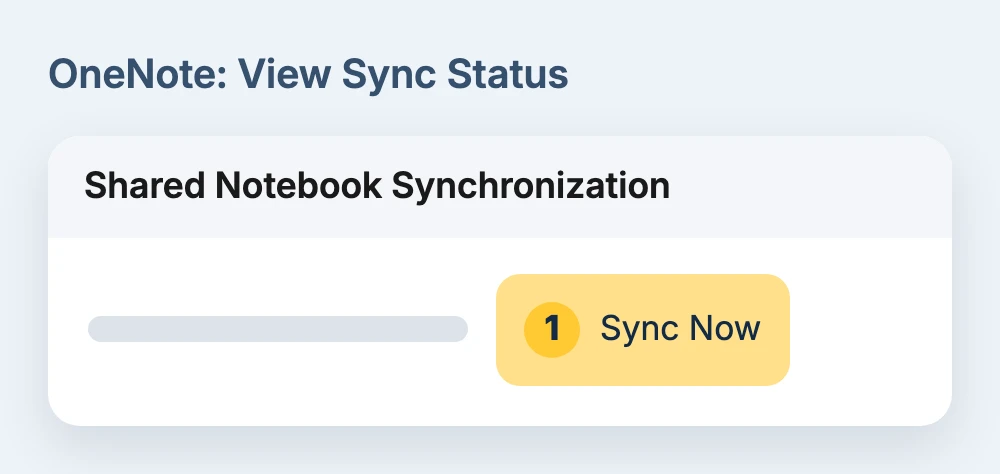
- Windows desktop OneNote: open File > Info > View Sync Status, then select Sync Now beside the affected notebook.
- Mac: show the notebooks list, Control-click the notebook and select Sync This Notebook.
- iPhone or iPad: pull down the notebooks list to refresh all open notebooks. Pulling down a section's page list refreshes that notebook instead.
Check the message after syncing. If the warning disappears, check that a recent edit reaches your other device. If it returns, note whether it names the whole notebook or one section, then continue with that specific notebook.
2. Compare the cloud copy before changing accounts
Use the notebook's Copy Link to Notebook command when available, then open the address in your browser. Sign in using an account permitted to open that notebook.
Check a recently edited page, an older page and any attachments you need. Seeing the notebook's name online isn't enough. A missing paragraph means the online copy still hasn't received all your work.
The original asker saw changes appear online despite the warning. Other owners couldn't see their new notes there at all. The same code can appear in either case, so check which edits are missing before changing anything.
Copy text that exists only in the app into another document, and save attachments you can open as separate files. Keep enough context to put them back on the right page. I'd protect those changes before trying any account or notebook reset.
If the notebook opens online and its pages are current, the sync problem is in the desktop or mobile app. Continue with the section check. If access fails online too, deal with the account or shared-notebook permission first.
For missing notebooks rather than missing edits, use the notebook recovery checks. They help separate an unopened notebook from one that needs restoration.
3. Copy the stuck section into a new section
When the sync error identifies one section, create another section within the affected notebook. Use a recognizable temporary name to keep the copy distinct from the original.
Select the affected pages and use Move or Copy, choosing the new section and Copy. On a Mac, the command can appear as Move or Copy Page in the page's shortcut menu. Copying keeps the originals available during the check.
Sync again, then inspect the copied section online. Compare the text, drawings and attachments to check that everything copied. Seeing a page title doesn't confirm that the text and attachments arrived.
One owner reported that newly copied sections synced after the 15.39 update. The asker had tried copying unsuccessfully, so check the result before relying on the new section.
If the new section also fails, don't keep making more copies. Check whether another notebook syncs. A working notebook gives you a separate destination for preserving readable pages while the original notebook is repaired.
Leave the old section intact until the copied content is safely stored. If you're seeing a different section code, the 0xE40200A8 section-sync guide explains that separate error.
4. Check access when the notebook fails online too
Open another website to confirm the device has a working internet connection. For an organization notebook, check that your browser is using the work or school sign-in, especially if a personal account has a similar address.
Access to a shared notebook can stop after its owner changes the permissions. Give the owner that notebook link so they can review the permissions for your account. Reinstalling OneNote won't restore a removed permission.
For SharePoint notebooks, send your administrator the notebook address and browser error. Ask whether the site is available and whether your account still has editing access. They can check that site and account directly.
If several people lose access at once, have the administrator check the service's current health. Repeatedly rebuilding a local notebook while its storage service is unavailable won't repair the shared connection.
5. Refresh the Mac sign-in if sync still fails
After saving missing edits separately, leave the notebooks open and choose OneNote > Sign Out from the Mac menu bar. Then choose OneNote > Sign In and complete the account's verification prompt.
Try syncing the affected notebook again. A Mac owner using two-step verification reported that this restored syncing without closing their notebooks. A later reply said it helped for a few weeks before the error returned.
If the code returns after a few weeks, signing in again hasn't fixed it for good. Save the full code and the date it returned for support, rather than repeatedly disconnecting accounts and assuming the notebook is repaired.
6. Reopen only after the unsynced work is safe
Closing and reopening makes OneNote reload the notebook, but you can lose changes that haven't synced. Only take this step after you've saved the missing work separately or confirmed that the online pages contain it.
In Windows desktop OneNote, open the notebook list, right-click its name and select Close This Notebook. On Mac, Control-click its name and choose that command. Open it again through File > Open or its online desktop-opening option.
If the error returns, keep the readable copy available and send support the full code, app version, affected section and online comparison result. Ask for help with notebook synchronization before agreeing to remove local notebook data.
OneNote for Windows 10 is the retired app, even on a Windows 11 PC. Its old sync instructions aren't a way to restore supported editing. Move to the current OneNote app and check your notebooks there.
The Short Version
For 0xE0000007, update OneNote and sync manually. Note which notebook or section fails. Compare page contents online, preserve missing edits, then try a copied section. Reopen only after those notes are safe.
Checked November 27, 2026.
 If you have any business, I can build it online





