Upload Blocked in Mac Office can mean the Office account can't save to that OneDrive location. Check the account first. On old Office 2016 installations, turning off Office file syncing also stopped Contacting the server for an owner.
The old checkbox isn't present in every current release. Match the repair to what your Mac shows: an account warning, a stuck Office document, or OneDrive itself failing to sync. Save a copy of pending edits before changing sign-in or sync.
In this guide
1. Match the Office account to the file's location
Read the full message in Word, Excel or PowerPoint. If it says you're required to sign in to upload changes, use the account with permission to edit that document. Personal Microsoft accounts and work accounts hold different storage.
Check the account shown through the Office app's profile control. Then read the account shown by OneDrive's menu-bar cloud menu. Confirm that the document is in that account's folder, rather than a similar folder under another account.
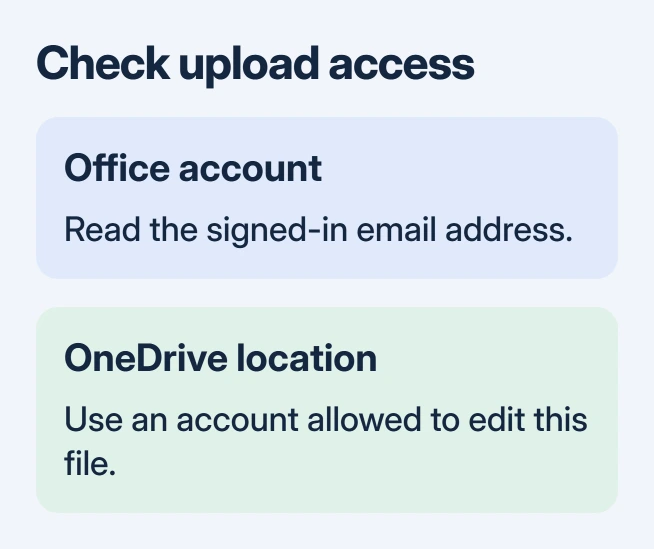
Microsoft's Upload Blocked guidance identifies an Office account without upload permission as a cause. A subscription that activates Office doesn't automatically give that account editing access to every cloud document.
If you can open the document but can't edit its online original, ask the owner whether your account can edit it. Signing in repeatedly won't turn a view-only share into an editable file. Request editing access for that file or folder.
When the browser can edit the same document under the intended account but the Mac app can't upload, check the Mac app's connection. Continue with the repair for your app version rather than sharing the document more widely.
2. Use the Office sync checkbox only if your old app has it
The original report involved a High Sierra Mac, Office 2016 integration and personal OneDrive. Files stored locally worked, while cloud documents produced Upload Blocked and Contacting the server. Resetting and restarting hadn't helped.
The owner reported that clearing Use Office 2016 to sync Office files that I open stopped the problem for the moment. The later replies didn't explain why it started.
On an older OneDrive version with this setting, open its menu-bar cloud, choose its settings or Preferences, and look for the Office tab. Clear the Office-file-sync checkbox, then reopen an affected document and check that changes save.
The label may say Office applications rather than Office 2016. Look for Office file syncing, not a year from an old screenshot. If the tab or checkbox is missing, skip this step; don't search the Mac's system settings for it.
The OneDrive settings reference describes the available settings areas. Current OneDrive interfaces differ from the old Preferences window; the historical fix isn't a reason to downgrade your apps to get that checkbox back.
After changing it, let OneDrive finish syncing and open the cloud copy to check that your latest edits arrived. Opening the file without a warning isn't enough if the latest edits still haven't reached the cloud.
If you edit the document with others, check that this change suits how they work before relying on it. Check the save with only your editing session open, so another person's edits don't make it hard to tell whether yours arrived.
3. Refresh the saved OneDrive credential on a current Mac
If the warning persists on a current installation, refresh OneDrive's saved sign-in on your Mac. A credential is the saved sign-in information an app uses to reconnect. Remove only the named item, leaving other saved Office items in place.
Save and close pending Office work first. Choose Quit in OneDrive's cloud menu, then open Keychain Access through Spotlight. If it doesn't appear there, open it from Applications > Utilities.
Search for OneDrive and find OneDrive Cached Credential. Remove that specific item, then start OneDrive again. Complete sign-in using an account that can edit this document.
Return to the same file in Word or Excel and save a small change. Watch OneDrive's status until syncing finishes. Then confirm the change appears in the cloud copy, rather than assuming a closed sign-in prompt means the upload worked.
If you can't identify the exact credential item or the Mac is managed, have your IT team do this. Don't delete unrelated certificates, passwords or the entire login keychain to clear one app's sign-in state.
For a separate sign-in failure before any document opens, follow the OneDrive sign-in checks. A document banner and a sync app that can't sign in can overlap, but record which one appears first.
4. Check whether the sync app can transfer an ordinary file
Open the OneDrive cloud menu and read its current status. Resume syncing if it's paused, and deal with any storage or account error it names. A full cloud allowance can block new uploads even when Office is signed in correctly.
Try one small, harmless file in the affected OneDrive folder. Wait for it to sync. If that transfers while only Office documents stall, tell support only Office documents fail, rather than treating every OneDrive upload as broken.
If both file transfers and document saves fail, use the Mac sync troubleshooting steps. Install updates through your existing app's source and avoid running standalone and Mac App Store editions side by side.
If downloads instead stay at 0 KB on Apple silicon, the M1 OneDrive download checks address background filtering. That symptom differs from an Office upload-permission banner, so use the download checks only for that symptom.
I'd ask support to review a current failure before reinstalling Office again. Give them the full warning, macOS version, Office and OneDrive versions, account type and whether an ordinary file transfers. Say whether the Office tab exists.
With work storage, your IT department can submit this to Microsoft 365 support. For personal OneDrive, use OneDrive Help & Settings support. Ask them to check Office uploads and saved sign-in, with a harmless sample if requested.
The Short Version
Check upload permission and the active Office account. On old installations, the Office sync checkbox helped an owner; skip it if absent. Refresh only the named OneDrive credential, then confirm the latest edit reaches the cloud.
Checked November 17, 2026.