
OneDrive not signing in can be an account problem or a desktop app that has stopped connecting. Try the same account in a browser first: if that works, you can focus on OneDrive without changing a working password.
A gray cloud crossed by a line means the app isn't signed in. A blue or white cloud showing a filename error needs a different fix, because that account has already connected.
1. Open the sign-in window and check the account
Select the OneDrive cloud near the Windows clock. Check the hidden system tray icons if you don't see it. Choose the sign-in option, then enter the email address linked to your OneDrive files.
If the cloud is absent, open Start, type OneDrive and launch the desktop app. A missing app or one that won't open needs the OneDrive startup and policy checks before these sign-in steps.
At Set up OneDrive, check the suggested address before accepting it. A personal Microsoft account can look similar to your work address but hold a different set of files.
Microsoft's sign-in instructions explain that the sync app supports one personal account. If one is already connected, you can't add a second as you can with work accounts.
Complete any password, verification or organization prompts. Once you reach folder setup and see your account syncing, sign-in has worked. If the window keeps returning to sign-in, try the browser check.
2. Separate an account failure from an app failure
For a personal account, open the Microsoft sign-in page in your browser. Enter the same address you used in OneDrive and complete the sign-in. Work accounts should use your organization's Microsoft 365 sign-in.
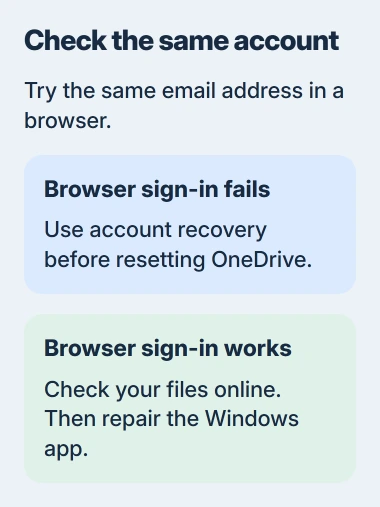
If the same password fails in your browser, use the sign-in page's password recovery option. Clear any account lock or finish the requested verification there; resetting the desktop app won't change your password or unlock the account.
If browser sign-in works, open OneDrive online and check that these are the files you expected. An empty account can mean you've signed into a different address, even though the password was accepted.
Keep the exact error if the account belongs to work or school. Your administrator can check whether you have OneDrive access and whether a device or sign-in requirement is blocking your computer.
I'd make this comparison before clearing saved sign-in details. It tells you whether the password works and gives you access to online files while the desktop app is being fixed.
3. Reopen OneDrive and compare the connection
If the cloud panel opens, use its settings menu to quit OneDrive, then launch it again from Start. If the app won't respond, save open documents, restart Windows and try OneDrive afterward.
Try signing in again. If folder selection now opens, the restart got sign-in moving again. If you still see a connection error, compare networks next.
If your mobile plan allows it, connect the PC to your phone's hotspot. Keep the computer and account the same. Microsoft's instructions recommend this comparison when sign-in works but OneDrive can't connect.
If OneDrive connects only through the hotspot, tell your network administrator or internet provider. Ask them to check OneDrive access while keeping your computer's security protection on.
On a work computer, also report whether the failure happens at the office, at home or only through the company VPN. Leave changes to managed network settings to the administrator.
4. Reconnect the Windows app's saved account
If your account works online but the Windows app keeps returning to sign-in, follow the unlink and relink procedure.
Open the cloud panel, select its settings control and open Settings > Account. Choose Unlink this PC, then confirm Unlink account. If the app is already unlinked, you won't have that connected account to remove.
Press Windows+R, paste this folder path and press Enter:
%localappdata%\Microsoft\OneDrive\settingsDelete only PreSignInSettingsConfig.json, the sign-in settings file named in that procedure. Leave your OneDrive data folder and every other file alone.
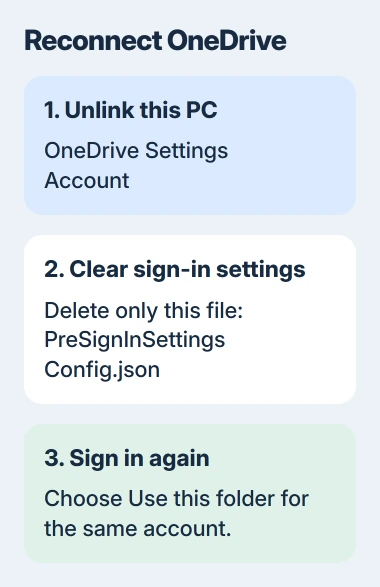
Launch OneDrive and sign in again. When setup finds your existing OneDrive folder, choose Use this folder only if it belongs to the account you're signing into. A familiar folder name alone isn't enough to identify the account.
Give OneDrive time to check the folder. Unlinking pauses syncing; it doesn't erase your online account. Files stored only online still need a working connection before you can open them.
5. Reset the sync app if reconnecting doesn't help
A OneDrive reset rebuilds its settings and starts a full sync check. It can clear app problems that survive reopening, but it won't fix an account restriction.
Have your personal and work sign-in details ready before starting. The reset disconnects both kinds of sync connection.
Press Windows+R, paste the command and press Enter:
%localappdata%\Microsoft\OneDrive\onedrive.exe /resetIf Windows can't find that program, try this location instead:
"C:\Program Files\Microsoft OneDrive\onedrive.exe" /resetFor an installation in the other Program Files folder, use:
"C:\Program Files (x86)\Microsoft OneDrive\onedrive.exe" /resetOpen OneDrive from Start afterward and complete setup if asked.
Let the check finish, then review which folders you want synced. If you're signed in but particular documents still fail, switch to the file and folder sync checks.
6. Report an error that survives these checks
An error saying your account isn't in the Microsoft Services tenant, the organization's account system, can mean you're using a personal account on a work OneDrive site. Sign in with your organization's account instead of resetting again.
For other errors, save the full code, your Windows version, account type and whether browser sign-in and a hotspot worked. Send work-account problems to IT and personal-account problems to Microsoft Support.
The Short Version
Test the account online, reopen OneDrive and compare connections. If the account works online, reconnect its Windows sign-in settings, then reset the sync app if needed. Give support the full error and the comparisons you've made.
Checked November 5, 2026.

Isaac Smith is the founder and editor of PC Glance, a website that covers computers, laptops, and technology. He is a tech enthusiast and a computer geek who loves to share his insights and help his readers make smart choices when buying tech gadgets or laptops. He is always curious and updated about the latest tech trends.