
SMS Backup & Restore saves Android text messages into a backup file you can restore on another Android phone. Make a backup, open it to check your conversations, and keep a copy outside your old phone before resetting or replacing it.
Check the file itself: some RCS chats can be incomplete in the backup even when you can still read them in your messaging app. RCS is the newer chat system used alongside ordinary SMS texts and MMS picture messages.
Know which backup the app can restore
Install SMS Backup & Restore from SyncTech on the phone you're backing up. Check the developer name to get the right app, then open it and read its permission requests.
The app saves SMS and MMS messages in its own XML format, along with call logs if you select them. An XML file stores records as organized text. It's separate from the phone backup listed in your Google account.
The supported backup features include local files and cloud uploads. Messages from WhatsApp and other separate messaging services need those services' own backup methods.
Google's phone-backup list includes settings and supported message data. Review the built-in Android backup for that broader job. This app's message backup isn't a complete copy of everything on your phone.
Make a backup of the conversations you need
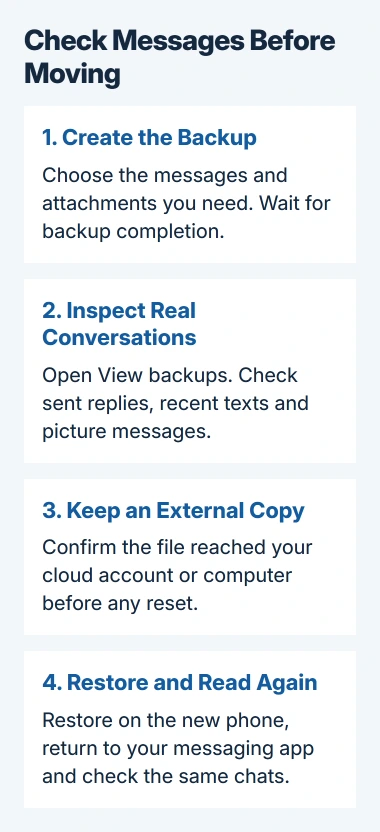
Open the app's backup setup, or use Menu > Backup when that command is available. Choose messages, then check whether you've selected all conversations or just the ones you need.
Include MMS media when the pictures or attachments inside messages matter to you. Choose call logs separately if you also want those records. Call logs list the calls; they don't contain conversation audio.
Choose where to save the backup. You can check or transfer a local file, or use a supported cloud service to keep another copy away from your phone. Select the account you want during setup.
Start the backup and let the app finish saving it. If you're uploading to the cloud, check that the upload finished too. A file saved on your phone hasn't necessarily reached your cloud account yet.
The app permission explanation covers reading messages, restoring them and reading call logs. Allow what your chosen task needs; those permissions do different jobs.
Inspect the file before trusting it
Open Menu > View backups and select the new backup from its local or cloud location. Open an important older conversation, a recent one and any picture message you need to keep.
Check your sent replies as well as received messages. Seeing a conversation's title won't tell you whether your side of the exchange is there. Compare the messages and dates with the original messaging app.
I'd do this before arranging a phone trade-in. A completed-backup message is useful, but opening a conversation answers the more practical question: did this file save the messages you care about?
The app's restore-format guidance explains which XML backups it can restore. It can't open Google's private phone backup just because that backup also lives in the same Google account.
Check the current RCS limitations
On affected Android 16 and 17 phones, only the default messaging app can access some encrypted RCS messages. A scheduled backup can miss messages you can still see in Google Messages.
Update SMS Backup & Restore, then check Menu > Settings > Backup Settings > Back up as default SMS app. For a manual backup, accept the temporary default-app change when prompted, then return to your normal messaging app afterward.
SyncTech's missing-message notice describes this option and newer fixes for conversations affected by the Android 16-to-17 upgrade. Open and check a fresh backup after using it.
A separate sent-RCS problem happens when Google Messages hasn't saved outgoing messages where backup apps can read them. Making the backup app the default won't help it save messages that aren't there.
If messages are missing from the backup you checked, keep the original phone and messages. Report it through the messaging app's help and give the backup developer your versions and the type of missing message before relying on a restore.
Keep a verified copy outside the phone
For a cloud backup, check that the XML file arrived in the right account. To keep a computer copy, transfer the file and compare its size with the size shown in the app.
Another supported route is Menu > View backups > Local, then the backup menu's Send File command. Choose a destination you control, and confirm that the file arrived and can still be selected.
The pre-reset checklist calls for checking the backup and keeping a copy elsewhere. If the only copy is on your phone, losing or resetting the phone can take that copy with it.
The backup contains your private conversations. Keep it in an account or storage location you control, rather than sending it to a public file viewer. Use the app's own viewer for the conversation checks in this guide.
Restore on the destination, then switch messaging back
Install the app on the Android phone you're restoring to and open Restore. Choose the cloud account with your file, or select the supported local backup you copied to that phone.
Check the backup's date and selected content before confirming. Follow the restore prompts and let the app temporarily become your default SMS app when asked. Android needs this change to let the app put messages back on your phone.
When restoration finishes, open your usual messaging app and make it the default again when prompted. Then read the same sample conversations and check their attachments and sent replies, just as you did in the backup.
The app normally adds restored messages to the ones already on your phone and checks for duplicates. Leave Disable duplicate check off unless support has asked you to change it for a particular case.
If messages were already deleted without a usable backup, use the Android text-recovery checks. A backup you create now can't bring back messages that were already deleted.
If a restore stops with an error, keep the XML file, restart the phone and check available storage and app permissions. If it keeps failing, use the app's Help and feedback controls to send its logs to the developer.
The Short Version
Inspect the message backup and keep an external copy. Keep the original phone until you've checked its RCS messages. Restore the XML file, return to your messaging app and read the restored conversations.
Checked November 5, 2026.

Isaac Smith is the founder and editor of PC Glance, a website that covers computers, laptops, and technology. He is a tech enthusiast and a computer geek who loves to share his insights and help his readers make smart choices when buying tech gadgets or laptops. He is always curious and updated about the latest tech trends.