PowerPoint's access privileges error can come from an Excel add-in, even in a writable folder. If saving broke after an embedded worksheet edit, check Excel's COM add-ins before changing Windows permissions.
The same message can mean a file really is inaccessible. If the file won't open, check access to it. If saving fails after a table edit, check the worksheet. Keep unsaved slides open while following the matching route.
In this guide
1. Match the error to the action that triggered it
Think about what happened just before the message. For the embedded-worksheet fault, the presentation is already open: double-click an Excel table, change its contents, click another slide, then try to save the deck.
Microsoft's PowerPivot error article describes that sequence in Office 2010 with the SQL Server 2012 PowerPivot add-in.
An owner also fixed the error without SQL Server installed. They turned off two Excel COM add-ins, Microsoft Data Explorer Preview for Excel and WebEx Productivity Tools. They hadn't checked which of the two caused it.
A COM add-in adds features to a desktop Office app. It can affect PowerPoint because the worksheet inside your slide opens through Excel, even though you're saving a presentation.
If the error appeared before a file opened, skip to the access check in section 4. If your presentation is open and the latest changes aren't saved, try saving a separate copy before restarting either app.
2. Keep the presentation open and try another copy
Choose File > Save As, give the presentation a different name, and select a local folder you can use. Keep the presentation's format. If it contains macros, choose a macro-enabled format so you keep that code.
If saving succeeds, check the copy's slides and worksheet before closing the original. Work from that copy while resolving the original error. A successful local save also shows that PowerPoint can save presentations.
If it still fails, don't keep overwriting the same destination. Our PowerPoint save-error recovery steps cover preserving slide content while the original session remains open.
One owner could save the affected deck as the older PowerPoint 97-2003 Presentation (.ppt) format. That was a way to save their work, rather than fixing the add-in. Newer presentation features can change in that format.
I'd keep a separate name for any such recovery copy and check its appearance before sending it. Saving the file is only part of recovery; the copy also needs to preserve the effects your slides depend on.
If changing the destination makes no difference and the failure follows a worksheet edit, continue with Excel's add-ins. The wording about access privileges doesn't require changing ownership of the entire folder.
3. Disable the relevant add-in inside Excel
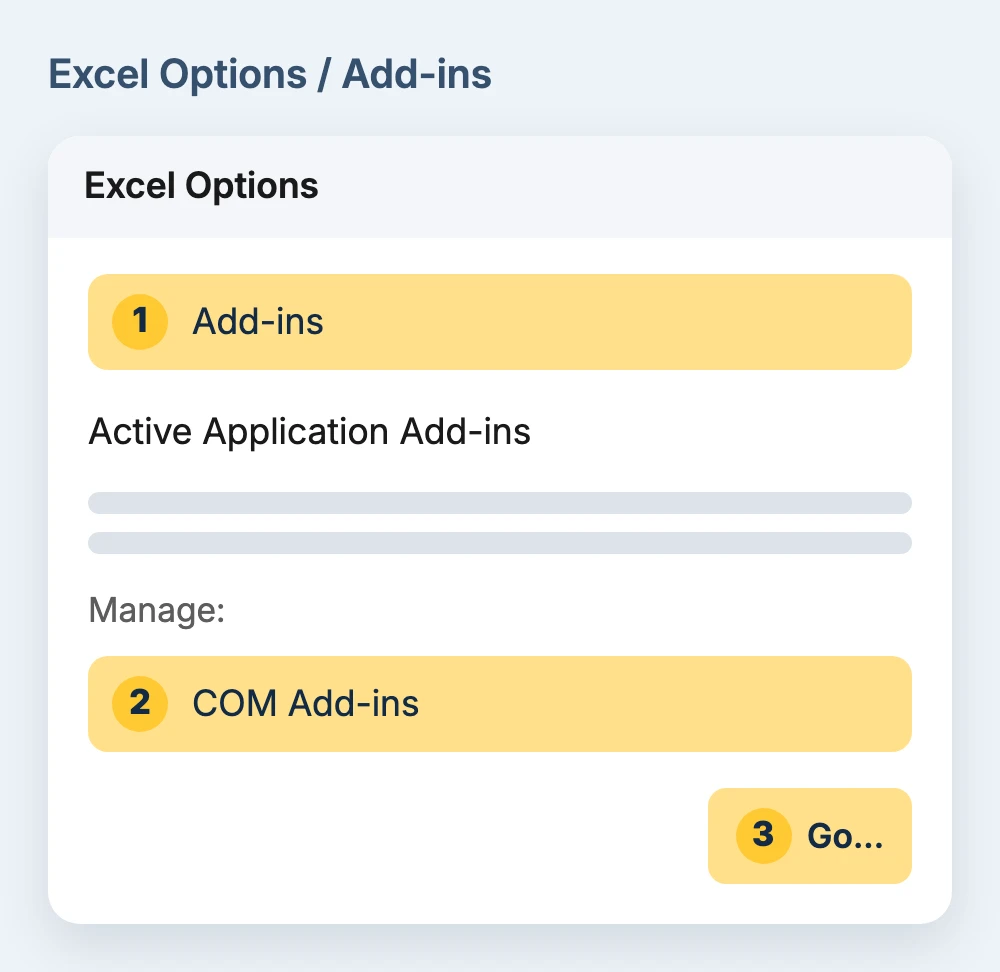
Open desktop Excel, then choose File > Options > Add-ins. At the bottom, change Manage to COM Add-ins and choose Go. This is Excel's options window, rather than PowerPoint's own add-in list.
Record the checkbox selections before you change them. In the affected Office 2010 setup, clear the PowerPivot entry if listed, then choose OK. Disabling PowerPivot is the documented workaround.
If PowerPivot isn't installed, check for the two components named in the successful owner report. Clear the relevant checkboxes to turn them off. Use the checkboxes rather than Remove, which is a different action.
Return to the deck and retry saving under a new name after finishing the worksheet edit. If that works, the change has resolved this save failure. Check the saved table's data as well as the slide's appearance.
When several add-ins were disabled together, turn them back on individually and repeat the same edit-and-save sequence on a test copy. If turning one back on brings the error back, check with its maker for an update or help.
This test applies to desktop Windows. Neither the browser version nor the Mac version offers Windows COM add-ins. You won't find that setting in those versions.
4. Check access when the presentation won't open
For a file-opening failure, check that its storage is available. Reconnect a disconnected external drive or company share first. For a presentation received through a sharing link, use the account granted access.
Ask the folder owner to check your read and write permissions. Opening a document in another folder doesn't check those permissions. A network administrator should handle any required changes on a company share.
For a file already on your computer, open File Explorer, right-click the file, then select Properties. Check whether it is marked Read-only. Change that only when you own the file and it is intended to be editable.
If the wording instead says PowerPoint cannot read or open the file, use the file-opening checks. A blocked downloaded presentation and the embedded-Excel save fault aren't interchangeable.
The accepted answer suggested taking ownership on Windows XP. That was advice for a possible permissions problem on that PC. It doesn't explain why a writable presentation starts failing immediately after an embedded worksheet edit.
5. Escalate the specific failure, rather than reinstalling blindly
The old PowerPivot defect was first fixed in Cumulative Update 7 for SQL Server 2012 SP1. Have IT check that historical installation if it must remain in service. Don't install SQL Server just because the error mentions access privileges.
Office 2010 passed its support deadline in 2020. Move work you're still using to a supported Office version, then check the slides and embedded data. The historical Office 2013 suggestion isn't a current upgrade recommendation.
If saving still fails, ask Microsoft 365 support or IT for help. Include the message, Office versions, file location, whether a blank deck saves, the add-in names and whether turning them off let you save after editing the worksheet.
The Short Version
An access privileges error after editing an embedded Excel sheet can be an Excel add-in fault. Preserve the open deck, disable the relevant Excel COM add-in, and retest. Check real file permissions when the presentation won't open at all.
Checked November 27, 2026.
 If you have any business, I can build it online