

You sort a date column and Excel offers A to Z instead of Oldest to Newest. Some dates hug the left edge of their cells. Switching the format to Date changes nothing.
Please do not retype them. I tested this in a hidden copy of Excel, and one pass of a wizard you already have turned every stuck date into a real one, including two that Excel had quietly read wrong.
Super User logged this question in September 2014, and it now shows 866,410 views, while Microsoft Q&A still gets it from people importing reports.
Why Excel leaves them as text
Excel reads your dates in your PC's regional order. On Microsoft Q&A, a volunteer moderator put the rule plainly: "Anything else will be treated as text".
That catches files from other countries. The Super User asker sat in the UK with US-style dates from an Exchange export, and a commenter spotted what went wrong.
Their UK copy of Excel read 04/08/2012 as 4 August, but kept 04/21/2011 as text "because there is no 21st month". So your column can hold two faults at once: text that will not sort, and dates already turned into the wrong day.
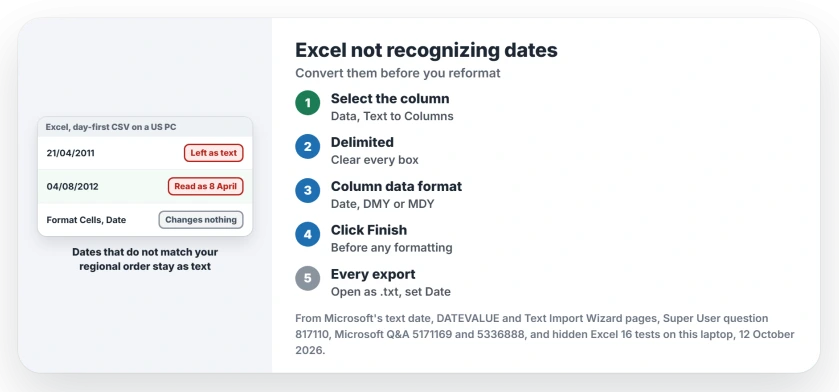
Status: tested 12 October 2026 in a hidden Excel 16 on this US-English laptop, against Microsoft's text date help and owner fixes.
Microsoft says "Dates that are formatted as text are left-aligned in a cell", and that is your quickest tell.
Its page on dates stored as text points to error checking and DATEVALUE, not Format Cells, because a format only changes how a real date looks. On text it does nothing.
Ours: this laptop reads dates month first. A CSV of day-first dates opened with three of five left as text, and Excel turned 04/08/2012 into 8 April and 05/01/2010 into 1 May, both wrong.
1. Text to Columns, with every delimiter cleared
Select your date column, go to Data and click Text to Columns, then leave Delimited chosen and click Next.
Clear every delimiter box and click Next again.
Under Column data format, pick Date, then choose the order your file was written in: DMY for day first, MDY for month first, then click Finish.
Microsoft's Text Import Wizard page describes that same control: when you choose Date, "select a date format in the Date box". The wizard rewrites your column in place, so nothing moves.
Reported working by owners. The asker confirmed it on their export with MDY. Under that answer, one owner wrote "Already the first steps worked like a charm", and a third liked that the column changed in place.
An MVP on Microsoft Q&A gave the same steps in 2024 to an asker whose report dates only changed after a click into each cell.
Ours, and it matters: run it before you touch the column's format. Straight after opening, the DMY pass fixed all five test dates. The two flipped ones came back too.
After I had set a date format first, those two stayed wrong. My reading is that the wizard works from what each cell shows, and 08 Apr 2012 no longer looks like a day-first date.
The wizard also keeps its settings for your later pastes. If pasted text then lands in several cells, our page on pasted text splitting into columns explains the reset.
Once the values are real dates, choose a consistent date-display pattern without retyping the corrected entries.
2. Find the stuck cells before you fix them
In a long column your text dates hide among real ones, so select the column and press Ctrl+G. Click Special, choose Constants and leave only Text ticked.
Excel then selects just the stuck cells. A volunteer moderator on Microsoft Q&A suggested that trick for a column where only some of your dates would filter.
Two-digit years get extra help. Microsoft's error checking puts a green triangle on them, and its menu offers Convert XX to 20XX for you.
The same Text format can trap your numbers and formulas too, and our page on formulas showing as text covers that side.
For a separate list of names, alphabetize the complete records so addresses and identifiers move with their owners.
3. When the text already matches your PC: Replace
Some of your text dates are in the right order and only stuck as text. Select the column, press Ctrl+H, put a slash in both boxes and click Replace All.
Confirmed by an owner. One said of that replace "This really worked and was easy", and a commenter explained why: Excel re-reads every cell it edits.
Ours: the replace only helps when the order matches your PC, as a month-first 08/30/2009 stored as text became a real date here. The day-first 21/04/2011 stayed text.
DATEVALUE has the same limit. Microsoft warns that "your computer's system date setting may cause the results of a DATEVALUE function to vary", and on this laptop it gave #VALUE! for 21/04/2011.
Does every new export come in wrong?
Then fix it on the way in. Excel can read them right first time. Rename a copy of your file from .csv to .txt and open it through File, Open, and Excel's Text Import Wizard starts.
On its third step, choose Date and the file's order for your date column. Ours: opened that way with DMY, all five test dates came in correct.
If the whole file instead lands in column A on opening, its separator does not match your PC. That fault has its own fixes.
The original asker ended up fixing the data at source, with a small PowerShell function that rewrote each date as year-month-day. That order sorts correctly even as text.
One limit you cannot get past. Microsoft's DATEVALUE page says the date "must represent a date between January 1, 1900 and December 31, 9999". One owner on Super User found their 1800s dates stayed text in the column as well.
Tables copied from Word bring a second problem, since line breaks inside cells turn into extra rows unless you swap them first.
Long ID numbers in the same exports can arrive as 1.24E+12, or with zeros where the last digits were. We showed how to keep every digit of a long code.
Size and part codes such as 5-6 or 12/2 go wrong the other way, as Excel turns them into dates on arrival unless those cells are Text before you type or paste.
The Short Version
- Left-aligned dates and an A to Z sort mean text, not dates.
- Run Text to Columns with no delimiter and the file's Date order.
- Do it before changing the column's format.
- Ctrl+G, Special, Constants, Text finds the stuck cells.
- Replace a slash with a slash only when the order matches your PC.
Where to Next
Which program exported your dates, and did it write the day first? Name it in the comments. I am keeping a list of the day-first exports readers meet.

Isaac Smith is the founder and editor of PC Glance, a website that covers computers, laptops, and technology. He is a tech enthusiast and a computer geek who loves to share his insights and help his readers make smart choices when buying tech gadgets or laptops. He is always curious and updated about the latest tech trends.