

Sort dates in Excel with Data > Sort Oldest to Newest, or use the reverse order for recent entries first. Click a date inside your list so the names, amounts and other details move with their original records.
If the result looks alphabetical or groups some dates separately, check those cells for text. A cell can look like a date even when Excel has saved it as text. Changing its display format won't turn that text into a date.
Choose the full list before changing its order
Save a copy of your workbook so you can discard an unwanted sort. Then look across the list: each date should belong to a complete record, such as an invoice number, customer and amount on the same row.
Click one date cell inside a continuous list. Avoid selecting just the date cells and leaving their related columns outside the selection. Sorting that smaller selection can put the right dates beside the wrong customers.
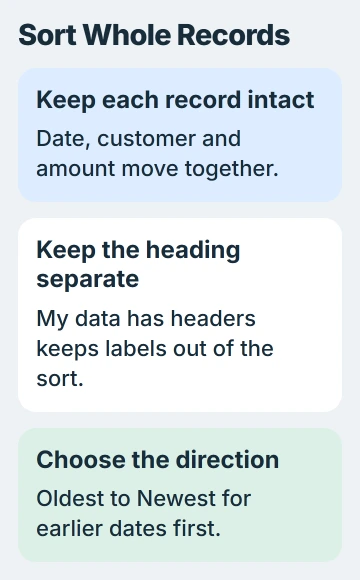
Microsoft's range and table sorting instructions explain the Expand the selection prompt. Choose it when the neighboring columns belong to the same records, then continue the sort.
If blank rows or columns split the list, check which cells are selected. Select the header and the whole block of report data before opening the Sort dialog. Leave unrelated notes and totals outside that selection.
I'd keep one recognizable invoice in view for the first check. Its date, customer and amount should still agree after the records move. That catches a wrong selection faster than checking whether the first date looks right.
Put the oldest or newest records first
With a date cell selected, open the Data tab. In Sort & Filter, choose Sort Oldest to Newest for chronological order. Choose Sort Newest to Oldest when today's entries should appear before last month's.
To review the settings before sorting, choose Data > Sort. Set Sort by to your date column, Sort On to Cell Values, and Order to the direction you need. Confirm with OK.
Enable My data has headers when the first row contains labels such as Invoice Date. That keeps the label out of the records being rearranged. Clear it when the selected range starts with an actual record instead.
Look at the earliest and latest entries after sorting, then check the recognizable record you chose. If its neighboring details no longer match, use Undo immediately and correct the range before continuing.
Excel sorts dates that include times by both the date and the time. Two entries showing the same day can still sort into a particular order, even when the cell format hides their hours and minutes.
Use the table menu, Mac controls or browser controls
An Excel table has a filter button beside each column heading. Open the button for the date column and choose the required date order. The table's other columns stay part of the records being sorted.
In Excel for Mac, select a cell in the date column and open Data. Ascending puts earlier dates first; Descending puts later ones first. The Mac sorting guide also covers its full Sort dialog.
For a Mac sort with headings, check My list has headers in that dialog. Select the date column, sort using its values and choose the date order you need from Order.
Excel for the web supports both table-header sorting and the Data tab. For an ordinary range, its Sort Ascending control orders dates from earlier to later. Sort Descending reverses that sequence.
These commands rearrange your existing list. They don't create a second report on another sheet. Keep a copy in its original order if colleagues still need it that way.
Repair text dates before trying another sort
A column imported from a CSV or another system can mix real dates with text that looks identical. Excel sorts dates and text differently, so switching between ascending and descending won't put them in the right order.
If formatting a suspect cell as Date changes nothing, follow the text-date conversion steps. Check the source's day and month order before converting a whole imported column.
The text-date guidance describes conversion rather than just changing a cell's appearance. Once the values are dates, run the sort again and compare a known entry with the original report.
For example, 04/05/2026 can mean April 5 or May 4. Sorting can't decide what the sender intended. Check a date in the source whose day and month are clear before trusting the sorted order.
When the values are correct but their appearance varies, set a consistent date format. That makes the sorted list easier to read without changing which date each record represents.
Add a second rule when dates match
Open Data > Sort and keep the date column as the first rule. Choose Add Level, then select a second column, such as Invoice Number, with its own order. Apply both rules in the same dialog.
This sorts by date first, then sorts matching dates by the second value. Putting Customer first and Date second instead creates customer groups with chronological order inside each group.
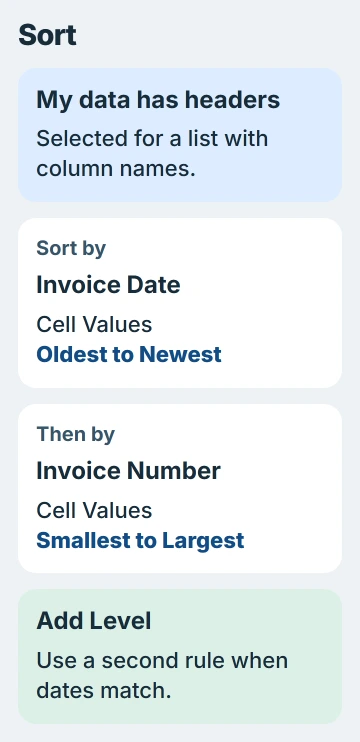
Check the rule order before confirming. Separate quick sorts on different columns can leave you with a different result from the two-level order you intended.
If dates come from formulas, changing the inputs can change those dates later. Let the formulas update, then sort again when you need the report in date order. Excel won't keep moving the rows as the dates change.
If records still end up in the wrong order, keep the original workbook and a small example for Microsoft Support. Include the selected range, header choice, sort rules and one record whose position is wrong.
The Short Version
Sort the complete records by their date column, choose the chronological direction and keep headings out of the data. Convert text dates before sorting again. Add a second level when matching dates need a predictable order.
Checked November 5, 2026.

Isaac Smith is the founder and editor of PC Glance, a website that covers computers, laptops, and technology. He is a tech enthusiast and a computer geek who loves to share his insights and help his readers make smart choices when buying tech gadgets or laptops. He is always curious and updated about the latest tech trends.