

Excel isn't a relational database manager, but it can handle a simple customer list. Consider a database when customers have several orders, copies of the same details don't match, or related records need rules a worksheet can't enforce.
The useful question is what's going wrong in your current workbook. Fix a badly arranged list first, then move the data if its relationships and editing needs have outgrown a spreadsheet.
In this guide
Start with the problem the workbook is causing
Make a copy of your workbook and look at one example of what's going wrong. Perhaps a customer has three spellings, an address needs changing in many places, or deleting a customer leaves orders that you can't match to anyone.
A slow formula or awkward filter calls for different work. A database can enforce relationships between records, but moving a confused workbook into another app won't automatically clean its contents.
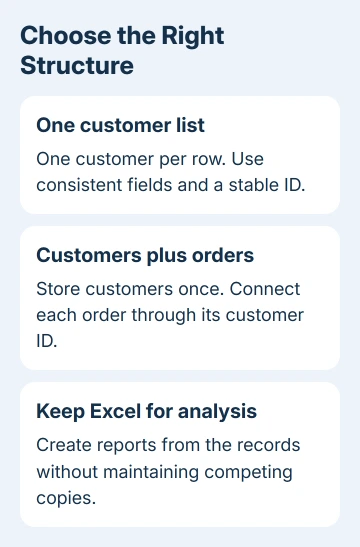
Write down the things you're storing: customers, orders, products, or payments. Then ask whether each thing needs its own record. One customer with many orders is a stronger reason to use related tables than simply having a long worksheet.
Microsoft recommends choosing according to the work: Excel suits analysis, while Access adds structure for related records.
Excel also supports coauthoring in supported setups. Several people editing doesn't automatically mean you need to replace the workbook. Think about what those editors must be prevented from changing incorrectly.
1. Make a simple list reliable before replacing it
Give every column one clear heading and every row one customer. Keep notes, totals, and decorative titles outside the records. Don't mix a customer's phone number and delivery instructions in the same field.
Add a stable customer ID so you can tell two people with the same name apart. Keep that ID when a customer changes their name or address. An ID should identify the record rather than describe something that may change.
Select the list and use Insert > Table, confirming that your selection has headers. The table's filters let you work with complete records rather than manually selecting one column at a time.
Sort the whole table when arranging customers. Sorting just a column outside a properly selected list can separate names from the details that belong to them. Check a few familiar customers after any large rearrangement.
For cleaning and navigation, the Excel sorting guide covers sorting records without treating one column as a separate list. If the information fits this simple arrangement, Excel may still be the right tool.
I'd tidy a small mailing list this way before moving it. A database is useful when it solves a specific problem, and a clean spreadsheet is easier to transfer later if you need to.
2. Add entry rules for the mistakes you keep seeing
Use Data > Data Validation on the input cells to restrict a field to suitable values. A list of approved status names, for example, is easier to filter than variations such as active, current, and customer mixed together.
Test the rule in your workbook copy with an allowed value and one it should reject. Check the error alert settings as well as the list itself. A dropdown without the intended alert behavior may not restrict entry the way you expect.
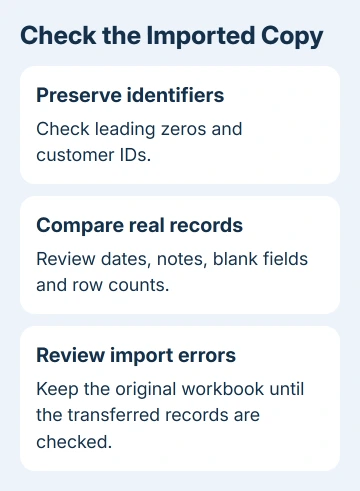
Keep postal codes, phone numbers, and other identifiers as text when leading zeros matter. These digits identify records; they aren't amounts. Treating every field that looks numeric as a number can alter the details you meant to save.
Validation helps control entries, but it doesn't turn worksheet tables into related database tables. It won't provide the same rule as requiring every order to belong to an existing customer in a separate customer table.
If your main problem is inconsistent labels, fix the existing values and test validation before migrating. If your main problem is broken links between customers and orders, continue to the table design step.
3. Separate customers from their orders
Create a small plan with a Customers table and an Orders table. Customers holds each customer's ID and details once. Orders holds each order's own ID, its customer ID, date, and other order information.
These tables are related: records connect through IDs instead of repeating the customer's full details for every purchase. You can then update a contact number in one place, rather than correcting several copies that don't match.
Keep information that describes a particular transaction with that transaction. For example, an old order's delivery address may need to remain as it was when that order shipped, even after the customer's current address changes.
In Access, a primary key identifies each record. A relationship can connect the customer ID in Orders to the customer ID in Customers. Referential integrity is a rule that can stop an order referring to a customer who doesn't exist.
Plan what should happen when a customer is removed before enabling deletion rules. Your work may require keeping old orders linked to that customer. Decide which records to keep before letting the database delete them automatically.
4. Move a copy into Access and check the import
Access is a Windows desktop app and is included in certain Microsoft 365 plans, not every plan. The Mac and browser editions of Excel don't provide an Access app. Check whether your plan includes Access before moving the list you work from.
Save an untouched workbook copy. In Access, create a blank database, then use External Data > New Data Source > From File > Excel on current desktop versions. Select the workbook and choose to import a copy into a new table.
Older Access versions may show Excel directly on External Data. In the import wizard, choose the worksheet, confirm its headings, and review field types. Don't accept a numeric type for an ID that must keep leading zeros.
Choose a suitable primary key or let Access add one, depending on the table you're importing. Importing is only the transfer step. Check the resulting records before setting up relationships or using the new file for your daily work.
Compare row counts, sample IDs, dates, empty fields, and long notes with the original. Review any import error table. The Excel date checks help when a column contains text that only looks like dates.
Microsoft's Excel-to-Access migration instructions cover preparing fields and organizing the imported tables. Test with a small copy before transferring all the records you work with.
Keep reporting separate from the place records are edited
Excel can remain your reporting tool after the records move. Choose one place for entering and correcting customer data, then bring data into Excel for calculations, PivotTables, or charts as needed.
For a shared business system, ask the person maintaining it to check permissions, backups, simultaneous editing, and how changes reach reports. A workbook or an Access file doesn't work the same way as a database managed on a server.
If the design still isn't clear, ask an Access specialist to review the customer/order relationship and import errors before moving live work. Bring the clean sample workbook and the examples of mistakes the new system must prevent.
The Short Version
Keep Excel for a clean single list and analysis. Use a database when related records need stronger rules. Clean the workbook, design the tables, import a copy, and verify the records before changing where the real work happens.
Checked November 16, 2026.
 If you have any business, I can build it online






