

You copy a few words, paste them into one Excel cell, and they spread across two or three columns, cut at every space or comma. Yesterday the same paste stayed in one cell.
Good news: your file is fine. I made Excel do it on purpose here. The cause is a choice it carries over from an earlier Text to Columns split.
Posted on Super User in October 2014, the question has 352,686 views, and an older copy from 2012 adds 130,505 more.
What Excel carries over
Text to Columns splits a cell on characters you pick. Microsoft says to "Select the Delimiters for your data" in its steps for the wizard, such as Comma and Space.
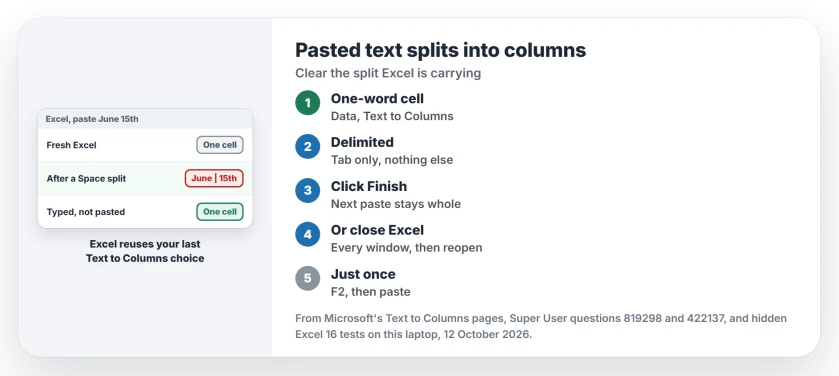
That choice outlives the split. Excel keeps it and applies it to text you paste later, in any open workbook, until Excel closes.
Status: Microsoft's Text to Columns pages, a hidden test copy of Excel 16 on this laptop and owners from 2012 to 2023, all compared on 12 October 2026.
Ours: a hidden copy of Excel on this laptop pasted June 15th into one cell. One split on Space changed that. The same paste then landed as June in one cell and 15th in the next.
It did the same in a second workbook. Typing June 15th into a cell never split it, so only your pastes pick the setting up.
Owners spotted this years ago. One commenter wrote that "the last text-to-columns operation is used for all future pasting". Another added "It's used for all future pasting in any workbook".
1. Run Text to Columns once more, with Tab only
Click a cell that holds a single word, so nothing you can see changes, then go to Data, Text to Columns, pick Delimited and click Next.
Tick Tab. Clear Space, Comma, Semicolon and Other, and clear Treat consecutive delimiters as one. Click Finish.
Ours: that reset worked in the test, and the next paste of June 15th stayed in one cell. A commenter noted that "TAB is default as far as I know", which fits what a fresh Excel did here.
Reported working by owners. The 2012 asker fixed it by clearing Space and clicking Finish. A 2015 answer runs the same steps but ends on Cancel, and a reader replied "This is correct and works".
2. Or close every Excel window
The setting lasts as long as Excel runs. Ours: when the test copy closed cleanly and a new one opened, June 15th pasted into one cell again.
Every window counts. Workbooks you open from File Explorer usually share one running Excel, so the split stays until the last workbook closes. I would check the taskbar for a forgotten one first.
A forgotten workbook still in Protected View matters too, since owners found it can make Excel freeze when you copy.
3. Paste inside the cell when you need it once
Double-click the cell or press F2 first, then paste. The accepted answer's point is that "there is no way for your paste to spread to another cell" in that mode.
The status bar at the bottom left then reads Edit, the same strip that explains arrow keys that scroll the sheet. The formula bar works the same way.
There is a limit. Paste several lines like this and they all end up inside that one cell, as a commenter found. For a block of rows, reset the split first.
Copying out of Excel has its own oddity: a cell holding a line break lands in other programs inside quote marks. The cause, and the fixes owners confirmed.
Word tables cause the reverse problem, where a cell with two lines lands in Excel as two rows, and that one needs a swap before the paste.
When you do want the split
Use the wizard on purpose, then reset it to Tab before your next paste, so your columns stay as you want them and the next paste behaves.
For an intentional conversion, compare the wizard with formula-based separation and choose an empty output area first.
The wizard has one more job. Run it on a column with only Tab ticked and click Finish, and numbers stored as text become real numbers that VLOOKUP can match.
If Space is still ticked from an earlier split, that same Finish cuts your column apart.
Pasted account or card numbers turning into E+ is a separate habit, with a hard limit at 15 digits. Our page on long numbers in Excel covers what can still be saved.
The Short Version
- Excel reuses your last Text to Columns choice on every paste.
- Run Text to Columns on a one-word cell with only Tab ticked.
- Or close every Excel window and open it again.
- Press F2, then paste, to keep text in one cell.
Where to Next
Which split started it for you, a space or a comma? Tell me in the comments, along with the Excel version you use.

Isaac Smith is the founder and editor of PC Glance, a website that covers computers, laptops, and technology. He is a tech enthusiast and a computer geek who loves to share his insights and help his readers make smart choices when buying tech gadgets or laptops. He is always curious and updated about the latest tech trends.