

You paste an account number, a barcode or a card number into Excel and get 1.24E+12. Or the last few digits turn into zeros.
I would first decide which of these two you are looking at on your own sheet. One is only how Excel shows it, and the other cannot be undone.
Super User's April 2012 question on long numbers has 562,155 views, and a July 2012 one on turning scientific notation off has 862,586.
A Q&A thread asking where Excel's conversion settings went is marked 70+ by readers with the same problem.
E+ on screen, or digits gone for good
E+ alone is display. Your number is still stored, and Microsoft's note on scientific format explains why it looks shortened: "the General format does use exponential notation for large numbers (12 or more digits)".
Lost digits are worse. Microsoft's page on keeping leading zeros and large numbers says Excel has "a maximum precision of 15 significant digits". Past that, "any numbers past the 15th digit are rounded down to zero".
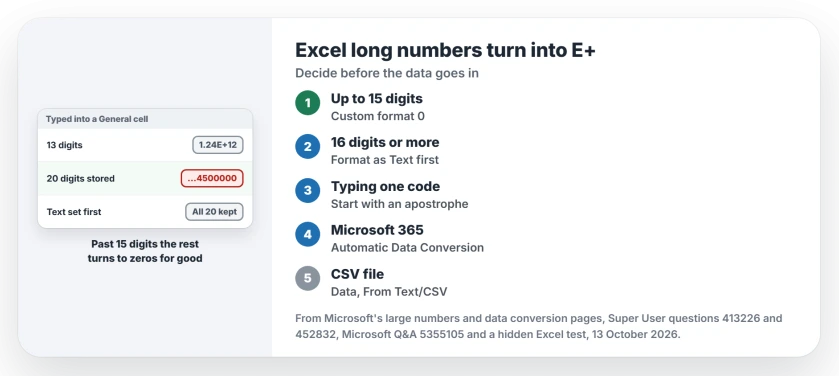
Status: on 13 October 2026, Excel 16.0 build 20430 showed every number of 12 digits or more as E+ in General format, at any width. Digits past the 15th were gone.
Ours: I typed six numbers into Excel, running hidden on this laptop. In a column of the default width, even 11 digits showed as 1.23E+10.
Widened to 30 characters, the 11-digit number finally showed in full, all eleven digits. Every number of 12 digits or more stayed in E+, however wide the column became. Your column width will not save those.
If this appeared after clearing Excel cell or table formats, check whether the number format changed before treating the stored digits as lost.
The stored values told the rest. A typed 16-digit number came back as 1234567890123450, and a 20-digit one became 12345678901234500000.
1. Up to 15 digits: change the format
Select your cells and press Ctrl+1. Choose Custom and type 0 in the Type box. Number with no decimal places does the same.
Confirmed by a commenter on the 562,155 thread, about the custom 0 answer: "I had a CSV file which had this problem, and the custom formatting solution worked perfectly."
Ours: format 0 showed 1240800388917 and 123456789012345 in full. The 16-digit and 20-digit cells ended in zeros, because those digits were already gone.
Do not expect the Text format to rescue your cells after the numbers are already in. Switching them to Text left every one in E+, still a number. Only F2 and then Enter in each cell turned it into text.
An answer there explained the timing: "This occurs at point of entry, so once it's in, any additional detail is lost". For codes over 15 digits, you have to act before the paste.
2. 16 digits or more: make it text first
Card numbers, IMEIs and long product codes need to arrive as text. You have three ways to do that.
Format the column as Text, then paste
Select the empty column before anything goes into it, press Ctrl+1 and choose Text. Microsoft warns that Text "will not change numbers that have already been entered".
Before an Excel-to-Word letter merge, also check postal-code columns for lost leading zeros so the finished addresses retain those digits.
Ours: with Text set first, all 20 digits of 12345678901234567890 stayed. Excel stored them as text.
Reported by an owner in 2012: "if you format the column first, and then paste in the data, it will show the large numbers correctly."
Type an apostrophe in front
Start the entry with a single apostrophe. Excel keeps your digits as text. The apostrophe stays hidden in the cell. Ours: '12345678901234567890 showed all 20 digits.
Switch off the conversion
Excel for Microsoft 365 and Excel 2024 have a setting that stops this conversion at the source. Go to File, Options, Data and find the section called Automatic Data Conversion. On a Mac it sits under Excel, Preferences, Edit.
Microsoft says turning off the 15-digit option "will store numerical data with 16 or more digits as text and retain all digits". It covers your typing, pastes from other programs and CSV files you open.
One limit is easy to miss. A Q&A asker tested it in August 2024: "This setting doesn't make sense because Excel starts converting numbers to scientific notation starting at 12 digits". So 12 to 15 digits still need format 0.
A Mac owner in March 2025 still saw E+ in a column set to Text. They accepted one answer: clear the Keep first 15 digits box in that panel.
Is your panel missing? Check the build. One poster on that 70+ thread was on version 2308 of the Semi-Annual Enterprise channel. Another found the setting back once their organization moved to Microsoft 365: "The issues have been resolved."
That panel also stops Excel turning text like JAN1 into a date. For dates that arrive as text instead, we covered the Text to Columns pass that fixes them.
Opening a CSV? Import it instead
Double-clicking a CSV file runs every one of those conversions while the file opens. Ours: a CSV holding 1240800388917, a 25-digit code and 00123 opened as 1.24E+12, 5.73416502212208E+24 and 123.
One Super User answer was blunt about it: "be sure to import the file, not just open it". Microsoft's route is Data, From Text/CSV. Open the editor, select your code column and set its data type to Text.
For a report supplied as a PDF, preview the table in Excel's PDF importer and check its code-column types before loading it.
If your pasted codes also land split across several columns, that is a separate Excel habit. We showed why Excel keeps splitting pasted text and how to reset it.
The opposite trouble, a CSV that opens with every line crammed into one column, comes down to the separator Excel expects from your PC.
Saving back to CSV writes what you see
Ours, and it surprised me. Resaving that CSV wrote 1.2408E+12 into the file. Widening the column first changed nothing. With format 0 on the column, the saved file held all of 1240800388917 again.
A Q&A reply said the same: "the numbers are written to the file exactly as they appeared in Excel". So set format 0, or keep your codes as text, before you save the file again.
A code over 15 digits that came in as a number stays lost either way.
When arranging the recovered fields, insert a cut column at its destination so existing columns shift instead of being overwritten.
For numeric measurements rather than account identifiers, chart the checked Excel range with its category labels and units.
The Short Version
- E+ on a number up to 15 digits: Ctrl+1, Custom, 0.
- 16 digits or more: format the column as Text, or type an apostrophe, before the data goes in.
- Microsoft 365 or Excel 2024: File, Options, Data, Automatic Data Conversion.
- CSV files: Data, From Text/CSV, set the column to Text.
- Before saving a CSV, apply format 0 so the file keeps every digit.
Where to Next
What kind of number was Excel mangling for you? Describe it in a comment, without the real digits, and I can run it through the same tests.

Isaac Smith is the founder and editor of PC Glance, a website that covers computers, laptops, and technology. He is a tech enthusiast and a computer geek who loves to share his insights and help his readers make smart choices when buying tech gadgets or laptops. He is always curious and updated about the latest tech trends.