

You double-click a CSV file and Excel crams each whole line into column A, commas or semicolons and all. The same file looks fine in Google Sheets, or on the old PC that opened it before.
I would find out which character the file really uses before touching any setting. Excel splits a double-clicked CSV on one character only, and it picks that character from your PC, not from the file.
Microsoft Q&A's July 2021 question about it is marked 100+, and Super User's January 2011 copy has 427,773 views.
Excel splits on your PC's separator, not the file's
In 2013 a Super User answer spelled out the rule: "By default Excel will assume every CSV was saved with that separator". It means the list separator in your Windows region settings. Excel never asks.
On a US PC it is a comma. In Germany and much of Europe it is a semicolon, because the comma is already the decimal mark there. Your file may come from either side.
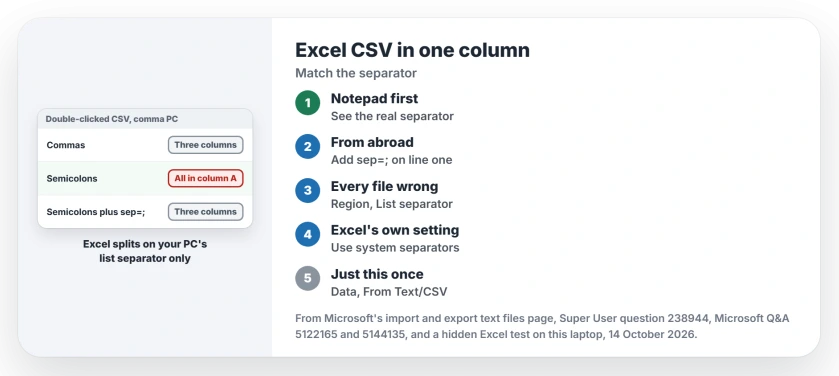
Status: tested 14 October 2026 in Excel for Microsoft 365. A double-clicked CSV still splits on your PC's list separator only; sep= and Import still override it.
Ours: on this laptop, as on most US PCs, the list separator is a comma. A comma file opened in three columns. A semicolon file put each whole line in column A, and its decimal commas pushed a stray 50 into column B.
1. Open the file in Notepad first
Right-click your CSV, choose Open with, then Notepad. Look at the first two lines. Semicolons, tabs or pipes each change the fix.
A tab-separated file named .csv is a trap for you too. The accepted Super User answer suggested tabs. Ours stayed in one column when double-clicked.
2. A file from another country: add a sep= line
Add a new first line to your file that names its separator, such as sep=; for semicolons. Save it in Notepad, then double-click it again.
The answer that suggested it called it an undocumented trick and added that the line "will not become part of the spreadsheet in EXCEL". Ours: a semicolon file with that line opened in three clean columns, and the sep line did not show.
For a file you only need once, swapping the separator works too. The 2022 asker on Q&A changed their semicolons to commas, "and now Excel opens the file, without starting the wizard".
3. Every CSV opens wrong? Check two settings
Start with Windows. Open Control Panel, Region, then Additional settings, and read the List separator box on the Numbers tab.
Microsoft warns that after a change, "all programs use the new character as a list separator". Change it back if other apps object.
Then check Excel itself. A person in South Africa on Q&A had changed their language settings and still got one column. Excel has its own number settings under File, Options, Advanced.
Microsoft's page on importing and exporting text files explains why that matters. A comma as Excel's decimal separator "forces Excel to use a semi-colon for the list separator".
So look there. If Use system separators is cleared and the decimal box says a comma, your comma files land in one column.
I would tick Use system separators again unless you set it on purpose. A Q&A user on Excel version 2603 had already checked the region box, and this is the setting their thread never reached.
Need it right this once? Import it
Open a blank workbook and go to Data, From Text/CSV. Microsoft says to "choose a character to use from the list under Delimiter", and the preview updates as you pick.
Renaming the file to .txt brings back the old wizard instead. Open the renamed file from File, Open in Excel.
Microsoft documents it: "If the file is a text file (.txt), Excel starts the Import Text Wizard". An owner on Super User used exactly that route.
Importing also keeps long codes and dates safe. We covered long codes that come out as E+ and dates stuck as text after an import.
Codes like 5-6 or 12/2 suffer on a double-click too, because Excel reads them as dates; give those columns the Text type during the import.
If the source is Numbers and workbook formatting matters, export Numbers directly to Excel instead of trying to restore that formatting from CSV.
The Short Version
- Excel splits a double-clicked CSV on your PC's list separator only.
- Open the file in Notepad to see which character it really uses.
- A semicolon file: add sep=; as the first line, or import it.
- Check Region's List separator, then Excel's Use system separators under File, Options, Advanced.
- A tab-separated file named .csv stays in one column; rename it .txt or import it.
Where to Next
Bank, shop platform or a colleague abroad: which export landed in one column for you? Drop the separator Notepad showed you in a comment. I keep a tally of the exports that break this way.

Isaac Smith is the founder and editor of PC Glance, a website that covers computers, laptops, and technology. He is a tech enthusiast and a computer geek who loves to share his insights and help his readers make smart choices when buying tech gadgets or laptops. He is always curious and updated about the latest tech trends.