

Today's Excel for the web opens CSV files by converting them to editable Excel workbooks. Upload the file to OneDrive, open it with Excel, and check the converted worksheet before changing the data.
The older Excel Web App couldn't do this directly. A school or company still using an older on-premises Office Web Apps system needs an XLSX copy instead. That explains conflicting old and current instructions.
In this guide
Upload the CSV to the right OneDrive account
Keep an unedited copy of the CSV on your computer before opening it in a spreadsheet. A spreadsheet can read dates, account numbers and IDs differently from the program that exported them. You'll need the original to check those values.
Sign in to your chosen OneDrive account. For work data, use the approved work account and folder. A personal OneDrive and a company's SharePoint library don't necessarily have the same access rules.
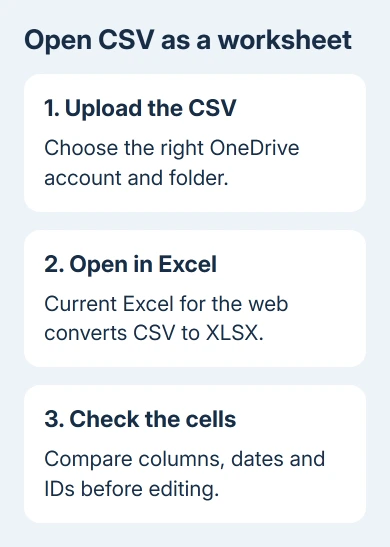
Open the destination folder and choose Upload, then select the CSV and click Open in the file picker. Some OneDrive layouts group this under Add new > Files upload. Wait until the file appears in the folder list.
Another route is to drag the local file onto OneDrive's folder page. Uploading stores the file online. Next, open it in Excel to work with the converted copy.
Select the uploaded CSV. If a preview opens instead of the worksheet editor, use its Open menu and choose the command to open it in Excel in your browser. The wording depends on your account's layout.
Look for the familiar grid with row numbers, column letters and worksheet cells. A plain-text preview containing commas is still a preview of the source file. Continue into Excel rather than trying to edit the preview pane.
If the command launches desktop Excel, return to the file's browser menu and choose the web option. This matters on a Chromebook or another computer where the desktop application isn't installed.
Check the converted workbook before editing
Microsoft's browser and desktop comparison lists support for opening CSV in the browser, with conversion to XLSX. You'll be editing a workbook copy rather than changing the original CSV as plain text.
Check the filename and its location once the workbook opens. Use a clear name so the original export and the edited workbook are easy to distinguish. If it opens read-only, check your account's editing permissions.
Compare the first few records with the CSV, then inspect a record near the end. Each field should occupy the correct column, and a description containing a comma should stay inside its intended cell.
Pay particular attention to phone numbers, customer IDs, postal codes and long reference numbers. Zeros at the start can be part of the ID. Check a known example before editing the sheet.
Also check a date whose order is clear, then one whose month and day could be reversed. A value such as 03/04/2026 needs context from the exporting system. A neat-looking date column can still be interpreted in the wrong order.
When the values look right, make your edits in the workbook. Wait for the save indicator to finish before closing the tab, then reopen the workbook from OneDrive and check a changed cell.
That final check confirms you're returning to the edited copy. Opening the original CSV again can otherwise make it look as though your worksheet changes disappeared.
Repair a file that opens as one column or changes IDs
If every record appears in column A, the file's separator hasn't been read as intended. A CSV can use semicolons or another separator even though its name ends in .csv. Don't manually move hundreds of cells to compensate.
Use the CSV separator checks for that specific symptom. The important result is a row split into its proper fields, rather than the entire line sitting in one cell.
For a file that changes identifiers, use desktop Excel's import controls before uploading an XLSX copy. On current Windows Excel, choose Data > From Text/CSV, select the source, and inspect the preview.
Choose the correct Delimiter. Select Transform Data if identifier columns need to be read as Text, then check any automatic type-conversion step before loading the table. Save the result as an Excel workbook.
I'd import an export with important reference numbers this way before doing any online editing. Restoring a cell's display format after its digits changed won't recover the original value.
The CSV-to-workbook guide covers saving that XLSX copy. Upload the workbook afterward and open it in Excel for the web, with the data already imported the way you need it.
Use XLSX for an older Excel Web App installation
An older on-premises Office Web Apps system is different from the current cloud service. The old CSV restriction isn't fixed by changing the file's name or uploading it elsewhere within that library.
Open the original CSV in desktop Excel, check its data, then use File > Save As and select Excel Workbook (.xlsx). Upload that workbook to the library and choose its browser editing command.
Changing report.csv to report.xlsx in a file manager doesn't convert the contents. Excel's Save As operation creates the workbook structure the older web application expects.
When no desktop Excel is available, ask the person supplying the export for an XLSX workbook. That lets you use the older server without repeatedly uploading a format it can't edit.
If a current account still refuses a small, ordinary CSV, send your Microsoft 365 administrator the error message, the account type and a harmless sample. Ask about browser-opening and file-type restrictions in that library.
Keep working in XLSX when you need extra worksheets or formatting. If another system needs a CSV, export a separate copy and check its required columns. The workbook remains your editable working copy.
The Short Version
Use OneDrive to upload the CSV, then select Excel's browser opening command. Check the converted workbook's columns, dates and IDs before editing. Older Office Web Apps installations need a real XLSX conversion first.
Checked November 17, 2026.
 If you have any business, I can build it online






