
The #VALUE! error in Excel often means a formula received text, spaces or another input it cannot use. Select the failing formula and inspect the cells it references. Correct the input before replacing the error with a zero or blank.
An amount that looks numeric can still be stored as text. A cell that looks empty can contain a space. Those cases require different corrections from a misspelled function or a reference to the wrong range.
Check the cells used by the failing formula
Select the error cell and read its formula in the formula bar. Check the referenced addresses against the intended inputs. On desktop Excel for Windows, Formulas > Evaluate Formula > Evaluate can step through the calculation.
Microsoft documents that tool in its #VALUE! troubleshooting page. It can expose a space that is invisible in the grid. Look for the first input that stops the calculation.
Status: Excel #VALUE! causes, text-number conversion and SUM limits reviewed October 28, 2026, using Microsoft support pages. Formula examples were not run in a workbook.
For example, =A2+B2 can fail when B2 contains a word or space. Inspect B2's formula-bar contents before deleting anything. A formula returning text is different from a genuinely unused input cell.
If the formula itself is visible in the grid, use the formula display checks. That symptom needs attention before the expression can calculate normally.
Convert an amount that was stored as text
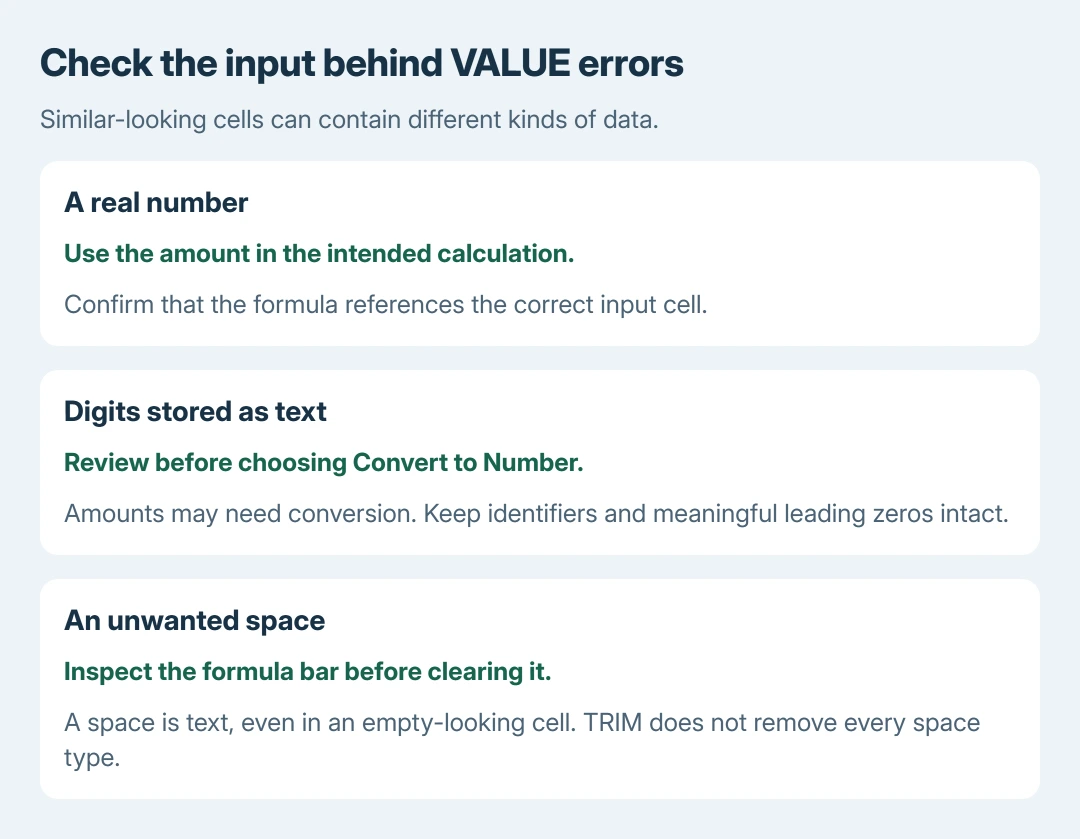
In a spare cell, enter =ISTEXT(B2) to check the suspected input. TRUE means the result in B2 is text. The test identifies its type; it does not decide whether that text should become a number.
For an amount that should be numeric, select the affected cells. When Excel shows its error indicator, open it and choose Convert to Number. Microsoft says this converts the stored values in its text-number instructions.
Without that indicator, a helper cell can use =VALUE(B2) when B2 contains numeric text Excel recognizes. Inspect the result before replacing any originals. Merely applying a Number format is not the same as converting stored text.
Do not convert account codes or identifiers just because they contain digits. Leading zeros may belong to the identifier. Correct amounts separately from labels, and recheck the original formula after the intended values are numeric.
Remove unwanted spaces without rewriting the whole sheet
Inspect a suspect cell through the formula bar. If it should be empty but contains only an accidental space, clear that input after preserving a copy. Do not clear formulas just because their results look empty.
For unwanted padding around text, a helper such as =TRIM(B2) lets you inspect the cleaned result. Microsoft states in its TRIM documentation that it only removes ordinary spaces; a nonbreaking space can remain.
TRIM can also reduce repeated spaces inside text. Review the changed content before copying it over the source. A sheet-wide space replacement can damage names and other legitimate text.
Date inputs need their own check. If the failure involves date arithmetic or conversion, use the Excel text-date instructions to compare the stored value and the expected date order.
Keep a real calculation failure visible
SUM can ignore text in referenced cells, while ordinary arithmetic can reject it. That does not make SUM a safe replacement for every failing addition. An ignored required amount can produce a plausible but incomplete total.
Microsoft's SUM examples distinguish literal arguments from cell references. Its SUM error guidance also says an error inside a referenced cell can propagate into the result.
Use the calculation the workbook needs, then check every required input. Leaving a required amount as text that the function ignores changes the meaning of the total.
Likewise, IFERROR can conceal #VALUE! without repairing its cause. Keep the error visible while correcting the workbook. Add a fallback only when the workbook owner has decided what an unavailable result should mean.
If the error remains, send Microsoft Support or the workbook's creator a small example without private data. Include the formula and Excel version.
For an external data connection, ask its owner whether the source is available before replacing linked formulas with fixed values.
The Short Version
Check the formula's references, then inspect text amounts and hidden spaces. Convert only values that should be numbers. Preserve meaningful labels and error messages until the calculation works with the intended inputs.

Isaac Smith is the founder and editor of PC Glance, a website that covers computers, laptops, and technology. He is a tech enthusiast and a computer geek who loves to share his insights and help his readers make smart choices when buying tech gadgets or laptops. He is always curious and updated about the latest tech trends.