
Excel can ignore the green warning triangles for selected cells without changing your data. Select the affected range, open its error alert and choose Ignore Error after checking what the warning means.
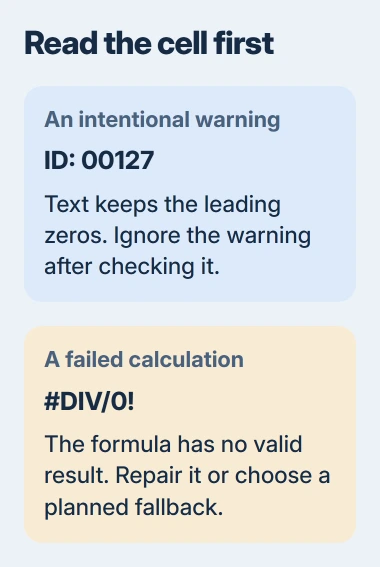
That clears the warning triangle. A cell displaying #DIV/0! or #VALUE! still needs its formula fixed or a replacement result you've chosen. Turning off warnings won't make the calculation work.
Read the warning before dismissing the range
Click one flagged cell and open the error button beside it. Read the first item, which describes the problem. A number stored as text calls for a different choice from a formula that differs from its neighbors.
An employee ID such as 00127 may need to stay as text to keep its leading zeros. An amount imported as text may need to be converted before Excel can use it in calculations. The triangle alone doesn't tell you which choice is right.
Check the formula bar and a few neighboring rows. For a formula warning, check that it uses the cells you intended. A subtotal at the end of a list can reasonably differ from the ordinary rows.
I'd dismiss a warning for a difference I've checked before turning checking off across Excel. That keeps warnings available for mistakes elsewhere. If the cell's result is wrong, correct it before deciding which warnings to show.
Microsoft's inconsistent-formula instructions describe Ignore Error for an intentional or acceptable difference, including selecting several cells at once.
Ignore warnings for the selected cells
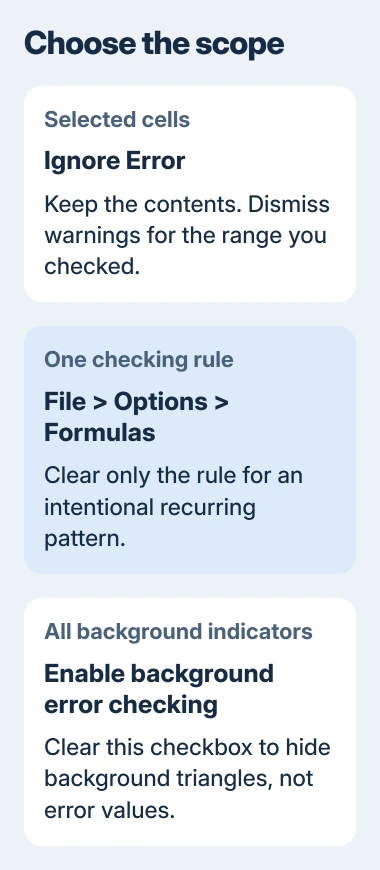
In desktop Excel, select the range containing the warnings you want to dismiss. Include a flagged cell in the selection, open the error button and choose Ignore Error. Check that the triangles in your selection disappear.
For a longer list, use the range rather than clicking each warning separately. Keep the selection within the column or group you've actually checked. Selecting the entire workbook isn't needed to quiet one imported ID column.
The text, number or formula remains in place. For example, an ID stored as text stays text. Ignore Error doesn't convert it, repair a reference or replace the displayed result with zero.
If you can't find the alert button, click a cell that still has a triangle. A cell without a current warning won't offer that warning's menu. If the workbook is open in your browser, switch to the desktop app for these controls.
For calculations failing because amounts were imported as text, use the Excel text and formula-input checks instead. Dismissing the warnings leaves those amounts unchanged.
Turn off one recurring checking rule
On Windows, choose File > Options > Formulas. Under Error checking rules, find the rule causing the warnings. Clear only that rule, then select OK.
For example, a workbook full of IDs you need to keep as text may keep triggering the rule for numbers formatted as text. Turning off that rule hides those indicators while leaving the other checked rules on.
This changes more than choosing Ignore Error on one range. The rule controls how Excel checks cells; it doesn't repair them. Think about whether you need that warning in other workbooks before switching it off.
On a Mac, open Excel > Preferences > Error Checking and find the rule there. The Windows File > Options dialog isn't part of the Mac interface.
If the alert describes a different problem, return to the cell and read it again. Turning off the text-number rule won't remove a warning about an inconsistent formula, because they're separate checks.
Disable background indicators only when that's the goal
To turn off all background warning triangles on Windows, open File > Options > Formulas and clear Enable background error checking. Select OK. The worksheet stops showing those triangles.
The error-indicator settings control warnings separately from error values. A visible #REF! or #DIV/0! result can remain after background checking is disabled.
A sheet without warning triangles can still contain a broken formula. Check the results and totals before sharing a report with someone who will rely on the numbers.
To bring background warnings back, select the same checkbox again. If warnings you dismissed individually still don't appear, reset the ignored errors as described in the next section.
Restore warnings that were ignored earlier
Open File > Options > Formulas, then choose Reset Ignored Errors in the Error Checking section and select OK. On Mac, use Excel > Preferences > Error Checking for this control.
This resets ignored errors on every sheet in the workbook you're using, beyond the selected range. Leave background checking on if you want the indicators to appear as you work.
To check the warnings one at a time, choose Formulas > Formula Auditing > Error Checking. Read each issue and use Next to move through the worksheet, rather than dismissing every alert together.
The formula-checking reference explains both the reset and the review dialog. Resetting lets Excel flag those cells again; it doesn't undo your edits.
Handle an expected formula error with a chosen result
If you expect an error until data arrives, IFERROR can show a replacement you choose. When the calculation works, it shows the normal result. Decide what the replacement should mean before using it.
For example, this formula displays a message when division fails:
=IFERROR(B2/C2,"Check inputs")The IFERROR function catches several error types, including broken references and invalid values. It can't tell whether you expected an empty input or made a mistake elsewhere.
Using empty text as the replacement makes the cell look blank. Choosing zero gives later calculations a real zero to use. Pick what makes sense for the report. I'd keep a visible message while checking a workbook someone else built.
For a blocked array result, the SPILL error repairs address the space or formula problem. Hiding the error won't create room for its results.
If you still can't explain the errors, give the workbook's creator or support team the formula, warning text and a small sample with private data removed. They can check the calculation before you turn its warnings off.
The Short Version
Ignore selected warnings after checking them. Change one rule for an intentional pattern, or disable background indicators. Reset ignored errors to review them again. Repair incorrect calculations separately.
Checked November 4, 2026.

Isaac Smith is the founder and editor of PC Glance, a website that covers computers, laptops, and technology. He is a tech enthusiast and a computer geek who loves to share his insights and help his readers make smart choices when buying tech gadgets or laptops. He is always curious and updated about the latest tech trends.