
Excel's #NAME? error means it doesn't recognize part of your formula, often a misspelled function or a range name you haven't defined. Start in the formula bar and correct that text before trying to hide the error.
A function is a built-in calculation such as SUM. A defined name is a label you've given to cells, such as Sales. Either can cause this error, but you'll need to check them in different ways.
1. Correct the function name with Excel's suggestions
Click the cell with the error and check the word after the equals sign, or the function inside a longer formula. A missing letter in SUM, for example, can leave Excel trying to use a name it doesn't know.
Microsoft says a function-name typo is the leading cause. Begin entering its name, then pick the matching function from Excel's suggestions.
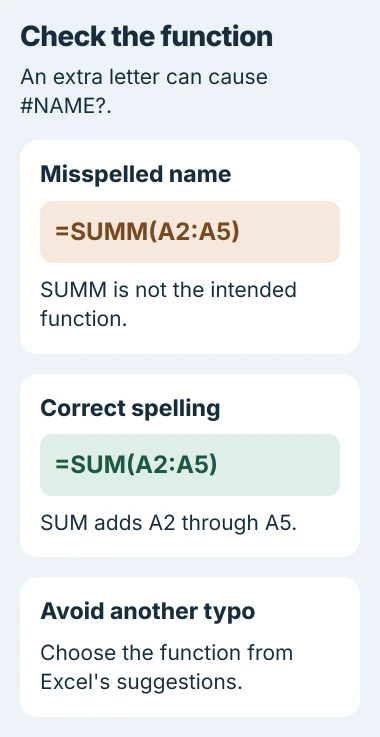
For a simple total, =SUM(A2:A5) adds the cells from A2 through A5. Compare the spelling and range with the formula that isn't working, then press Enter to check the result.
In desktop Excel, you can also use Formulas > Insert Function. Choose the function there if you're unsure of its name or what values it needs. The dialog helps you build the formula without guessing the spelling.
If you now get a number, check it against the cells you meant to use before copying the formula elsewhere. If #NAME? remains, check the other names in the formula; another word may still be wrong.
I'd fix one affected cell first. That makes it easier to see which change helped before making the same correction across a larger column of formulas.
2. Check whether the named range actually exists
A formula such as =SUM(Sales) expects Sales to be a defined name. Typing Sales as a heading in a cell doesn't create that name for your formula.
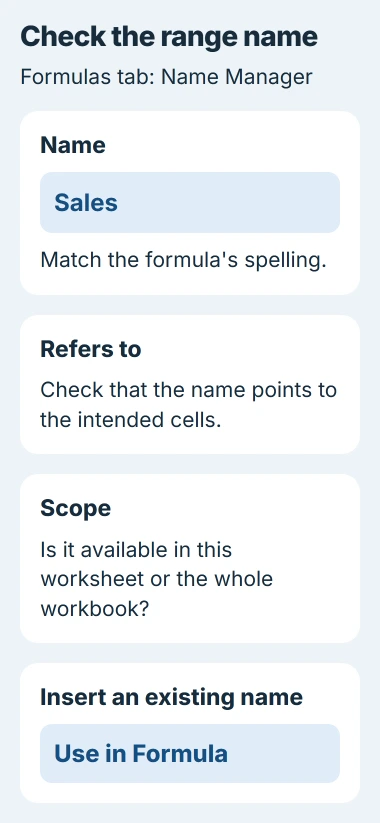
In desktop Excel for Windows, open Formulas > Name Manager. Find the exact name used in your formula and check its Refers to range. It should point to the cells you want to calculate.
If you find the name with a different spelling, use that spelling in your formula. Formulas > Use in Formula lets you insert an existing name without risking another typo.
If the name doesn't exist, select the cells you want and choose Formulas > Define Name. Enter the label, check which cells it refers to and choose its scope before saving the name.
Scope decides where you can use the name: one worksheet or the whole workbook. If it belongs to just one sheet, a formula on another sheet may not recognize the short name alone.
Don't create a name just to clear the message without checking which cells it should use. The formula could calculate the wrong range without showing an error, which is harder to spot than #NAME?.
If someone sent you the workbook, ask which cells the name should refer to. Their formula may need a named range that didn't come across when a sheet was copied into a new workbook.
3. Put literal text inside quotation marks
Put double quotation marks around words you want the formula to display as text. Without them, Excel may read a word as a name rather than the message or label you meant to show.
For example, =IF(A2>0,Ready,Wait) treats Ready and Wait as names. To display those words instead, use this formula:
=IF(A2>0,"Ready","Wait")The formula still checks A2. The quotation marks tell Excel that both possible results are text. Leave a real range name unquoted when you want the formula to calculate its cells.
Check every text result in a long formula. Even a space needs quotation marks if you want it treated as text. Those marks tell Excel which parts are text and which are defined names.
If the result changes to #VALUE!, Excel is now having trouble with the input rather than a name. Use the Excel text and number checks instead of adding quotation marks everywhere.
4. Restore a missing colon in the cell range
A range of consecutive cells uses a colon between its first and last cells. A2:A5 means A2 through A5. Check that punctuation if you copied the formula from a message, PDF or another document.
A missing colon can make Excel read the range as an unknown name. Check each range against the cells you meant to use, including any inside nested functions, where one function sits inside another.
If the first cell works but a copied formula fails, check how Excel shifts copied formula references. You may need a fixed reference to use the same input cells in every row.
For one failing formula, don't replace punctuation throughout the workbook. Correct that formula, check the result and apply the fix only to others with the same mistake.
5. Check a required add-in or unavailable function
Some functions come from an add-in, an extra component that gives Excel more features. Even if you've spelled the function correctly, it won't work if its add-in isn't turned on.
For example, EUROCONVERT needs the Euro Currency Tools add-in. In Windows Excel, open File > Options > Add-ins. Choose Excel Add-ins in Manage, select Go, and turn on the required add-in if it's available.
For a custom company function, ask the workbook's author or IT which add-in you need. A download with a similar name from an unfamiliar site may not be the one used to create the file.
For a file from a newer copy of Excel, check whether your version supports the function. If it doesn't, open it in a version that does, or ask the author to rewrite the formula for yours.
If the error remains, give Microsoft Support the formula and your Excel version, with sample values in place of private records. For a company workbook, ask its author about missing names and required add-ins.
The Short Version
Correct function spelling, verify defined names and their scope, quote literal text and restore missing range colons. Then check required add-ins or version support. Fix the expression rather than covering #NAME? with an empty result.
Checked November 5, 2026.

Isaac Smith is the founder and editor of PC Glance, a website that covers computers, laptops, and technology. He is a tech enthusiast and a computer geek who loves to share his insights and help his readers make smart choices when buying tech gadgets or laptops. He is always curious and updated about the latest tech trends.