The Trace Error button beside an Excel cell opens choices for the problem Excel detected. Select the flagged cell, click the button, and read the first line of its menu before choosing a correction.
A green triangle can mark a formula error, numbers stored as text, or a formula that doesn't match neighboring cells. The right fix depends on that message. Ignoring the warning removes the alert without correcting the cell's contents.
In this guide
1. Select the flagged cell and read its menu
Click the cell with the green triangle in its upper-left corner. The error button appears beside it. Open that button to see the explanation and the actions available for this particular warning.
Microsoft says to select the cell to display this button in its cell-button guide. Its options change with the problem; cells won't all offer the same correction.
An error value such as #VALUE! is different from a green triangle beside an otherwise ordinary number. A formula can return an error, while the triangle can also warn about content that calculates but deserves a closer look.
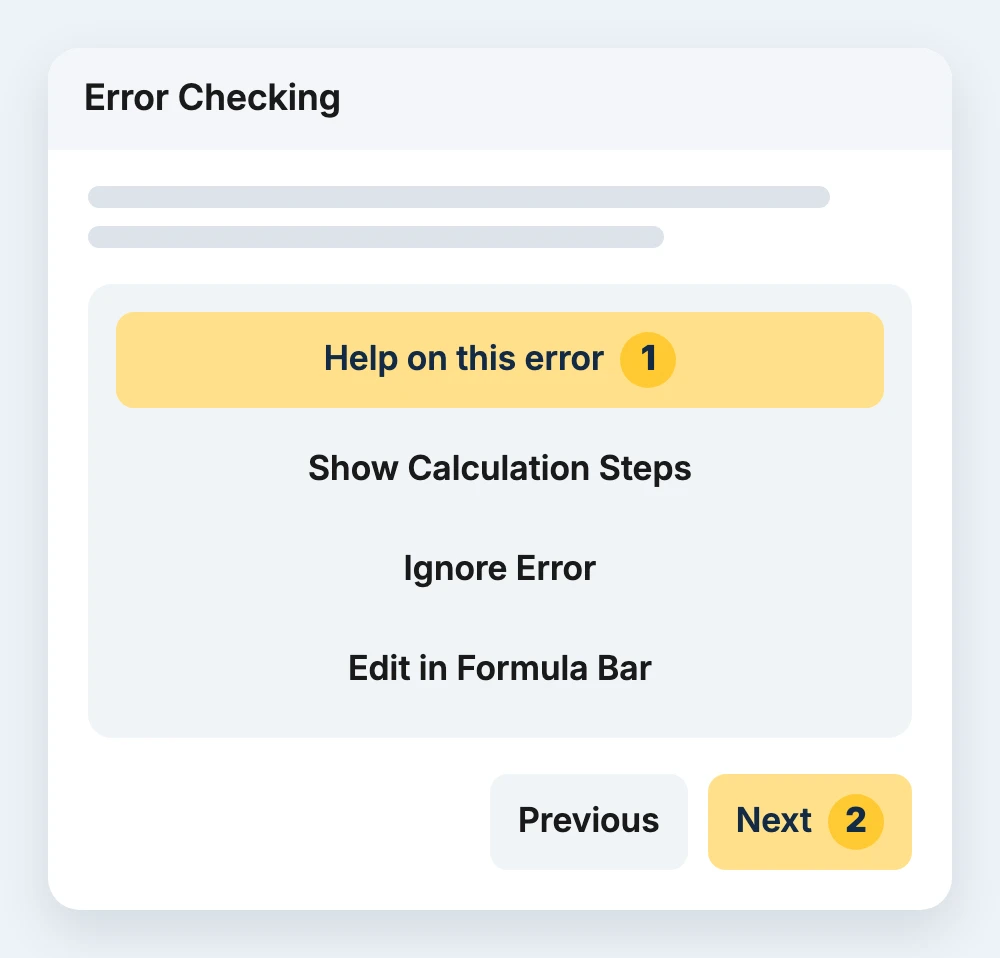
Read the formula bar as well as the displayed result. If the menu says the formula differs from adjacent formulas, compare the cell references with the rows around it. Even a plausible number can use an unintended range.
For numbers stored as text, consider what those entries represent. A quantity used in calculations and an identifier with leading zeros shouldn't always receive the same correction. Fix the meaning you need, not just the triangle.
2. Turn background checking on when the button is missing
In Excel for Windows, open File > Options > Formulas. Under Error Checking, select Enable background error checking, then confirm with OK. Check the worksheet again and select a cell Excel has flagged.
On a Mac, use Excel > Preferences > Error Checking for the error-checking controls. The Windows File > Options route isn't the Mac menu path. Review the rules there if one type of warning is missing while others still appear.
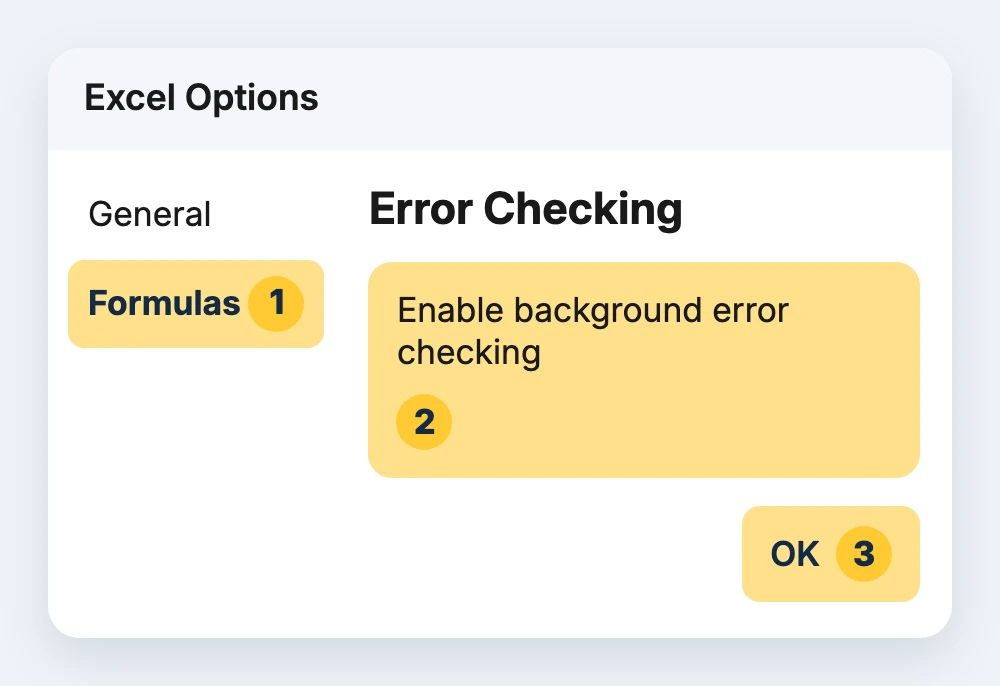
The rules you've turned on control what Excel marks. For example, a rule can check formulas that omit adjacent cells or formulas that don't match the surrounding pattern. Disabling a rule stops its alerts without repairing formulas.
If checking is enabled but no triangle appears, select the cell and inspect its formula directly. Not every wrong answer breaks an error-checking rule. A valid formula can still use the wrong tax rate or the wrong month's cells.
These paths are for desktop Excel. For these checking tools, open the workbook from your browser in your installed desktop Excel. Don't search the web app for a Windows Options dialog it doesn't use.
3. Check a worksheet one error at a time
Open the worksheet that needs checking. In desktop Excel, use Formulas > Formula Auditing > Error Checking. If the sheet uses manual calculation, recalculate it first; on Windows, F9 is the usual recalculation key.
The Error Checking dialog presents the problem and offers actions for it. Read the description, then use the relevant action or edit the formula yourself. Select Next to move to another detected error.
I'd duplicate an important workbook before accepting a series of suggested corrections. Comparing formulas in context is safer than applying the same action to every marked cell simply because the warnings look alike.
For #NAME?, check function spelling or the named range. For #VALUE!, inspect the formula's inputs. Use the error text to choose the checks.
After changing a cell, check that its result now makes sense and that totals using that cell have changed as expected. An alert disappearing is useful, but the total still has to match the calculation you intended.
4. Follow a formula error back to its input
When a cell displays an actual error value, inspect the cells its formula refers to. A total can inherit an error from an input cell even when the total's own formula is written correctly.
On Windows desktop Excel, the Error Checking menu on the Formulas tab includes Trace Error for tracking the source of a formula error. That command follows an error's source; the small cell button opens a choice of corrections.
Use the trace to work back through the referenced cells, then correct the first broken input or formula. Replacing only the final total with a typed number can hide the error while breaking the link between the total and its inputs.
If a reference points to another worksheet or workbook, inspect that source too. A formula can depend on a file you didn't realize was part of the calculation. Keep a note of the referenced file when asking its owner for help.
For formulas that return a result but the wrong one, continue to Evaluate Formula rather than expecting Trace Error to identify every logic mistake. Error checking works from the rules and errors Excel recognizes.
5. Evaluate a complicated formula in Windows
Select one formula cell, then open Formulas > Formula Auditing > Evaluate Formula in Excel for Windows. Select Evaluate to work through the formula's parts and see the result of each part.
The underlined part is the next piece being evaluated. When a reference can be opened with Step In, use it to examine that input, then Step Out to return. Continue until you can see where the unexpected value enters the calculation.
This is especially useful when one formula has functions inside other functions. Instead of rewriting the whole expression at once, check which input or calculation first produces the result you didn't expect.
Some functions recalculate as the worksheet changes, so evaluation can show values that differ from the current cell. Keep that in mind for formulas using functions such as RAND or NOW. These dialog steps are for Windows.
6. Restore warnings that were previously ignored
If you selected Ignore Error earlier, Excel can skip that cell in later checks. In Windows, return to File > Options > Formulas and choose Reset Ignored Errors in the Error Checking section, then select OK.
On a Mac, return to Excel > Preferences > Error Checking for those controls. Resetting ignored errors affects all sheets of your active workbook, so it can bring back more warnings than the one you're checking.
If the calculation is still wrong, share the formula, the expected answer, and a small set of sample inputs with your workbook's author or Microsoft Support. Remove private customer or financial data from the example before sending it.
The Short Version
Read the marked cell's explanation first. Restore background checking for missing alerts, review detected errors individually, and trace a formula error back to its input. Evaluate Formula in Windows helps with a complex calculation.
Checked November 27, 2026.
 If you have any business, I can build it online