Import the Notepad file through Data > From Text/CSV in desktop Excel, choose its column separator, then save as Excel Workbook (.xlsx). Renaming .txt to .xlsx doesn't turn text into a workbook.
The preview is the part to get right. Names, prices, and dates should land in separate columns before you load the sheet. Codes that start with zeros need a text format so Excel doesn't turn them into ordinary numbers.
In this guide
Import the saved text file into desktop Excel
Save your text in Notepad first and keep that original file. Open a blank workbook in Excel for Windows. On the Data tab, choose From Text/CSV in the Get & Transform Data group.
Find the saved .txt or .csv file, select it, and click Import. Excel opens a preview so you can check the layout before it fills the sheet. Use this preview to choose how Excel reads the text.
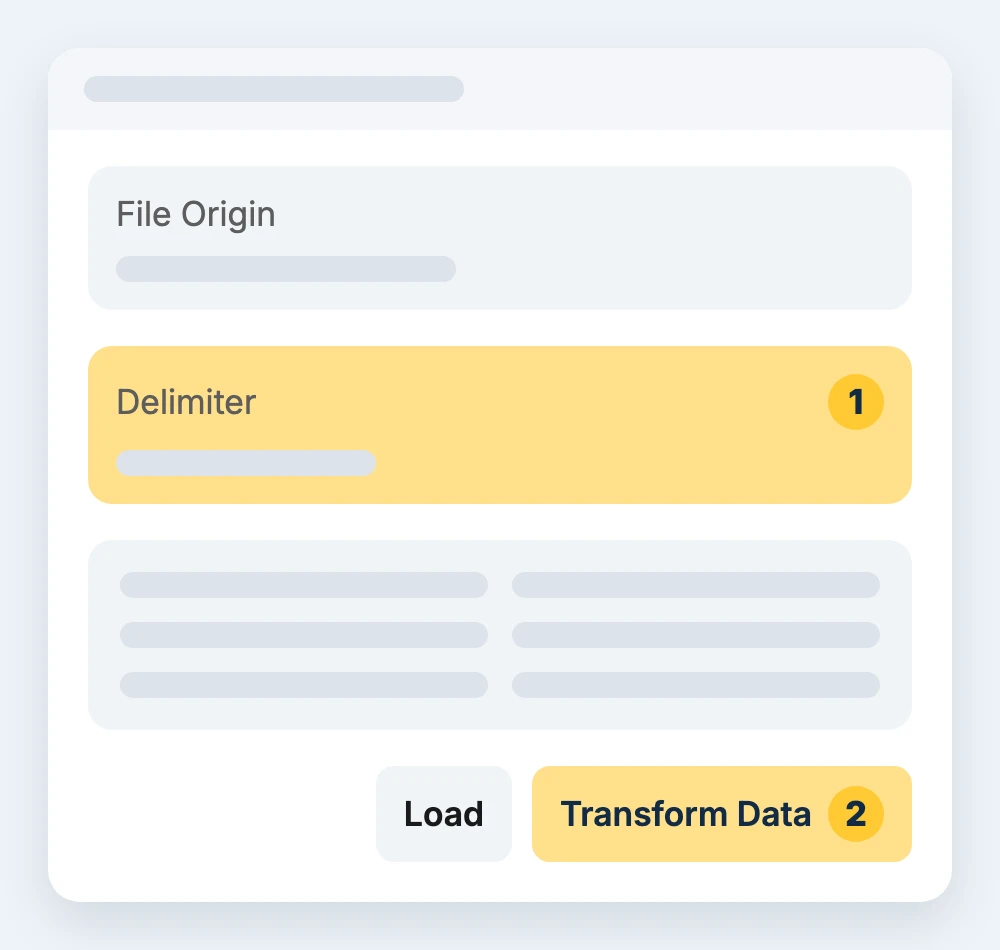
A delimiter is the character that separates the values for each column. A tab-separated file uses tabs; a comma-separated file uses commas. Choose the matching Delimiter and watch whether the preview forms the columns you expect.
Microsoft's text-file import steps cover this route for desktop Excel. It applies to supported versions listed there, including Microsoft 365, Excel 2024, and Excel 2021.
Select Load when the preview is correct and the data doesn't need changes. Excel loads it into a new worksheet. Choose Transform Data instead if a column needs a different type or the preview still needs cleaning.
Match the separator before fixing the cells
If each row's contents appear in one column, check the delimiter selection first. A file separated with tabs won't split properly when the importer expects commas. Read a few lines in Notepad to see what's between the fields.
Don't choose Space simply because the text looks spaced out. A person's full name or a street address can contain spaces inside one field. Splitting every space would break that value into several unwanted columns.
If columns start at fixed character positions instead of following a separator, use the legacy wizard's Fixed width option. You can then place breaks between columns yourself. Use it for aligned text reports instead of guessing a delimiter.
In Excel for Windows, enable that route through File > Options > Data. Under Show legacy data import wizards, select From Text (Legacy). Return to Data > Get Data > Legacy Wizards > From Text (Legacy).
Choose the saved text file. In the wizard, select Delimited for data with a separator or Fixed width for aligned fields. Review the preview as you move through the steps; don't assume the first split is correct.
The Text qualifier setting keeps a quoted field together even if it contains the delimiter. An address can contain commas inside one field. Match the original quoting rather than deleting its punctuation.
For fixed-width text, click the preview to add a break, drag a break to move it, or double-click one to remove it. Finish only when each value stays together in the column where it belongs.
Preserve codes, long numbers, and ambiguous dates
Product codes, postal codes, and account IDs can look like numbers though you don't use them for calculations. Import them as Text if their exact characters matter. A code beginning with zeros shouldn't lose those zeros during conversion.
In the legacy wizard's final step, select the relevant preview column, then choose Text under Column data format. Repeat for each identifier column. Other columns can keep their own formats, so prices can still be numeric.
For Power Query, choose Transform Data, select the identifier column, and choose Home > Transform > Data Type > Text. If the Change Column Type dialog appears, select Replace Current.
Choose Close & Load after checking the column against the original. If the workbook has already lost the zeros, return to the unchanged text source and import it with Text selected before loading.
I'd protect identifier columns before adding any formatting. Formatting cells to look like codes afterward can hide an import mistake without bringing back the original characters.
For dates, select the order used in your text file. The legacy wizard offers Date with choices such as MDY, DMY, or YMD. It's easy to swap the day and month without noticing when either number could be a month.
Once the values are correct, the Excel date-format controls change how dates appear. Changing the display format can't reliably repair a date that was interpreted in the wrong order during import.
Also check names with accented characters. If they look wrong in the preview, match File origin to the file's character encoding. Encoding describes how the file stores characters; the correct choice makes those characters readable again.
Use the Mac import route when the menus differ
On a current Mac version with Power Query import, open Data > Get & Transform Data > Get Data > From File and choose From Text/CSV. Select the text file, inspect its separator and preview, then load or transform the result.
The Mac interface doesn't include Windows' File > Options route for enabling the legacy wizard. Use the Mac import commands available in your version, rather than following that Windows menu sequence.
If neither route appears, check your Excel version and its import commands. Desktop and browser editions have different tools for local files. Keep your original .txt file unchanged while you check.
Save an actual workbook and check it again
Choose File > Save As, select a destination, and choose the format Excel Workbook (.xlsx). Give the workbook its own name and save it. Keep the original text file as the source for any correction.
Saving as .txt or .csv leaves the result in a text format with fewer workbook features. Choose .xlsx to preserve your finished spreadsheet, including its formatting and multiple worksheets.
Close the saved workbook and reopen that .xlsx file. Compare the first and last rows, a code with leading zeros, and a date you can recognize. Confirm that columns haven't shifted around quoted text or blank fields.
If Excel closed before saving, try Excel's unsaved-file recovery. For an import that repeatedly misreads a source file, give Microsoft Support the version of Excel you're using and a short text sample with private information removed.
The Short Version
Import the text instead of renaming its extension. Match the delimiter, preserve identifier columns as Text, and check date order in the preview. Save as .xlsx, reopen it, and compare a few important records with the original file.
Checked November 27, 2026.
 If you have any business, I can build it online