
An unsaved Excel file may be available in Document Recovery after a crash, or through Recover Unsaved Workbooks when a new workbook was closed without saving. Open the available copy and immediately save a separately named workbook.
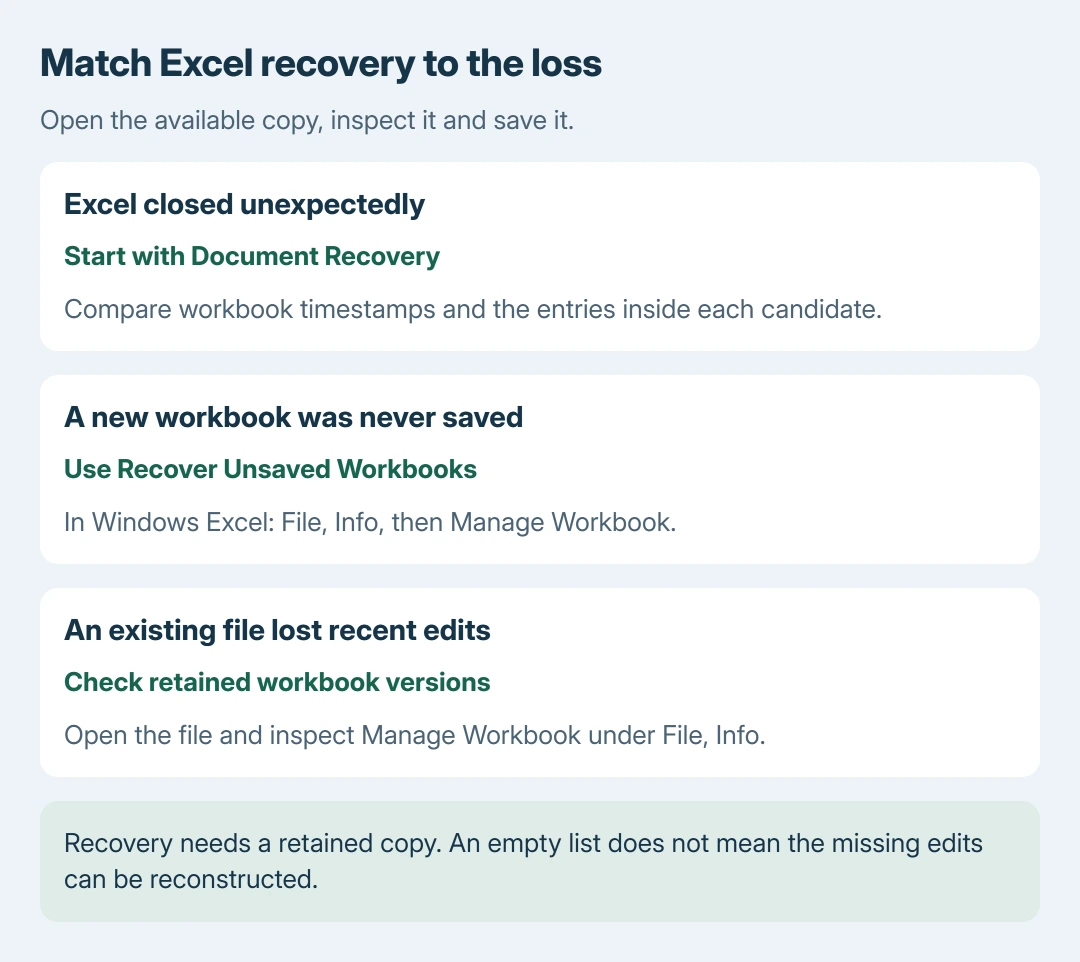
Recovery depends on a copy having been created and retained. Excel cannot reconstruct edits that never reached a saved file or an AutoRecover copy.
After a crash, reopen Excel and inspect Document Recovery
Start desktop Excel again. Microsoft says Document Recovery opens after an unexpected closure when recoverable files are available. Review its workbook names and timestamps before dismissing the pane.
Open a candidate and check the sheets and recent entries. For several versions of one workbook, compare their contents instead of assuming the first listed copy contains the latest work.
Status: Excel for Windows recovery routes checked with Microsoft's current support pages on October 28, 2026. No workbook was crashed, deleted or recovered.
Use Save As to keep the wanted version in a known folder with a distinct filename. Reopen that saved copy before removing recovery entries. Our recommendation is to verify the result before discarding alternatives.
Microsoft's Microsoft 365 file recovery guide documents keeping recovery entries for a later review. Choose that option if uncertain, rather than confirming that the remaining recovered files should be removed.
For a new workbook, open Recover Unsaved Workbooks
These instructions apply to desktop Excel for Windows. The web and Mac editions do not provide the identical File > Info interface.
- Open Excel and choose File > Info.
- Open Manage Workbook, then Recover Unsaved Workbooks.
- Select the available workbook and choose Open.
- Use Save As to give the recovered work a filename and location.
If Excel starts at its template screen without an Info page, open a blank workbook first to reach the File menu. The recovery command opens available unsaved copies, not a history of every workbook ever started.
Microsoft documents the unsaved-workbook recovery operation. An empty list means this route has no retained copy to offer; repeatedly opening it does not generate one.
The related Word document recovery guide uses Word's controls. Follow Excel's Workbook command here rather than searching for Word's document-specific menu label.
An existing workbook lost its latest changes
Open the previously saved workbook, then choose File > Info. Under Manage Workbook, inspect any retained version marked as being from the closure without saving. Open that version and compare the missing edits.
Microsoft states that Restore replaces the previously saved version. Keep a separate copy of the current workbook first if it contains anything that must survive that replacement.
For a workbook stored in OneDrive or SharePoint, also inspect Version History for an earlier stored version. That serves saved cloud revisions; it does not recover a new local workbook that was never uploaded.
A file that refuses to open with a content warning needs the Excel workbook-repair procedure. Corruption and unsaved changes are different recovery problems.
When no usable recovery copy appears
Check the original storage location, any configured backup and cloud version history. For a shared business workbook, ask the owner or IT team about another stored copy before replacing the file with an incomplete recovery.
AutoRecover must have been active before the loss to help. Turning it on afterward protects later work, but cannot create a copy of the session that already disappeared.
For future work, open File > Options > Save and enable timed AutoRecover saving. Also enable retention of the last recovered version after closing without saving. Microsoft documents both controls in its crash-protection instructions.
Use Ctrl+S during editing as well. AutoRecover runs at intervals, so its newest copy can still omit recent edits.
If no saved or retained copy exists, contact Microsoft Support about the available recovery locations without expecting a guaranteed result.
The Short Version
Check Document Recovery after a crash, or Recover Unsaved Workbooks for a new Windows workbook. Inspect retained versions for an existing file. Save a usable copy separately and verify its sheets before discarding alternatives.

Isaac Smith is the founder and editor of PC Glance, a website that covers computers, laptops, and technology. He is a tech enthusiast and a computer geek who loves to share his insights and help his readers make smart choices when buying tech gadgets or laptops. He is always curious and updated about the latest tech trends.