

Excel's warning that it found a problem with some content calls for careful recovery. Keep an untouched copy, then try Open and Repair in desktop Excel for Windows. Check the recovered data even when the file opens.
The message alone does not identify which part of the workbook is damaged.
Preserve the original before accepting recovery
Copy the file under a different name before trying repairs. For an unexpected email attachment, verify the sender and file first.
A recovered attachment is not automatically trustworthy. Keep macros disabled unless their source and purpose have been verified.
Status: Microsoft's desktop Excel recovery procedure reviewed 23 October 2026. Repair can recover or remove workbook content; no damaged file was repaired for this guide.
Microsoft says Excel normally attempts File Recovery when it detects corruption. If that does not start, its workbook repair procedure provides a manual route. The instructions cover supported desktop Excel for Windows editions.
If a disk or network error prevents access, Microsoft states that the workbook should be moved to a different drive or local disk before the recovery methods. Preserve the source copy while trying that alternate location.
Run Open and Repair on the working copy
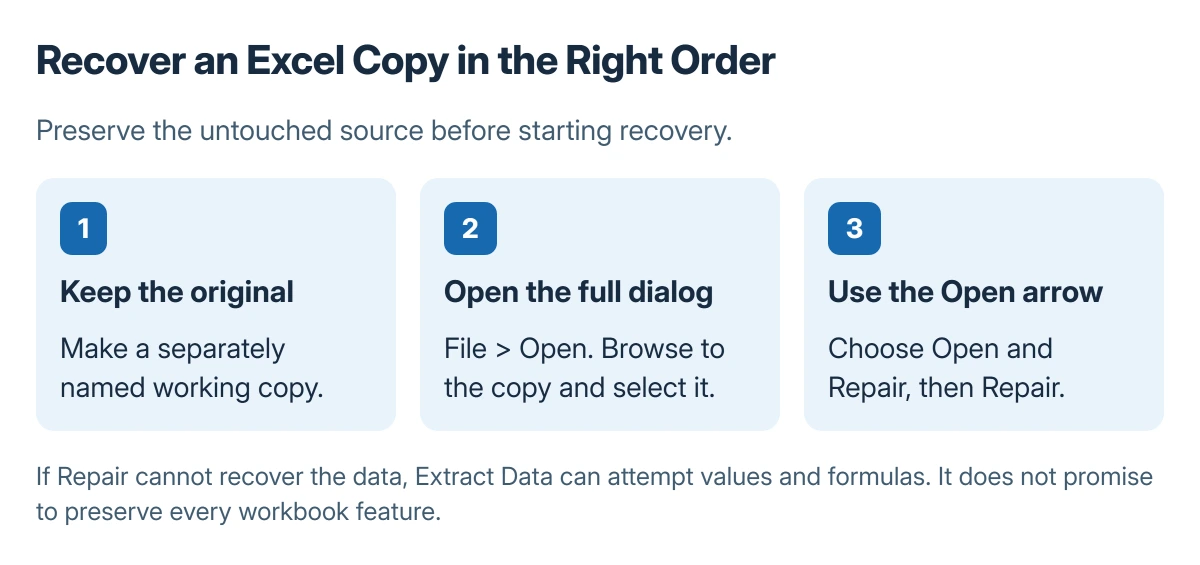
Use the full Open dialog, rather than opening the file directly from a recent-file tile. Select the workbook, then use the arrow beside the dialog's Open button.
- Open File > Open and browse to the copy.
- Select the workbook in the Open dialog.
- Open the arrow beside Open.
- Choose Open and Repair, then Repair.
If Repair cannot recover the data, try Extract Data on a separate copy. This option is documented by Microsoft for extracting values and formulas. It does not promise to preserve every workbook feature.
An extra empty Excel window needs the second-window checks rather than assuming that every blank window represents a corrupted file. A workbook that opens but shows literal formulas needs the formula display checks.
Verify the repair before replacing anything
Read any repair or removed-content report Excel presents. Compare the recovered sheets with an earlier trusted version, including formulas, totals, charts and named ranges that matter to the workbook.
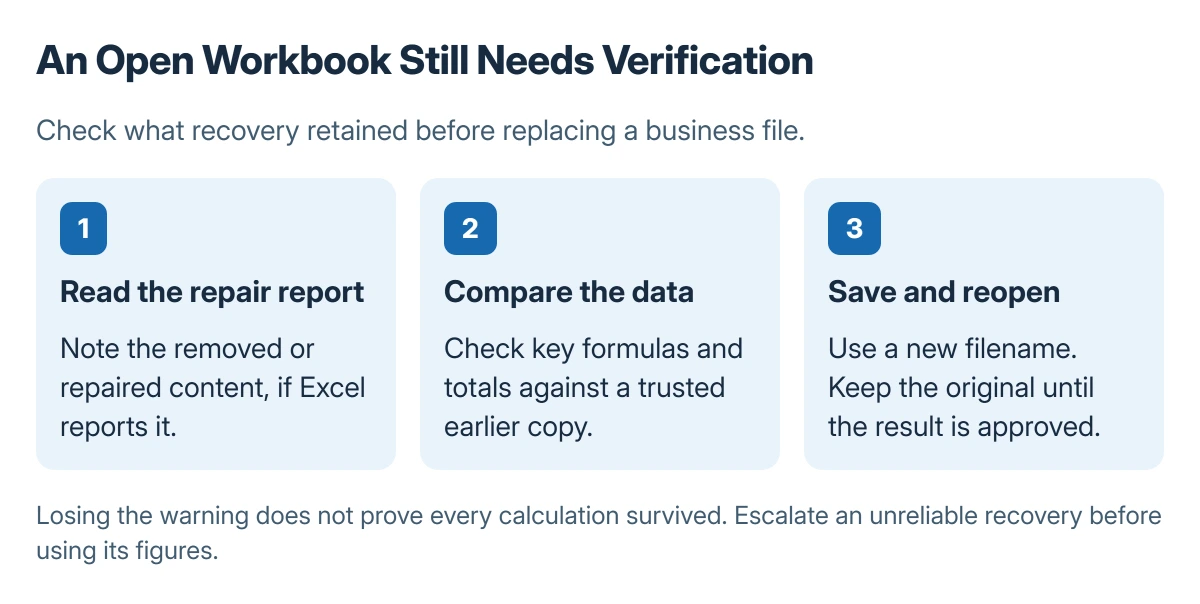
Save a verified result with a new filename and reopen it. Keep the untouched original and recovery report until the owner has checked the important data. Merely losing the warning is not evidence that every calculation survived.
When recovery cannot produce reliable data
Restore a known good backup or earlier file version if one is available. Ask the workbook's creator about a fresh export when software generated the file and each replacement triggers the same warning.
For a business workbook without a reliable copy, involve its owner or IT team before using recovered figures. Microsoft's additional recovery methods are salvage options, with different limits on what they retain.
The Short Version
Keep the original, run Open and Repair on a copy, and use Extract Data only when repair cannot recover what is needed. Inspect removed content and compare important calculations before saving a replacement.

Isaac Smith is the founder and editor of PC Glance, a website that covers computers, laptops, and technology. He is a tech enthusiast and a computer geek who loves to share his insights and help his readers make smart choices when buying tech gadgets or laptops. He is always curious and updated about the latest tech trends.