

A workbook exception can stop Excel 2016 AutoRecover despite its main setting being enabled. In File > Options > Save, clear Disable AutoRecover for this workbook only. An owner saw a recovery file appear after making that change.
Some workbooks in that discussion still failed with the exception cleared. Check the affected file first, then its save interval and recovery folder. Use a disposable workbook for comparisons instead of crash-testing real work.
In this guide
1. Remove the affected workbook's AutoRecover exception
Open the workbook that isn't producing recovery information. Choose File > Options > Save, then find AutoRecover exceptions for. Check that its workbook selector names the file you're trying to protect.
Clear Disable AutoRecover for this workbook only and choose OK. The wording is easy to misread: a checked Disable box turns recovery off for that workbook even when the main timed-saving option is enabled.
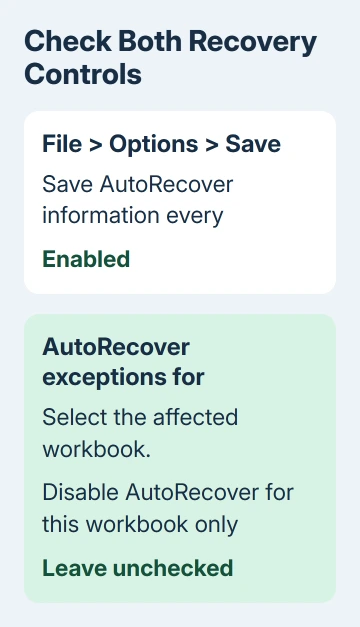
Repeat that check for other regularly used workbooks, selecting each file in the exceptions list. A setting for one file doesn't tell you how another file is configured.
In the original AutoRecover discussion, an owner cleared this exception and saw a backup file appear. They also said other workbooks still weren't producing recovery files.
That exception explains some affected workbooks. When recovery isn't disabled for this file, check the application settings next.
2. Confirm the save interval and exact recovery folder
Under File > Options > Save > Save workbooks, enable Save AutoRecover information every and choose how many minutes of unsaved work you're prepared to lose. The default interval is 10 minutes.
Copy the path displayed in AutoRecover file location and open that exact folder in File Explorer. Use the path from your installation instead of assuming that another owner's AppData folder is also yours.
Microsoft's recovery-file settings include the timed option, folder and per-workbook exception together. Check all three when Excel isn't creating recovery information.
If the configured location is missing or unavailable, note the old path, then choose an accessible local folder with write permission. On a managed PC, ask IT to check the location before changing a policy-controlled path.
Use a spare test workbook for the comparison. Save it normally, make a recognizable edit and leave Excel open for longer than the configured interval. Check the recovery location while the edited workbook is still open.
Don't force a crash to see whether recovery works. Closing Excel normally can remove recovery information. Check the folder while your edited workbook is still open; an empty folder after closing Excel doesn't tell you the same thing.
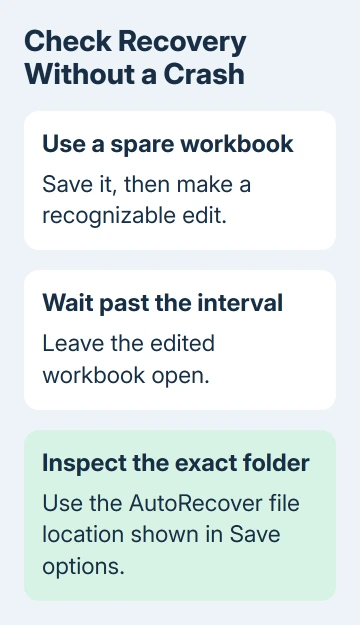
If the test file produces recovery information but your regular workbook doesn't, return to that workbook's exception and compare its setup. If neither produces anything, keep the result for the later support request.
3. Separate AutoRecover from saving the actual workbook
Press Ctrl+S regularly to save edits to the real workbook. AutoRecover stores information for recovering from an unexpected closure; its interval isn't a schedule for updating the file you opened.
The Document Recovery pane can list a previously saved original. Read the timestamp and inspect the contents before assuming the entry contains the edits made just before the crash.
The Excel unsaved-file recovery guide covers the places to check after work has already been lost. Enabling recovery now can't recreate missing edits from an earlier session.
If you find a recovered version, save it with a different name and check it before replacing your original. That lets you compare any newer edits in the original with what the recovery copy contains.
AutoSave on supported Microsoft 365 cloud workbooks is a separate feature. A local Excel 2016 workbook doesn't gain continuous cloud saving just because its AutoRecover interval is set to one minute.
For a cloud workbook whose AutoSave stays off, open OneDrive through Excel and check which copy receives your edits.
I'd keep ordinary saves frequent until the test workbook is producing recovery information. A short recovery interval feels protective, but it can't help when the program isn't successfully creating the recovery copy.
For another safety copy, Excel's Save As > Browse > Tools > General Options > Always create backup option creates a backup through normal saving. It still depends on saving the workbook and isn't a record of every keystroke.
4. Check the crash separately from missing recovery files
The original asker had tried a full Online Repair and the updates available then, without success. Repeating that repair isn't the fix an owner confirmed here, especially when one workbook has recovery disabled.
If Excel repeatedly closes during the same action, record that action and the exact error separately. The Excel crash checks address a specific crash pattern rather than changing recovery settings alone.
Open File > Account > About Excel and note the complete version and whether it is 32-bit or 64-bit. Record the Windows version too, and say whether new files fail, existing workbooks fail or both do.
If another Office app produces recovery files correctly, say so. The original report had working recovery in Word and PowerPoint while Excel failed, a useful comparison for support. Leave the working apps' recovery settings alone.
Office 2016 for Windows stopped receiving support on October 14, 2025. Ask IT about a supported replacement when that is still your installed edition; there isn't a new Office 2016 bug-fix schedule to wait for.
With a supported version, ask IT to check why a blank workbook creates no AutoRecover files, or send that test to Microsoft Support. Include the folder, interval, exception setting and result, with private workbook data removed.
Keep using normal saves and your organization's backups while they check it. If no recovery copy or backup contains the lost edits, that session's missing work may not be recoverable.
The Short Version
Enable recovery for the affected workbook, check its interval and folder, then compare a spare edited file. Continue normal saves. Changing a timer alone won't explain an empty folder; recovering past edits still needs a retained copy.
Checked November 16, 2026.
 If you have any business, I can build it online






