

Excel AutoSave can stay off when a workbook opens through a local OneDrive folder. Save your changes, then reopen it through File > Open > OneDrive inside Excel. That connects Excel to the online file instead of a local copy.
A grayed-out switch, a request to upload the file and the old OneDrive location error aren't always the same fault. Check the opening route first, then the account, file format and sync state if AutoSave stays unavailable.
In this guide
1. Open the cloud workbook from inside Excel
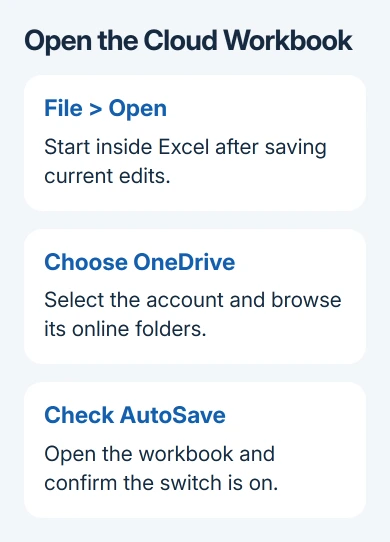
Press Ctrl + S on Windows or Command + S on Mac to keep current edits, then close the workbook. Start Excel and choose File > Open. Select the OneDrive account containing the workbook and browse to its folder there.
Choose the file from that account's online listing. Don't choose Browse and return to the same local synced folder. Choose the connected OneDrive account so Excel opens the file through that account.
On Mac, choose Online Locations if the file dialog is showing local folders. Then choose the personal, work or school OneDrive account that owns the file. If the account isn't listed, use Sign in or Add a Place as offered.
Microsoft's AutoSave instructions recommend this route when File Explorer or Finder leaves the switch off. The syncing OneDrive account also needs to be connected inside Excel.
Check AutoSave after opening. If it's on, make a harmless change in a spare workbook and let saving finish. Close and reopen that same cloud file and look for your edit before trusting it with important work.
2. Check Recent and the upload prompt carefully
A Recent entry can point to the local synced path rather than the online location. On Windows, hover over the entry to inspect its path: C:\Users\… is a local path, while an https:// address identifies an online location.
The original 2017 thread included an owner who restored AutoSave by reopening through Recent. Current guidance says to check the path behind the entry. Choosing Recent won't reliably fix every workbook today.
If clicking AutoSave asks you to upload the file, decide whether to keep working on the original or make a separate cloud copy. For the original, dismiss the prompt, then open through the OneDrive account inside Excel.
To create a separate cloud copy, choose OneDrive in the save dialog and give it a distinct name. Later edits go to that new copy. Someone reopening the original file won't see changes made only to the new one.
Click the filename at the top of Excel to check the location and available version history. Check the account, folder and filename so you don't mix up two workbooks with the same name.
3. Confirm the license and workbook format
AutoSave requires a Microsoft 365 subscription, a supported workbook format and OneDrive or SharePoint storage. A one-time Office purchase doesn't gain subscription AutoSave just because its workbook sits in a synced folder.
On Windows, open File > Account to check the signed-in account and product information. On Mac, check the account shown by the Office app. Match it to your subscription and the OneDrive location you chose when opening the workbook.
A different edition can also explain a missing SharePoint list connector when a colleague can import the same list.
Older .xls files and .csv files don't support this AutoSave workflow. For an older Excel workbook, use Save As to create a modern-format copy in OneDrive and reopen that copy from Excel.
Choose the format your workbook needs. .xlsx is suitable for a workbook without VBA; a workbook containing macros needs a macro-enabled format such as .xlsm. Saving a macro workbook as .xlsx can remove the code you need.
AutoRecover is different from AutoSave. It keeps recovery information in case Excel closes unexpectedly; it doesn't continuously update your workbook in the cloud. The Excel AutoRecover checks help when that recovery system fails.
4. Resume syncing and check Excel's save setting
Open the OneDrive cloud menu from the Windows notification area or the Mac menu bar. If syncing is paused, resume it and wait for OneDrive to finish its pending work before checking AutoSave again.
A folder named OneDrive isn't enough when OneDrive has signed out or reports a problem. Deal with its account, storage or file warning first. The OneDrive sync repair guide covers files that don't reach the cloud.
In Windows Excel, check the cloud-file AutoSave setting under File > Options > Save. Use the Save category, rather than Advanced. Owners in the old thread couldn't find the incorrect Advanced path they were given.
To keep manual saving instead, disable the AutoSave default and leave AutoRecover enabled.
Reopen the cloud workbook after changing that setting and check its switch. If only one file still refuses AutoSave, note its format and location for support instead of resetting every Office setting.
5. Recognize the historical Office 2016 bug
The old Monthly Channel bug could report that a OneDrive or SharePoint location didn't support AutoSave even though the workbook was stored there. Its official repair was version 1708, build 8431.2094 or later.
The fixed-issue notice lists both that build and the account-based opening workaround. Later thread replies also confirmed that the update restored saving.
For a Windows product with available updates, use File > Account > Update Options > Update Now. The historical build identifies an old fix; don't downgrade a current copy. Office 2016 itself is unsupported.
If AutoSave still won't turn on
Ask your Microsoft 365 admin to check the license and cloud location. For a personal subscription, contact Microsoft 365 support. Include the Excel build, file extension, opening route and switch message.
Say whether a newly created cloud workbook works. Tell support whether just one file fails or every workbook that meets the AutoSave requirements does. Keep saving manually until you've reopened the cloud file and found your test change.
The Short Version
Open through Excel's OneDrive account, then check the license, format and sync state. Recent can point locally; an upload prompt can create another copy. The 2017 bug also has a named historical update fix.
Checked November 16, 2026.
 If you have any business, I can build it online






