

The file is corrupt and cannot be opened doesn't always mean an Excel 2010 workbook has lost its data. When the same .xls opens in another Excel installation, check how Excel 2010 handles that trusted file before treating it as damaged.
Excel's security checks can block a file that still works, while a damaged workbook needs recovery. For a known safe file, try a dedicated Trusted Location; when the workbook itself needs fixing, use Open and Repair.
In this guide
1. Save a local copy and compare another workbook
Save the attachment or downloaded workbook into a local folder, then open it. Keep the original file unchanged. For a network file, compare a local copy to check whether the failure comes from the network connection.
Start Excel 2010 and choose File > Open. Select the saved workbook there. Also open a workbook you already know works in this installation.
If only a new attachment or exported report fails, ask its sender whether they can open the same file. A fresh copy is useful when the attachment was incomplete or the export didn't finish correctly.
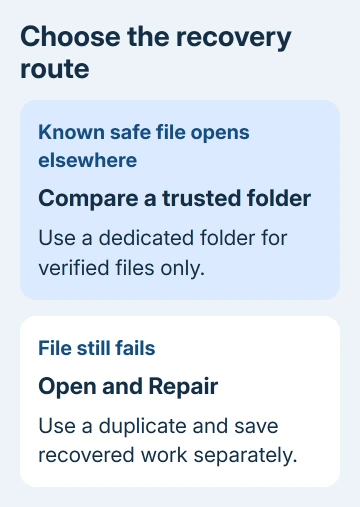
If the same file opens elsewhere but fails in Excel 2010, continue with the trusted-file comparison in step 2. If it fails for its owner too, go to repair in step 4 instead of weakening Excel's opening checks.
Keep the exact error text. A password request, a file-format mismatch, and a blank window aren't the same problem. The broader Excel opening checks cover those other cases.
Don't change .xls to .xlsx by renaming it. That changes the name rather than converting the workbook's contents. Convert it by opening the original in an app capable of reading it, then saving in the new format.
2. Try one trusted workbook in a dedicated folder
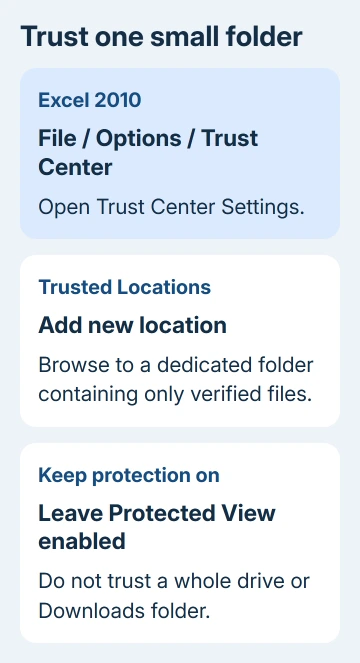
Continue only when you trust both the sender and the workbook contents. A Trusted Location skips some Office security checks for every file placed there, so choose a small dedicated folder rather than your whole drive or Downloads folder.
Create a folder such as Documents\Trusted Excel Reports and put only the known workbook copy in it. In Excel 2010, choose File > Options > Trust Center > Trust Center Settings > Trusted Locations.
Select Add new location, choose Browse, and select that folder. Leave the option to trust its subfolders off unless you specifically need those folders included. Confirm the dialogs with OK.
Close Excel and reopen the workbook from the dedicated folder. If it opens there but the unchanged original location still fails, Excel's handling of the location or its security checks is likely involved.
Microsoft's Trusted Location instructions explain both the folder setup and the security checks it bypasses. Trusting a folder doesn't repair workbook data.
An owner in the original XLS discussion reported success with a Trusted Location after other steps failed. You don't need to trust a whole drive as they suggested just to check one file.
If the workbook still fails, remove the folder from Trusted Locations and continue to recovery. If it works, keep only files you have checked and trust in that folder and ask IT about a lasting arrangement for recurring reports.
On a company computer, an administrator may control these settings. Give them the file and the exact message so they can review any settings you can't change.
3. Keep Protected View instead of switching it off everywhere
The accepted answer in the historical thread recommends clearing every Protected View option. Later replies include both success and failure, so the accepted fix still fails for some workbooks.
Protected View is the restricted opening mode used for files from potentially unsafe sources. Disabling it across Excel changes how future files open too, including attachments unrelated to this workbook.
Leave File > Options > Trust Center > Trust Center Settings > Protected View enabled. A dedicated folder limits the change to files you put there, so you know which files skip those checks.
If you turned those protections off while troubleshooting this error, turn them back on. Then repeat the one-file check in the dedicated folder, so future attachments retain their normal opening checks.
An opening error isn't a reason to enable macros. A legacy .xls can contain macro code, but permission to run that code and permission to read the workbook are separate decisions.
A file that opens but loses its list rules needs the Excel 2010 drop-down saving checks, rather than changes to Protected View.
If a workbook opens with a message bar, read the message rather than clicking through it automatically. Ask the sender what active content the report needs before allowing commands or external data connections.
I'd use the smallest trust change that answers the question. It helps distinguish this historical protected-opening failure without making every workbook on the computer trusted.
4. Repair a separate copy when trust isn't the issue
Make a fresh duplicate for the recovery attempt if opening still fails. Start Excel, choose File > Open, and select that duplicate once in the Open dialog.
Open the menu beside the Open button and choose Open and Repair. Select Repair first. If that fails, repeat the command and choose Extract Data to salvage whatever values or formulas Excel can read.
Newer desktop Excel versions may put Browse between File > Open and the file dialog. The important part is reaching that dialog; choosing an item directly from Recent doesn't give you the same repair control.
Save recovered work under a new filename. Review sheet names, important formulas, totals, dates, and any links to other workbooks before using it for accounts or reporting.
A file that opens after recovery can still be incomplete. Compare it with an older copy or with the sender's totals, especially when Excel reports removed or repaired records.
For edits lost before saving, the unsaved workbook recovery options are a different route. Open and Repair needs a saved file to work on.
A workbook that opens and then crashes during calculation may need the KB3178690 corrective update instead.
5. Ask for the original export or a recovery copy
When repair fails on both computers, request a fresh export from the sender's original application. Include the original filename and its extension with the complete message, so they can check which export failed.
If another Excel version can open it, ask its owner to use Save As to create a separate valid workbook. If the workbook needs macros, save it in a format that keeps them, then try that saved copy on the receiving computer.
For a file you own, check your existing backup or file version history before paying for recovery. Keep the damaged original alongside any repaired copy so a specialist has the original material to examine.
Office 2010 has been out of support since October 13, 2020. For continuing problems, ask IT to move the workflow to a supported Excel installation and test a nonconfidential sample rather than expecting a new Office 2010 fix.
The Short Version
Save a local comparison copy. For a known safe XLS file that works elsewhere, try a narrowly scoped Trusted Location. Keep Protected View on, and run the Open and Repair command against another copy if opening continues to fail.
Checked November 16, 2026.
 If you have any business, I can build it online






