

Excel 2010 can keep a drop-down arrow but lose its Data Validation rule after saving. If the reopened rule says Any value, rebuild it in a copy and save as Excel Macro-Enabled Workbook (.xlsm), which helped several owners.
If the rule still says List and only the arrow is missing, check Excel's object-display setting instead. When the rule is still there, check what hides the arrow before changing the file format.
In this guide
1. Check whether the list rule survived reopening
Select one cell that used to offer the drop-down. Open Data > Data Validation, then inspect Allow on the Settings tab. Check the destination cell, not one of the cells supplying the choices.
Any value means the cell no longer has the list restriction you expected. List means the rule remains, so check Source and In-cell dropdown before recreating anything.
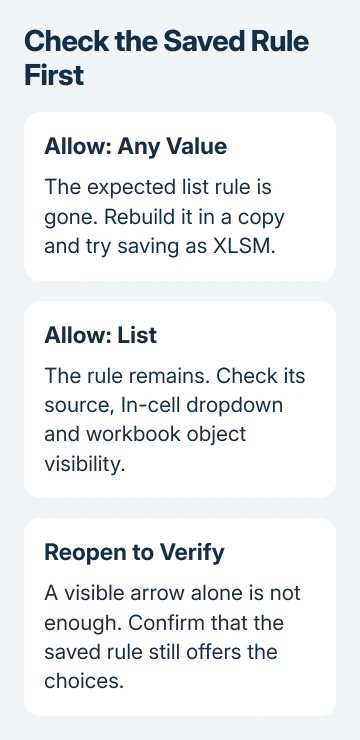
The original asker described a particularly confusing result: an arrow remained, but clicking it didn't display choices, and validation had reverted to Any value. A leftover arrow isn't enough to show that the saved rule survived.
If Data Validation isn't available, check whether protection or sharing restrictions are blocking it. Ask the workbook owner to temporarily remove that restriction so you can check and repair the rule.
The Excel list setup guide explains the source and destination ranges. This procedure addresses a list that already worked before saving, rather than creating a list for the first time.
Save a duplicate workbook before changing its format or validation. Choose a filename that clearly marks your test copy, so you don't accidentally open the unchanged original from Recent when testing.
2. Save a repaired list in an XLSM copy
In the test copy, select the affected destination cells. Choose Data > Data Validation, set Allow to List, and restore the intended Source. Leave In-cell dropdown selected, then choose OK.
Open one cell's arrow and select an entry before saving. That confirms the rule works before saving. Now you can check whether it disappears during the save.
Choose File > Save As. In Save as type, select Excel Macro-Enabled Workbook (*.xlsm), give this test version a different name, then save. Close the workbook and reopen that exact .xlsm file.
Select the same destination cell and inspect Data Validation again. If it worked, you'll see Allow: List, the intended source and a list that opens when you select the arrow.
Owners in the saved-workbook discussion confirmed this format change, including people who said their workbook contained no macros. It's a reported saving workaround, not a requirement for every Excel drop-down.
A macro-enabled format can store VBA code, the commands used for Excel macros. Saving in that format doesn't require you to add code, and this repair doesn't require clicking Enable Content or allowing existing macros to run.
If the rule is still there, check any other affected lists before replacing the working copy used by colleagues. Tell them about the changed extension so they don't keep editing an older .xlsx with the same-looking name.
If the rule still disappears, keep the original and test copy and continue with a named source range. Don't repeatedly recreate the same rule without changing what you're testing.
3. Give the source range a name
Select the cells containing the choices, excluding the heading and any unwanted blank cells. In the Name Box, enter OrderChoices and press Enter. Look for that box at the formula bar's far-left edge.
This names the range that supplies the list. Naming the cell where you pick an entry isn't the same thing, and the original asker already had some named destination cells that still lost their validation.
Return to the destination cell's Data > Data Validation settings. Set Allow to List and enter =OrderChoices in Source. Keep In-cell dropdown selected and confirm with OK.
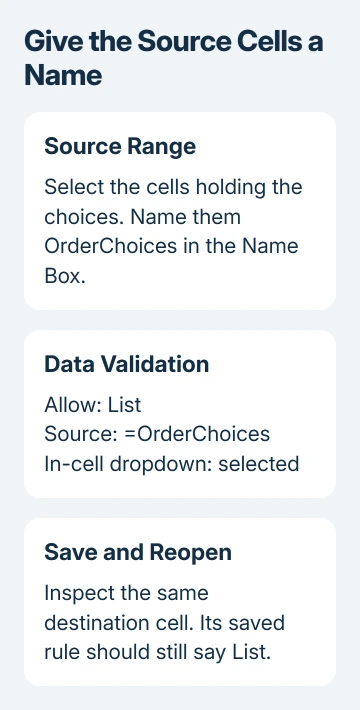
Save, close and reopen the test file. Check both the available choices and the saved validation settings. An owner reported that replacing a directly selected range with a named source preserved their list after reopening.
Microsoft's named-range instructions explain the Name Box method. Use Formulas > Name Manager if you need to inspect which cells your name refers to or correct an existing name.
Keep the named range pointing to the cells containing your choices. If a new item sits outside that range, the drop-down won't offer it just because the workbook now saves correctly. Extend the reference when maintaining the source list.
If colleagues use older Excel releases, include their version in your test. A list that works in your copy of Excel might behave differently in the version they use to fill it in.
4. Restore objects when List remains but the arrow is hidden
Use these steps when Allow still says List and its source looks right. First select the cell containing the rule and confirm In-cell dropdown is selected; the arrow normally belongs to the active cell.
In Excel 2010, choose File > Options > Advanced. Find Display options for this workbook, select the affected workbook if needed, and set For objects, show to All. Choose OK and return to the cell.
One Excel 2010 owner found that this option had changed to Nothing; selecting All restored the control after repair hadn't helped. Another reported success in Excel 2016 for one affected workbook.
It won't recreate a rule that's gone. A later reply said All was already selected while validation still cleared after reopening, so use this check for a hidden arrow, rather than in place of the saving fixes.
If All restores the arrow, select a choice and save the workbook. After reopening that file, check that the arrow still opens the choices and the object setting remains All.
5. Keep worksheet protection separate from the saving fault
For a protected form, the cells where people select entries must allow changes. Before protecting the sheet, select those cells, open Format Cells > Protection, and clear Locked. Then apply sheet protection again through the Review tab.
The source cells can have different protection needs. Keep the list of choices protected if readers shouldn't edit it, while allowing them to use the cells meant for entries.
The original thread includes a successful protected-workbook example, so protection isn't the cause of every disappearing rule. Compare the same test copy before and after protection instead of removing all workbook controls permanently.
If Excel reports the file is corrupt or refuses to open it, use the Excel 2010 opening-error checks. Troubleshoot opening errors separately from validation that disappears during a save.
If it still fails, give the workbook owner or IT a nonconfidential sample, its extension, your Excel version and the validation settings before and after saving. Ask for a test in supported Excel; Office 2010 support ended October 13, 2020.
The Short Version
Any value after reopening means the list rule was lost: try an XLSM copy and a named source range. If List remains but the arrow is missing, check In-cell dropdown and set workbook objects to All. Verify by reopening the saved file.
Checked November 16, 2026.
 If you have any business, I can build it online






