

Excel files can fail to open because of a damaged workbook or the way Windows launches the app. Choose the file from inside Excel first. If it opens, check the file association; if only that workbook fails, repair a separate copy.
A blank Excel window, a freeze, and a file-format error need different follow-up steps. Keep the exact message visible so you can match the next step to it.
1. Open the workbook from inside Excel
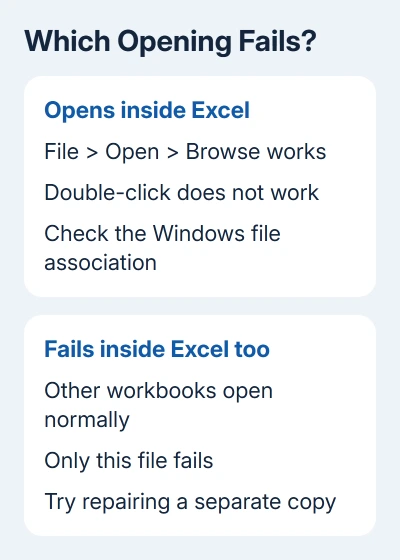
Start Excel from the Start menu and choose File > Open > Browse. Find the workbook, select it, and open it. Try another workbook you know normally works, too.
If both files open this way but not by double-clicking in File Explorer, Excel can read them. Focus on the Windows file association in step 2 rather than repairing their contents.
If the problem file is on a network drive, copy it to a local folder before retrying. A disk or network error can prevent access even when the workbook itself is usable.
A cloud file also needs to finish downloading before you open the local copy. For a file that never reaches the computer, use the OneDrive sync checks before changing Excel settings.
2. Correct which app opens Excel files
In Windows 10 or 11, right-click the workbook in File Explorer and choose Properties. On the General tab, check Opens with. Choose Change if it names the wrong app, select Excel, and confirm.
The setting belongs to that file type. Choosing Excel for .xlsx doesn't change what opens .xls or .csv. Check the extension of the file that fails.
Microsoft recommends checking file associations in its blank-window troubleshooting. After changing it, close Excel and double-click the original file again.
If Excel opens a blank window, minimize it and restore it from the taskbar. Also check View > Unhide. When a workbook is listed, select it and choose OK; a grayed-out Unhide button means there isn't one available there.
3. Use Open and Repair for one failing workbook
Make a separate copy of the affected file first. In desktop Excel for Windows, choose File > Open > Browse, then select that copy in the Open dialog.
Open the small menu beside Open and choose Open and Repair. Select Repair first. If Excel can't recover the data that way, repeat the process and choose Extract Data to recover values and formulas where possible.
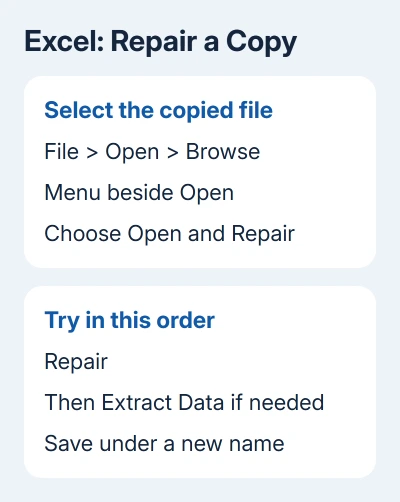
Save a recovered workbook under a new name and inspect the sheets, formulas, and totals you depend on. Some parts of a damaged workbook may still be missing even though it opens.
A format or extension error can also mean the file was saved in a different format from the one in its name. Ask the sender for a fresh export in a supported Excel format instead of changing the filename extension by guesswork.
If the file opens but asks for an opening password, use the Excel password options. Workbook repair isn't a way to remove encryption.
4. Start Excel in safe mode when several files hang
Close Excel. Press Windows + R, type excel /safe, and press Enter. Leave a space before /safe. Open the affected workbook from inside this Excel session.
Safe mode skips several startup settings and add-ins, the extra tools loaded into Excel. If the workbook opens here, check those settings and tools before repairing the file.
In File > Options > Add-ins, choose COM Add-ins in the Manage list and select Go. Note which boxes are checked, then clear them to try Excel without those add-ins.
Quit safe mode and open Excel normally. If the workbook now works, restore the add-ins individually until the fault returns. Repeat with Excel Add-ins in the Manage list if the COM add-ins weren't responsible.
If safe mode doesn't help, restore your original add-in choices and move on to repairing Office.
5. Repair Office when Excel keeps failing
On Windows 11, open Settings > Apps > Installed apps. Find Microsoft 365 or your Office entry, open its three-dot menu, and choose Modify. Windows 10 puts the entry in Settings > Apps > Apps & features.
For a Click-to-Run installation, select Online Repair, then Repair, and follow the prompts. Close your Office apps and save open work before starting. Other installation types may offer a single Repair option instead.
Reopen Excel and compare the same workbooks afterward. I'd repair the app only after checking whether one file or all files fail; an app repair can't replace missing workbook contents.
6. Use the matching route on Mac or ask for file recovery
On Mac, try File > Open. The /safe command, Windows file-association steps, and Open and Repair dialog don't apply to macOS.
On Mac, update a Microsoft-installed copy through Help > Check for Updates. Use App Store updates for an App Store copy.
If the opening error continues on Mac, ask Microsoft Support. If a single workbook is damaged, request a fresh copy or an earlier saved version from its owner.
If desktop Excel for Windows still fails after Online Repair, contact Microsoft Support with the error, Office version, file type, and whether safe mode worked. Keep the untouched original when asking about workbook recovery.
The Short Version
Open the file from Excel first. Correct file associations for double-click failures, run Open and Repair against a duplicate of the failing workbook, and use safe mode and Office repair when several workbooks fail.
Checked November 7, 2026.

Isaac Smith is the founder and editor of PC Glance, a website that covers computers, laptops, and technology. He is a tech enthusiast and a computer geek who loves to share his insights and help his readers make smart choices when buying tech gadgets or laptops. He is always curious and updated about the latest tech trends.