
A Mac Passwords CSV import reporting missing column labels needs its first row corrected. Match its headers to a CSV exported by Passwords, put each login field in the corresponding column, and retry the import.
A file can contain every password and still have the wrong labels for the importer. CSV means comma-separated values: the first row names the fields, and the remaining rows hold the login details.
1. Keep the password file local while you check it
Make a copy of the export and keep the original for comparison. Open the copy in a trusted spreadsheet or text editor on your Mac.
The file contains readable passwords, so keep it out of shared folders and online CSV converters.
Confirm the source app exported CSV, rather than a backup archive or a spreadsheet workbook. Renaming a file from another format to end in .csv doesn't change its contents into a CSV table.
Some exports put a welcome message or other text before the table. Remove that extra text from your copy so the column names sit in the first row.
2. Get a matching header from the Passwords app
Open Passwords on a Mac running macOS Sequoia 15 or later and unlock it. Select an existing login, then choose File > Export Selected Password to File. Choose Export Password and save the file locally.
Apple describes this single-entry option in its password export instructions. It gives you a small file to copy the headings from, without exporting your entire collection.
Open that export beside your working copy. Copy its first-row labels exactly, including capitalization. Keep your website, username and password values in the rows that follow.
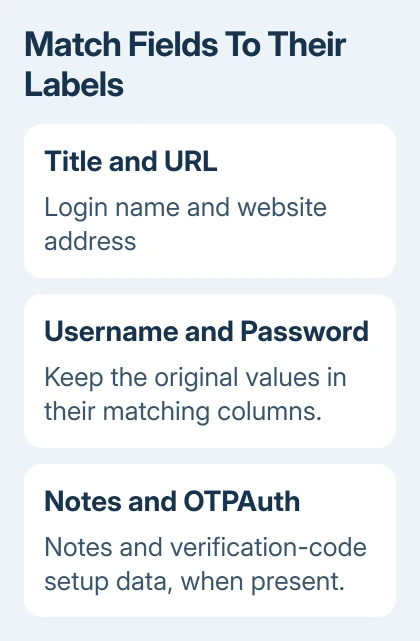
One export layout uses Title, URL, Username, Password, Notes, OTPAuth. Use your current reference file if its layout differs. OTPAuth holds verification-code setup data, separate from the account password.
If Passwords has no saved login to export, ask the source password manager's support team for an Apple-compatible CSV export. Give them the header names and error message, with the login rows removed.
3. Match the contents as well as the labels
Move each source column into the corresponding template column. A field called Site Name belongs with the title; Login URL belongs with the website address; User Name belongs with the username.
Check a complete row: title, website address, username and password should match that login in the original export. Correct labels won't repair login values shifted into neighboring columns.
Enpass support recommends comparing and correcting the CSV headers for this error. The correction is to the file's format, not the passwords you use to sign in.
Leave a field empty if your export has no matching data. OTPAuth needs verification-code setup data, not an ordinary password.
I'd compare a few rows with the original before saving. A misplaced column can otherwise leave you with a collection of mismatched logins.
4. Save a CSV, then use the import command
Save or export the edited table as a comma-separated CSV using your editor's CSV option. A workbook such as .xlsx or .numbers isn't the file type Passwords expects.
Use an editor that keeps values containing commas or quotation marks in their own fields. Don't add or remove commas by hand throughout the login rows; they can be part of a password or note.
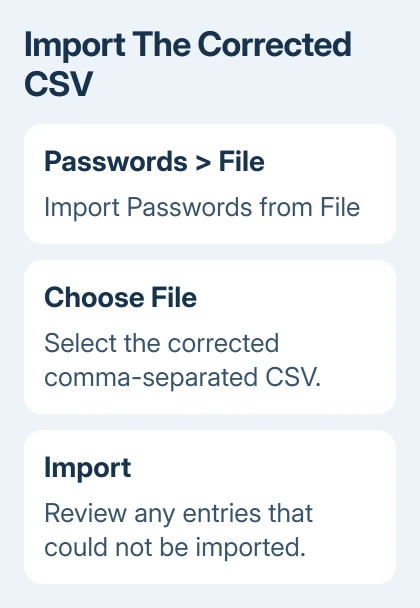
In Passwords, choose File > Import Passwords from File. Click Choose File, select the corrected CSV, then click Import. These Mac import steps apply to the Mac app, not iCloud Passwords on Windows.
If the missing-labels message returns, compare the saved file's first row again. Reopen the file you actually selected, since saving a corrected copy doesn't change an older export still sitting beside it.
For exports that came through Excel, the CSV column-separation checks help explain a table that appears as one long field instead of separate columns.
5. Review the result before deleting the exports
Search All for several imported logins and check their website and username. Review any rejected entries. Imports don't replace saved passwords, so check existing entries that conflict with the imported ones.
Once the import is checked, delete both the working CSV and the reference export. Keep the source password manager available until you're satisfied that the logins you need are present.
If the logins are present but Chrome won't fill them, try the password-saving and autofill check.
If the file still fails, ask the source app's support team to check its export against the current Mac Passwords format. Send the exact error, macOS version and header row only. Don't attach the file containing your passwords.
The Short Version
Match the first row and field order to a Passwords CSV export, keep every login value in its proper column, and save a real comma-separated CSV. Import through Passwords' File menu, review rejected entries, then delete the readable exports.
Checked November 7, 2026.

Isaac Smith is the founder and editor of PC Glance, a website that covers computers, laptops, and technology. He is a tech enthusiast and a computer geek who loves to share his insights and help his readers make smart choices when buying tech gadgets or laptops. He is always curious and updated about the latest tech trends.