
Quick Share sends files to another nearby Android phone through Share > Quick Share. Select the receiver and have its owner accept. If that phone doesn't appear, unlock it and open Quick Share in Receive mode.
Some phones still call it Nearby Share. It works with Quick Share too, so you can use the same sharing controls even when the two phones show different names.
Prepare the receiving phone first
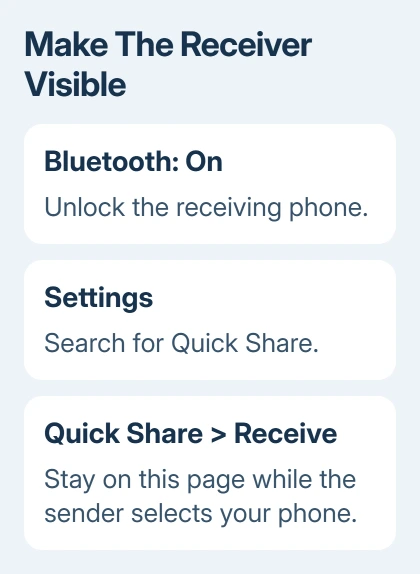
Turn on Bluetooth on both phones and unlock the receiving phone. On that phone, open Settings, search for Quick Share, and open its page. Select Receive when that choice appears.
Keep the Receive screen open so nearby senders can find your phone. Leave it when you're done to end that temporary visibility.
Quick Share is available on Android 6 and later, although the layout differs by phone. Galaxy devices running Android 10 with One UI 2.1 or later can have different settings and features from Google's layout.
The Android Quick Share instructions include two other ways to open it: swipe down for its Quick Settings tile, or choose it from the sender's Share menu.
If the tile isn't present, use Edit in Quick Settings to add it from the available tiles. Searching Settings is usually quicker than rearranging the panel just to send one file.
Send the item and accept it on the other phone
Open the photo, document or other item in its app. Tap Share, then Quick Share. Choose the receiving phone from the nearby devices and wait for its owner to accept.
Check the device name before selecting it, especially in a room with several phones. The receiver shows who is sharing and what they're sending, with Accept and Decline buttons.
Devices using your Google Account accept automatically. The transfer starts without an acceptance prompt, so watch its progress instead.
Wait for completion on the sending screen or its notification. You can leave the sending screen while a transfer continues and use the notification to return, check its status or cancel.
To cancel from the transfer screen, select the same device again. If another transfer to that receiver is running, let it finish before trying yours.
I'd send one small photo first and open it on the receiver before sending a large group of files.
Use the QR code when the receiver doesn't appear
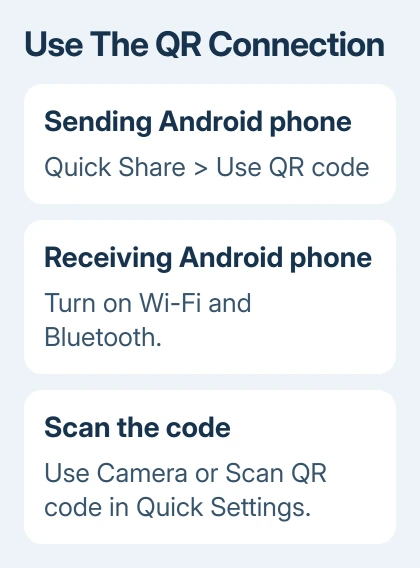
On the sender's Quick Share page, tap Use QR code. On the receiving Android phone, turn on both Wi-Fi and Bluetooth, then scan that code to connect and receive the content.
In the receiver's Camera app, use the regular photo mode to scan the displayed code. Tap the link that appears. Camera support varies by model, so use Quick Settings' Scan QR code tile if the camera doesn't recognize it.
Use the Android QR scanning guide if you can't find the scanner on your phone. This method connects through the code, without a Bluetooth pairing number.
Find the file that finished transferring
Open the receiving phone's default Files app, then look in Downloads > Quick Share. Check the filename and open the item to confirm it arrived and is readable.
If a received document won't open, check that the phone has an app for that file type. Keep the sender's original until you've checked the copy.
For a whole-phone move, use the new-phone transfer process instead. Sending selected files doesn't copy every app, account and phone setting.
Fix discovery without changing unrelated settings
If the phones still can't find each other, Google recommends bringing them within 1 foot (30 cm). Check for the receiver again at that distance.
On Android 12 or earlier, also turn on Location so the older phone can be found.
Next, switch Airplane mode on and off, then check the wireless controls again. If another person is sharing with the receiver, wait for that transfer to finish. Restart the phones if discovery still fails.
Ask the phone maker's support team about persistent discovery failures. Include both models, their Android versions and whether QR sharing works. For Galaxy-specific controls, use Samsung's Quick Share help for that model.
The Short Version
Unlock the receiver and open Quick Share in Receive mode. On the sender, share the item through Quick Share and choose that phone. Accept the request, check Downloads > Quick Share, and try the QR method if nearby discovery fails.
Checked November 7, 2026.

Isaac Smith is the founder and editor of PC Glance, a website that covers computers, laptops, and technology. He is a tech enthusiast and a computer geek who loves to share his insights and help his readers make smart choices when buying tech gadgets or laptops. He is always curious and updated about the latest tech trends.