
Scanning a QR code on Android usually starts in the phone's Camera app or a Scan QR code shortcut in Quick Settings. Point at the whole code, wait for a link or action to appear, then tap it.
Pixel and Samsung Galaxy phones have documented versions of these controls, but their settings differ. Start with the route for your phone rather than downloading a scanner app immediately.
Scan with the Pixel camera
Open Camera, aim at the QR code and keep the complete square within the view. Google says there is no need to take a photo; wait for the detected link and tap it to continue.
If detection is disabled, open Camera's Settings > More settings > Camera scan suggestions and turn that suggestion control on.
Status: Pixel and Galaxy QR-scanning steps checked 22 October 2026 against Google and Samsung support. Interface names are model-specific; no camera was tested.
Google documents both camera detection and the separate scanner in its Pixel QR guide. Other Android makers can use different menu labels.
Use Galaxy Camera or its scanner tile
On Samsung Galaxy, open Camera in PHOTO mode and aim at the code. Samsung says in its QR instructions to enable Scan QR codes in Camera settings if detection is off.
For the dedicated route, open Quick Settings and tap Scan QR code. Samsung describes opening the panel with a two-finger downward swipe; the available layout can differ by device.
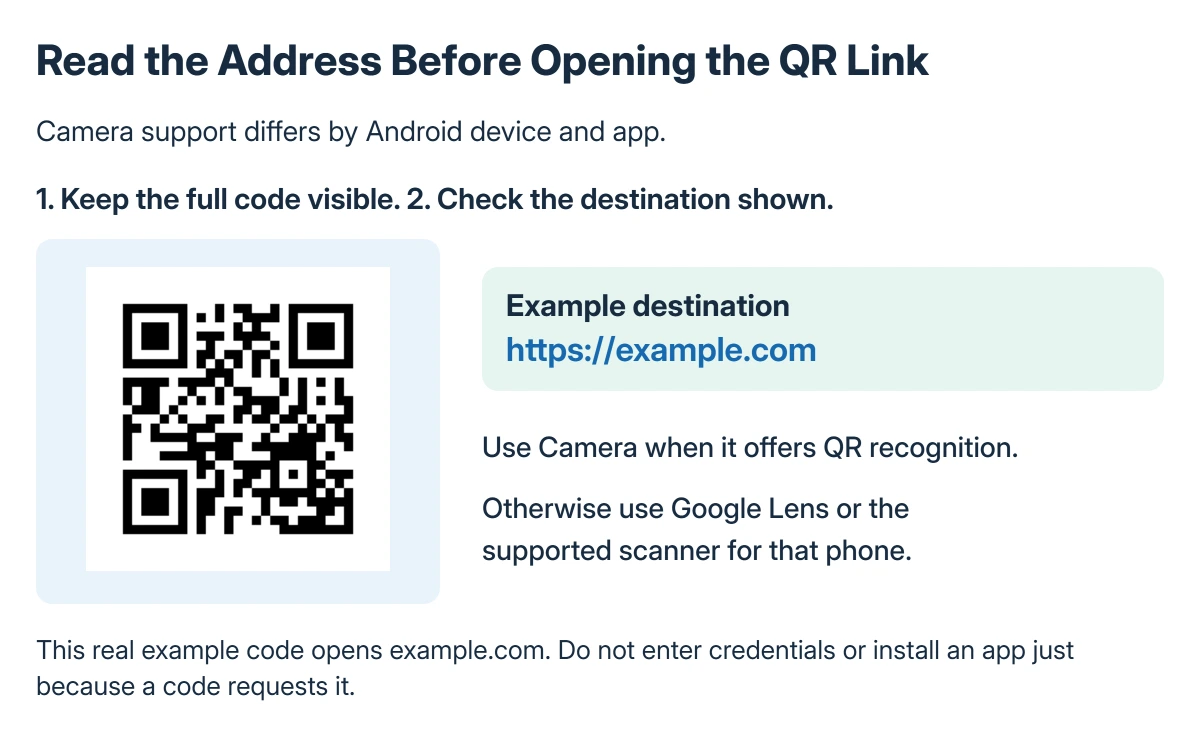
Read the detected action before accepting it. A code can lead to a website, an app or another task, so the expected result is not always a web address.
Try the Pixel Quick Settings scanner
Swipe down to open Quick Settings and choose Scan QR code. If its tile is not on the first panel, check the other tiles or the panel's edit control.
Google states that the tile opens a dedicated scanner. Keep the code inside its view and follow the detected action, rather than taking repeated photos in the ordinary Camera app.
For a code already saved as a picture, Google also names Lens as an option. On a supported Galaxy scanner, the Gallery control can open an existing image instead of making the camera read the phone's own screen.
Improve the view when detection fails
Hold the phone steady, avoid glare and keep the entire code visible. Move closer if the square is tiny, but do not crop away its edges.
Google says a smudged lens should be wiped with a soft cloth. Try a clearly printed code in good light to distinguish a damaged code from a camera that cannot focus.
If the phone is an iPhone, use the iPhone QR-scanning checks for its own controls instead. Android menu paths do not transfer directly to iOS.
Use the destination that matches the task
A Wi-Fi code may offer a connection rather than open a webpage. For a Windows computer scanning a code, the Windows Wi-Fi QR guide covers that camera route separately.
Once a link has been detected, a website that cannot load is a different problem from the camera not recognizing the code. Confirm the link and network connection before rescanning.
If an ordinary photo is also blurred or the camera cannot focus, give the phone maker the model and Android version. A new scanner app cannot repair a damaged camera lens.
The Short Version
Try Camera first, then the dedicated Scan QR code tile. Pixel uses Camera scan suggestions; Galaxy has a Scan QR codes setting in Camera.
Keep the whole code visible and tap the detected action. An unreadable code and a link that cannot load need different checks.
Where to Next
Verify the destination before opening it, especially on an unfamiliar printed code. If only one code fails, ask its owner for a replacement or the direct destination.

Isaac Smith is the founder and editor of PC Glance, a website that covers computers, laptops, and technology. He is a tech enthusiast and a computer geek who loves to share his insights and help his readers make smart choices when buying tech gadgets or laptops. He is always curious and updated about the latest tech trends.