
Scanning documents on Android can save a paper receipt or letter as a PDF using Google Drive or Files by Google. Choose Drive for a scan stored in your Google account, or Files for a local PDF inside Downloads.
Both apps let you capture several pages, adjust their edges and review the result before finishing. A document scan preserves the paper's appearance; opening a QR link is a separate camera task.
Choose where the finished scan should live
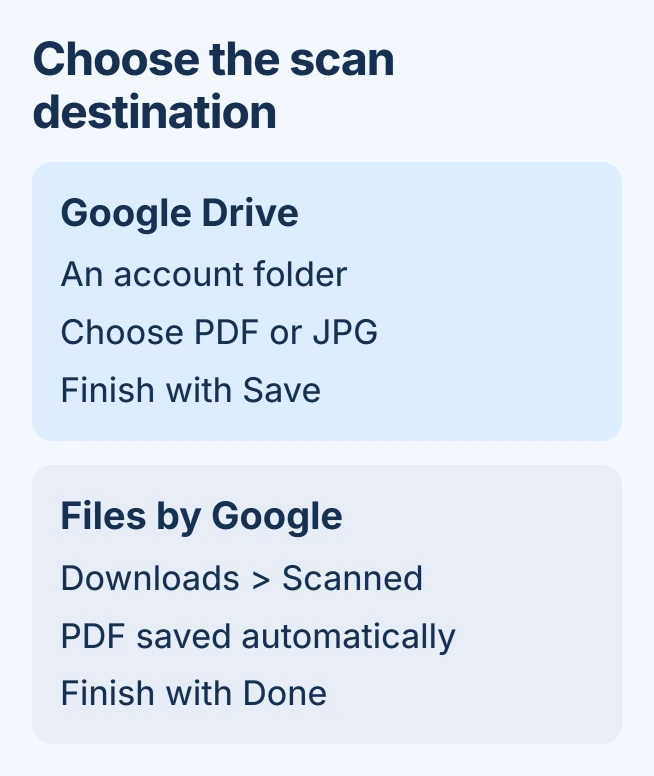
Open the app whose destination suits the document. In Google Drive, tap the Camera button at the lower right. In Files by Google, tap Scan in that corner. Allow camera access if Android requests it.
Google says Drive can save scans as searchable PDFs in its Android scanning guide. Confirm the intended Google account before saving a personal or work document.
Status: Android Drive and Files scanning steps checked November 1, 2026. Save destinations and format choices come from Google; no camera capture or upload was performed.
The Files instructions apply to Files by Google, not every manufacturer's file-manager app. If the installed app is named My Files or something else, its camera tools and save location can differ.
For a printed code that should open a website, use the Android QR scanning controls. Saving a PDF of that code does not open its destination.
Capture and inspect each sheet
Place the paper flat in good light and keep the whole sheet in view. Watch the detected edges before capture. Move the phone if a shadow, finger or reflection obscures words near the paper's corners.
Choose Auto capture for automatic capture, or Manual to control the timing. In the preview, use Crop & Rotate in Drive, or Crop and rotate in Files, to correct the selected page area.
Inspect small print and signatures before keeping the image. Retake replaces a blurred capture. Filter changes its appearance, but cannot recover text that was never legible in the photo.
Tap Add to capture the next sheet in the same document. Repeat the review for every page, then tap Done when the document is complete.
Name and save a scan in Google Drive
After Done, enter a useful filename. Drive offers .pdf and .jpg; choose PDF when the pages should remain a document. Use Location to select the destination folder, then tap Save.
Google states those format and folder choices explicitly. Open the saved item in the intended Drive account and inspect its pages before sending it to someone else. A completed camera capture is not proof that an upload finished.
For a work form, use a name that identifies the document without exposing unnecessary private details. Check any recipient's accepted file format and size before submitting it.
Find the local PDF created by Files
In Files by Google, Done saves the scan as a PDF automatically. Its destination is Downloads > Scanned, documented by Google in the Files scanning instructions.
Find it through Recents, or open Documents > Scanned. Searching for pdf is another way to locate a saved scan. Open the file to check its completeness before sharing or moving it.
A local PDF needs its own saved copy elsewhere if it must survive losing or resetting the phone. The Android backup coverage guide explains why a general backup indicator is insufficient for separately saved files.
When capture works but the document never appears
Check the chosen app, account and destination first. Drive's account folder and Files' local Scanned folder are different places. Look for an unfinished upload or error instead of repeatedly photographing the same pages.
If Drive closes its scan without saving, try Files for the immediate document and report the Drive version and failure stage to Google. That provides another documented scanning route without claiming it repairs the failing app.
An owner in a March 2025 discussion reported that reinstalling Drive and restarting the phone failed to restore saving. That dated report does not establish a current fix, so rolling back apps is not part of this procedure.
If ordinary camera photos are also unreadable, contact the phone maker about focus or camera quality. If only scanning fails, send the app's support team the Android version, app version and exact point where the process stops.
The Short Version
Use Drive for an account folder or Files for a local PDF. Inspect every capture, add the remaining sheets and finish saving. Reopen the resulting document and verify its destination before sharing or erasing the phone.

Isaac Smith is the founder and editor of PC Glance, a website that covers computers, laptops, and technology. He is a tech enthusiast and a computer geek who loves to share his insights and help his readers make smart choices when buying tech gadgets or laptops. He is always curious and updated about the latest tech trends.