
To stop Google Drive running automatically on Android, start with its background battery setting. Disable or uninstall Drive when you no longer use it; force stop only ends its current session.
If you still open your files occasionally, use Drive's battery controls and keep the app installed. You don't need to switch off services for your entire Google Account.
1. Stop Drive now, then check what it was doing
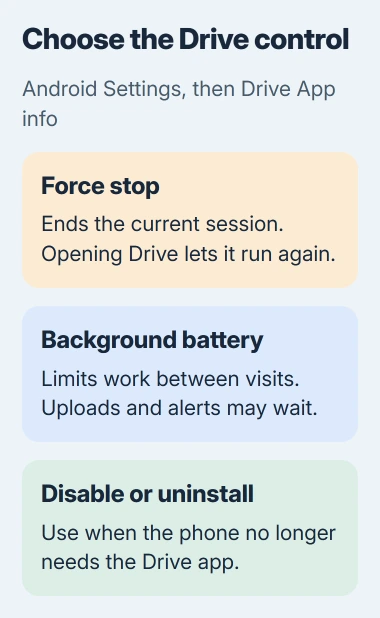
Open Settings > Apps > See all apps > Drive, then tap Force stop > OK. Some phones show the installed app list immediately after Apps. Check the icon so you're stopping Drive, rather than Google or Google Play services.
Force stop ends the work Drive is doing now. Opening the app lets it run again, so this won't keep it out of the background permanently. Use it while you choose a lasting setting.
Before stopping an upload, check whether the file has finished sending. If it's still waiting in the upload list, keep it on your phone until you can finish the transfer.
If your concern is battery drain, open Settings > Battery > Battery usage and select Drive. Compare its background activity with the time you actually used it. A recent upload can explain activity that otherwise looks unexpected.
A Drive card in Recent apps doesn't tell you how much battery it used. That screen lets you switch between recently opened apps. Removing Drive's card won't restrict its background work.
If Drive isn't using much battery, decide whether the real problem is repeated alerts instead. Those have separate controls in step 4. If background use is the problem, continue with its battery setting.
2. Restrict background battery use on a Pixel or Android phone
On a current Pixel, open Settings > Apps > App battery usage, then choose Drive. Another route is Settings > Battery > Battery usage > View by apps > Drive.
Google says to review the app's background battery use through Allow background usage for the selected app. Turn that permission off when the phone offers a switch.
Some Android versions instead show Unrestricted, Optimized and Restricted on the app's Battery page. Choose Restricted to limit background work instead of leaving Drive unrestricted.
Menu names vary by phone maker. If the route doesn't match your phone, search Settings for Drive, open its App info page and look for Battery or App battery usage. Choose from the options available there.
Background restrictions can delay uploads and notifications. Keep that in mind if you need Drive to finish sending a file after you switch apps or lock the screen.
Use your phone normally with Drive closed, then check its battery entry again. Look at activity since the setting change; earlier usage stays in the battery history.
If that's still too much background activity, try the manufacturer's stronger sleeping controls or remove Drive. Restricting its battery use leaves the app installed and available to open.
3. On Samsung, put Drive into deep sleep
On Galaxy phones, Deep sleeping apps work when you open them and don't run in the background while closed. The ordinary Sleeping apps list works differently.
Open Settings > Battery > Background usage limits. On older Galaxy versions, begin at Settings > Battery and device care > Battery > Background usage limits.
Select Deep sleeping apps, tap the add control, choose Drive, then tap Add. Check that Drive appears in the list afterward. Some phones or apps don't offer this option.
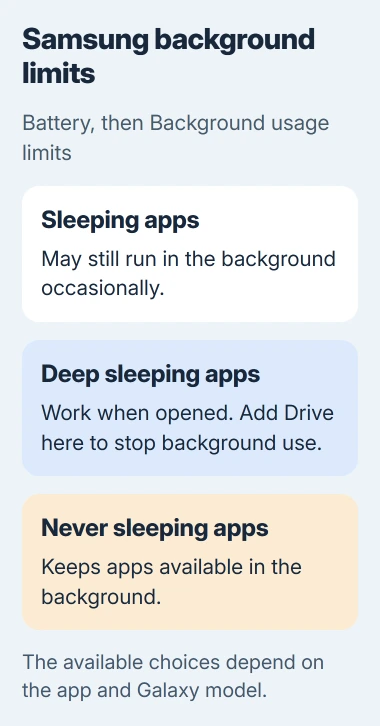
Don't choose Never sleeping apps for this purpose. That list protects apps from being put to sleep, which works against the change you're trying to make.
I'd use deep sleep when you still need Drive occasionally but don't want it working between visits. If uploads stop completing after leaving the app, remove Drive from that list when you need background transfers again.
4. Treat unwanted notifications as a separate problem
If Drive is bothering you with sharing or comment alerts, open Drive > Menu > Settings > Notification settings. Turn off the types of notification you don't want.
The app can notify you about shared files, mentions and requests for access. Muting those alerts quiets the phone, but it doesn't switch off the app's background battery permission.
To stop all Drive alerts, open Settings > Apps > Drive > Notifications. This controls Drive's notifications without changing how other apps behave.
A background mobile-data restriction limits cellular transfers. It doesn't turn off Drive, and the same limit may not apply when your phone uses Wi-Fi.
Change one control at a time and compare the result. The notification panel tells you about alerts; the battery-use page shows how much power Drive used.
5. Disable or uninstall Drive when you don't need it
Open Drive's App info page and look for Uninstall or Disable. Uninstall removes the app. Disable turns off a preinstalled copy when your phone's maker allows it.
The Android app-removal instructions explain that some preinstalled apps can't be deleted. If neither control is available on a work phone, ask the administrator whether app removal is allowed.
Check pending uploads and offline documents before removing the app. Save separate copies on your phone of any files you need without Drive, then read the confirmation prompt before continuing.
Removing Drive's home-screen icon only removes the shortcut. Check that App info shows the app is disabled, or that Drive has disappeared from the installed-app list after uninstalling.
Android device backup and photo backup have their own settings. Review what Android backup includes rather than disabling account-wide sync to control one app.
Also consider whether you use Drive's document scanner. Disabling the app removes that route until you enable it again, even if another scanning app remains available.
If background use stays unusually high, update Drive through the Play Store. Send feedback with the phone model, Android version and battery reading. A factory reset is excessive for one unwanted app.
The Short Version
Restrict Drive's background battery permission, or use Deep sleeping apps on a Galaxy. Force stop handles the current session, notifications have separate controls, and Disable or Uninstall suits a phone that doesn't need Drive.
Checked November 5, 2026.

Isaac Smith is the founder and editor of PC Glance, a website that covers computers, laptops, and technology. He is a tech enthusiast and a computer geek who loves to share his insights and help his readers make smart choices when buying tech gadgets or laptops. He is always curious and updated about the latest tech trends.