Google Meet can video call another Android phone or an iPhone over Wi-Fi or cellular data. Open Meet, select New, find the person, and tap Call; both people need to be set up to receive Meet calls, or you can send a meeting link instead.
A video button in Phone or Messages can open Meet too. On some Galaxy phones it offers a carrier video service, so check which service it opens before placing the call.
In this guide
Get the same calling service ready on both phones
Open Google Meet, or install Google's Meet app from the Play Store if it isn't on your phone. If it's already installed, update it before making the call. Ask the other person to update theirs too.
Choose your Google Account. Work and personal accounts can have different contacts and calling permissions. Use the account the other person knows so you won't have to switch halfway through setup.
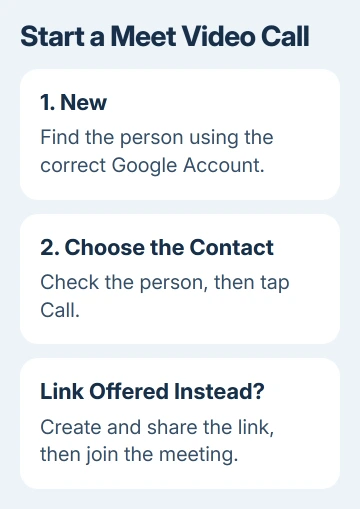
Accept the prompts for camera and microphone access. Contacts access lets Meet find people in your address book. If you declined it, open Settings > Apps > Meet > Permissions > Contacts and allow access to use that address book in Meet.
Google says the updated calling experience differs from legacy calls in its Meet calling instructions. Older screens can look different, which is why updating both phones matters.
Call one person from the Meet app
Tap New, or Search contacts if your version shows it. Enter the person's name and select the correct result. Check their details if names are repeated in your contacts, then tap Call.
On the preview screen, check that your camera is on and your microphone isn't muted. A camera preview shows what you're sending; it doesn't mean the other person has answered yet. You'll be connected when they answer.
Once connected, tap the screen to reveal the controls. Tap the microphone control to mute yourself, the camera button to stop your video, and the camera-switch control to show something with the rear camera.
Tap the red end-call button when you're finished. Turning the camera off leaves an audio conversation running; ending the call disconnects it. That distinction matters when you put the phone down after showing someone something.
If the contact doesn't appear, check the profile picture and switch to the Google Account that knows them. Also confirm their current phone number or account details rather than repeatedly selecting an old contact entry.
To be reachable by phone number, open your Meet profile picture and use Add your phone number. Follow verification if requested. This links your number to Meet; it doesn't automatically turn an ordinary voice call into a video call.
Use a link when the person can't receive a call
Meet can offer Create and share a link when a contact can't receive the direct call. Share that link through the messaging app you normally use with them, then join the call and wait for them to open it.
For a meeting you create yourself, the current Android route is New > Create link. Choose Copy or Share, send the invitation, then tap Join meeting. Some older versions describe this as creating a new meeting.
The invitation doesn't ring like a normal phone call. Ask them to open your invitation at the arranged time. If an admission request appears, let the expected person in so you can begin talking.
A link is useful when the person uses a different device or their account can't take direct Meet calls. School and work accounts can limit who can join. If your organization blocks the call, ask its administrator for help.
I'd send a link when direct calling isn't available rather than spend the whole conversation changing account settings. The goal is to get both people into the same call, and a meeting invitation can do that.
Start from Phone or Messages when the option is present
In Google's Messages app, open the existing conversation and tap Video call. In the Phone app, open the person's contact and look for its video-call control. These shortcuts depend on your phone's apps and how they work together.
On a Galaxy, a video button can launch Meet or a supported carrier video call. The available choices vary by model, carrier and software. If the button is missing or opens the wrong service, use the Meet app directly.
Some Samsung versions offer Contacts > person > More > Select video call method. Choose Google Meet, Video call, or Always ask when offered. Your choice applies to that contact. Other Galaxy models can have different options.
Meet can connect Android and iPhone users. A carrier's built-in video service can require different phones or services, so use the shared app when calling across platforms instead of assuming the carrier button will work.
Add more people or join an iPhone invitation
For the current Meet group-calling screen, tap New > Group call, select the contacts, then tap Next > Call. If a selected person can only join through a link, share the offered link after entering the call.
Older Meet screens can say Create group, followed by Done and Start. Follow the labels in your installed app. The updated version of Meet doesn't have all the saved-group features from the older calling experience.
FaceTime is another option when an iPhone user sends an invitation. Open their link in Chrome, enter your name, allow the camera and microphone, then tap Join. The host must admit you. Android can't start a FaceTime call from Chrome.
To open that FaceTime page, you'll need the invitation link from the person hosting the call. To start a call yourself from Android, use Meet or another calling app both people already have.
Fix missing picture, sound or ringing
For a black preview, open Settings > Apps > Meet > Permissions and allow Camera. Check Microphone there if your voice doesn't reach the call. Return to the call and check its own mute button too.
If several calling apps show no picture, try the phone's Camera app. If it works there, return to the calling app's camera permission and camera button. The Android Zoom camera guide covers the separate Zoom preview settings.
For missed incoming calls, check Meet's notification permission and the phone's sound modes. The Android ringing checks separate notification and ringer settings from calls that don't arrive at all.
If Meet still fails, use Help & feedback and include the phone model, app version and exact message. For a blocked work or school call, ask the administrator whether that account can make calls.
The Short Version
Update both Meet apps and call the contact from New using the right account. Send a link if direct calling is unavailable. Phone shortcuts can open Meet too; camera, microphone and notification access do separate jobs.
Checked November 12, 2026.