

An Android phone that isn't ringing often has a low ring volume or an active silent mode. Turn its ringer on and raise ring volume first. Calls sent directly to voicemail need blocking, forwarding and service checks instead.
Calls from one person, all normal phone calls and calls inside an app can each fail for different reasons. Use the section that matches what reaches your phone, then try another call to check whether it helped.
1. Turn on the ringer and raise the correct volume
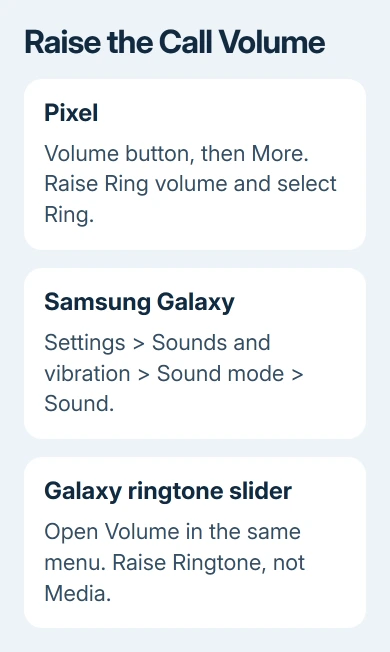
Press a volume button, then open the expanded volume panel. Look for Ring volume, Ringtone or Ring & notification volume. Raising Media volume makes videos louder; it doesn't necessarily change the sound for incoming calls.
On a Pixel, tap the sound icon near the volume slider and select Ring rather than Vibrate or Mute. Open the additional sliders and raise the ring setting until it's audible from across the room.
On a Galaxy, open Settings > Sounds and vibration. Set Sound mode to Sound, open Volume, then raise Ringtone. That route avoids guessing which slider the side buttons are changing.
Google explains these controls in its missed-call settings. Menu wording varies on other Android phones, so search Settings for ring volume if those labels aren't in the same place.
Ask someone to call your mobile number while the screen is locked. If the incoming-call screen appears and you hear ringing, this part is fixed. If it vibrates or stays silent, check modes before changing your carrier account.
2. Stop modes from silencing the next call
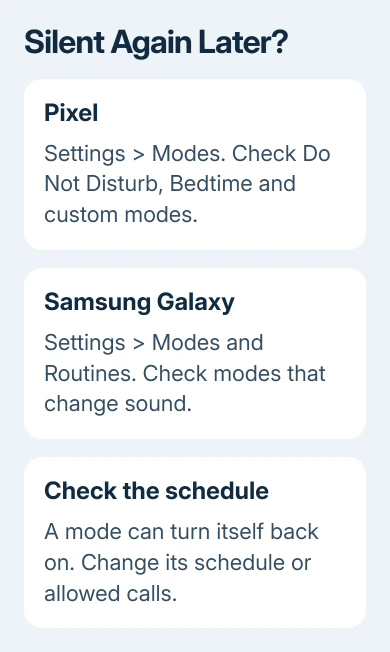
Pull down the Quick Settings panel and inspect Do Not Disturb. On current Pixels it sits inside Modes. Turn off the active mode, then call again. Modes can allow alarms but silence calls; a working alarm doesn't rule this out.
Open Settings > Modes on a current Pixel and review Do Not Disturb, Bedtime and any custom modes. Older Android versions may put Do Not Disturb under Sound & vibration or Notifications instead.
On Galaxy, check Settings > Modes and Routines for Sleep, Relax or another sound-changing mode. Also check the separate Quick Settings Do Not Disturb control. A schedule can restore silence later even after you turned it off once.
If ringing returns, edit the schedule or its call exceptions to suit you. Turning every mode off permanently isn't necessary. Set it so the calls you want can ring when that mode runs.
For a Pixel that goes quiet only face down, search Settings for Flip to Shhh and turn it off for a test. On older Pixels with Active Edge, check whether Squeeze to silence phone is enabled under System > Gestures > Active Edge.
Don't press a volume button while waiting to hear the test call. That action can silence an incoming ring, even though your normal volume setting hasn't changed. Put the phone down and let the caller leave it ringing briefly.
3. Replace a silent or missing ringtone
Open the ringtone picker and preview a built-in sound. On a Pixel, use Settings > Sound & vibration > Ringtone. On a Galaxy, use Settings > Sounds and vibration > Ringtone, choosing the relevant SIM if asked.
Select a built-in tone you can hear and save it. A downloaded sound can stop being available after a file is moved or removed. Trying a built-in tone checks whether the custom file is the problem.
If the preview plays but calls still don't ring, the speaker can produce that sound. Move on to call filtering. If the preview itself is silent, check the Galaxy accessibility control in the next section and compare other speaker audio.
When only one person's calls are silent, open that contact and check their assigned ringtone. Our Android ringtone guide covers both the default and per-contact choices. Changing the default won't fix that contact's separate setting.
I'd keep a built-in sound selected until a normal incoming call rings successfully. That gives you a working choice to return to when you later try the custom file again.
4. Check Galaxy's Mute all sounds setting
On a Samsung phone, open Settings > Accessibility > Hearing enhancements and turn off Mute all sounds if it's on. This control can silence the phone even when its ordinary sound mode appears correct.
Play the ringtone preview again, then make another incoming call. If other audio returns too, the accessibility setting was affecting more than calls. Keep any other hearing settings you need; this check only concerns the mute switch.
If the speaker stays silent for everything, the problem goes further than incoming-call settings. Disconnect headphones and Bluetooth audio for that comparison, and try a familiar video through the phone's speaker.
5. Follow the call when it never appears on screen
Check whether the number is blocked in the Phone app. On Google's Phone app, open More > Settings > Blocked numbers. In Samsung Phone, choose More options, then Settings > Block numbers to review its list.
Unblock only callers you want to hear from. If saved contacts ring but unknown callers don't, review the Phone app's spam and call-screening options too. A filtered call doesn't mean the speaker is broken.
Samsung's ringtone troubleshooting also points to call forwarding. In Samsung Phone, look under Settings > Supplementary services > Call forwarding, if your carrier makes that menu available.
Forwarding controls vary by carrier. If the menu isn't there, check your carrier's own instructions or ask it to check forwarding on your line. Avoid entering a dial code copied from another carrier, since those codes aren't universal.
With Airplane mode off, check signal and try making an outgoing call. If incoming calls still go to voicemail with no missed-call entry, ask the carrier to check incoming-call routing and the SIM or eSIM on your number.
6. Treat app calls and persistent silence separately
If ordinary mobile calls ring but WhatsApp or another calling app doesn't, open that app's call and notification settings. Check its Android notifications under Settings > Apps > [app name] > Notifications as well.
The mobile ringtone setting doesn't control every calling app. Tell the app's support team its version and whether its incoming-call screen appears. For the opposite fault, use our Android microphone checks when callers can't hear you.
Restart and install available system updates if calls stay silent with the correct settings. If ringtone previews and other audio also fail, ask the manufacturer about the speaker before resetting. Keep your model and results ready.
The Short Version
Turn on Ring or Sound mode and raise ringtone volume. Check active modes, a built-in tone and Galaxy's Mute all sounds switch. Calls that never arrive need blocking, forwarding or carrier checks; app-only silence needs that app's settings.
Checked November 9, 2026.

Isaac Smith is the founder and editor of PC Glance, a website that covers computers, laptops, and technology. He is a tech enthusiast and a computer geek who loves to share his insights and help his readers make smart choices when buying tech gadgets or laptops. He is always curious and updated about the latest tech trends.