

An Android phone with no sound can have its media volume turned down or be sending audio to headphones instead of its speaker. Start a video, raise Media volume, then disconnect Bluetooth audio.
If videos play but the phone won't ring, check its call settings instead.
Silence during calls, silence in one app, and silence from every speaker aren't the same fault. Follow the checks that match the sound you're missing before considering a repair.
In this guide
1. Raise the volume for the missing sound
Play a video you've heard before, then press Volume up. Open the extra volume sliders from the panel menu and move Media volume directly. This avoids changing ringtone or accessibility volume while the video stays quiet.
On a Pixel, open Settings > Sound & vibration to see the separate controls. On a Galaxy, use Settings > Sounds and vibration > Volume.
Other Android phones group these settings differently; search Settings for volume when needed.
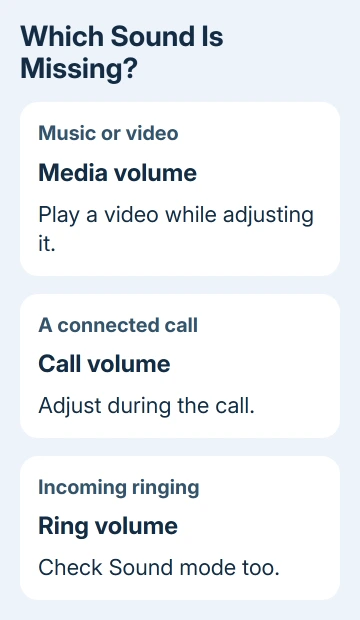
Media controls music, videos and games. Call volume applies while you're speaking to someone. Ringtone volume controls the incoming alert. An alarm has its own setting too, so a loud alarm doesn't mean media volume is set correctly.
During an ordinary phone call, raise the volume after the other person answers. That changes how loudly you hear the caller, rather than the video volume you changed earlier. Move the handset away before enabling speakerphone.
The Android sound controls explain the separate levels and output choices.
If pressing the keys changes Accessibility volume instead of your video, use our Android volume-key fix.
If you can hear the video now, the speaker can play media. If they stay silent at a sensible volume, check where playback is going next.
2. Bring audio back from headphones or Bluetooth
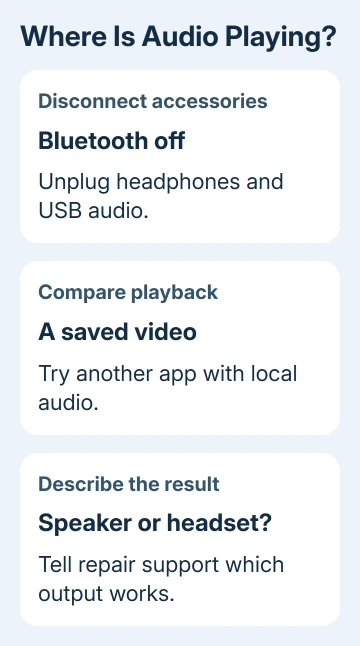
Turn Bluetooth off temporarily in Quick Settings. Unplug wired headphones, a USB-C audio adapter, or a dock. Play the same video through the phone without those accessories attached.
Sound can keep going to a car or headset even when that device isn't beside you. On supported Android versions, the expanded volume panel has Play media to under Media volume. Choose the phone when that option appears.
Some phones put the choice of speaker or headphones in the media playback card instead. Use the device name to check the destination; changing the volume on a connected speaker won't make your handset's speaker louder.
If audio returns after disconnecting an accessory, reconnect only that accessory and select the output again. That comparison shows whether the accessory connection brings the silence back.
Resetting your phone won't help when its speaker already plays normally.
For headphones that remain silent, try another pair or try the same pair on a second device. A failed adapter and a failed phone speaker need different repairs, and this comparison helps you describe the right one to support.
3. Separate missing alerts from a silent speaker
When videos play normally but incoming calls don't ring, turn off the active Do Not Disturb mode for a test. Current Pixels use Settings > Modes; older versions can place the control under Sound & vibration or Notifications.
On Galaxy phones, check the Quick Settings Do Not Disturb control and Settings > Modes and Routines. A scheduled Sleep mode can silence calls again after an earlier manual change.
Use our Android phone not ringing guide if only incoming calls are affected.
It covers ringtone selection, caller filtering and calls that go directly to voicemail, which need different checks from a silent speaker.
For a Galaxy that's silent across several kinds of audio, search Settings for Mute all sounds. Where available, it's under Accessibility > Hearing enhancements. Turn it off if it was enabled, then replay the video.
Leave any hearing assistance you rely on turned on. Only change the control that mutes audio; the other hearing settings do different jobs.
4. Compare an offline recording with another app
Play a video stored on the phone, such as a recording in your photo app. Then try a different app. A streaming service with a connection problem can appear silent even though the phone plays local audio normally.
Check the affected app's own mute control. A muted video can remain silent with Android's Media volume raised. For a meeting app, inspect its speaker choice and join-audio control as well.
If only one app fails, update that app through Play Store and try another recording in it. If one file alone fails, compare a different file before changing system settings. The recording itself might not contain usable audio.
I'd compare these recordings before uninstalling an app or considering a reset. Hearing a local video through the speaker gives you a much more useful result than repeatedly replaying one silent stream.
If every app is quiet, restart the phone and test that local recording again. On Pixel 6 and later, hold Power and Volume up, then tap Restart.
Pixel 5a and earlier models need a longer Power press: about 30 seconds, or until the handset restarts. For other brands, follow the maker's power-menu instructions.
5. Check the speaker opening and call earpiece
Take off any case or protector covering a sound opening. Check the model's component diagram to distinguish speakers from microphones. Similar-looking holes aren't necessarily a pair of stereo speakers.
Wipe surface dirt away gently using a soft, lint-free cloth. Keep pins out of the openings.
If the phone became quiet after getting wet or being dropped, mention that when arranging service instead of starting with app repairs.
During a call, compare the earpiece and speakerphone. If the caller sounds normal on speakerphone but quiet through the earpiece, the problem doesn't affect all phone audio. Check that the top earpiece isn't covered by the protector.
Google recommends accessory removal and recording comparisons in its Pixel sound troubleshooting. Its hardware checks also cover cleaning.
If calls alone sound broken, also compare a call from a place with a strong mobile signal.
6. Ask for the right hardware check
If local recordings stay silent through the built-in speaker with accessories removed, contact the phone maker's repair support.
Ask for a speaker assessment and give the model, Android version, and whether headphones and the call earpiece work.
For a Pixel, use Contact us on the Pixel Phone Help site. For a Galaxy, ask Samsung's support team or service center about a repair. Include whether the silence began after damage, a system update, or installing an app.
I wouldn't erase personal data with a factory reset as the next step when the phone has obvious physical damage. Let support explain whether a software reset is needed after reviewing those results, and back up before agreeing to one.
The Short Version
Start playback, adjust Media volume, remove audio accessories, and compare a saved recording using a different app. Working media with silent calls needs ringer checks. Silence across apps and outputs needs the manufacturer's assessment.
Checked November 13, 2026.
 If you have any business, I can build it online






