Google confirmed a volume-key bug that sent Select to Speak users' button presses to Accessibility volume instead of Media volume. The fix arrived in Android Accessibility Suite updates, so update that app before disabling a reading tool.
The original report also covered volume keys that wouldn't take a photo in Camera. A button that doesn't respond anywhere, or a phone changing the wrong Bluetooth speaker's volume, needs a different check from this specific bug.
In this guide
1. Check which volume the buttons are changing
Play a song you know, then press a volume key once. Read the label on the volume panel. If it shows Accessibility while the media stays at the same level, the symptom matches the confirmed Select to Speak problem.
Expand the volume panel using its menu control and move Media volume directly. This slider controls music, videos, and games. Ring, alarm, and call audio have their own levels, so moving one doesn't necessarily change another.
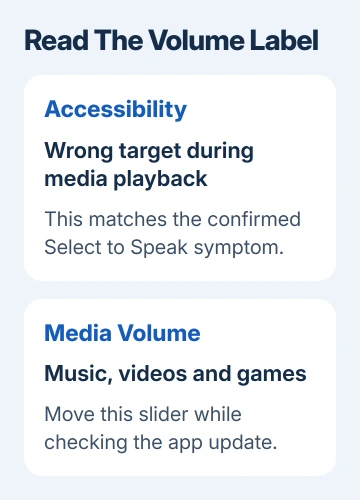
If the Media slider changes the sound, you have a usable way to control playback while checking updates. If even that slider doesn't change the sound you hear, check the selected playback device as well as the volume level.
On supported Android versions, expand the panel and find Play media to under Media volume. Select the output you want. A headset or speaker connection can explain why sound isn't coming from the phone itself.
For AirPods used with Android, our Android AirPods volume guide covers that accessory's media controls. Keep that separate from a panel that specifically keeps selecting Accessibility volume.
The Android sound controls explain the separate sliders. Menu appearance differs between phone makers, and some of those instructions apply only to Android 12 or later.
2. Install the available Android Accessibility Suite update
Open Google Play Store and tap your profile picture. Choose Manage apps & device. Under Updates available, open See details and look for Android Accessibility Suite. Tap Update beside it when offered.
Let installation finish before comparing the volume controls again. If Play asks for a restart to complete an app update, save what you're doing and restart. Then play the same audio and check which slider the keys change.
The January 14, 2026 update to the announcement says the fix had rolled out. Google says affected users needn't take action when Android Accessibility Suite receives automatic updates.
The update changes the original advice: check the app before permanently disabling Select to Speak. Try the keys with the feature still available. If the fix has reached your phone, you can keep it and use the volume buttons normally.
If the pending list doesn't include it, search Play Store for Android Accessibility Suite and open its listing. An Update button means a newer version is available for your device. Use that rather than an APK from another site.
The announcement doesn't give one fixed version number for every device. Use the update Play offers for your phone. That January bug doesn't explain every volume-button problem that happens afterward.
3. Use the Select to Speak workaround if needed
If the matching symptom remains while you check updates, open Settings > Accessibility > Select to Speak. Turn off the Select to Speak shortcut. If that screen lists several active shortcuts, turn them off for this check.
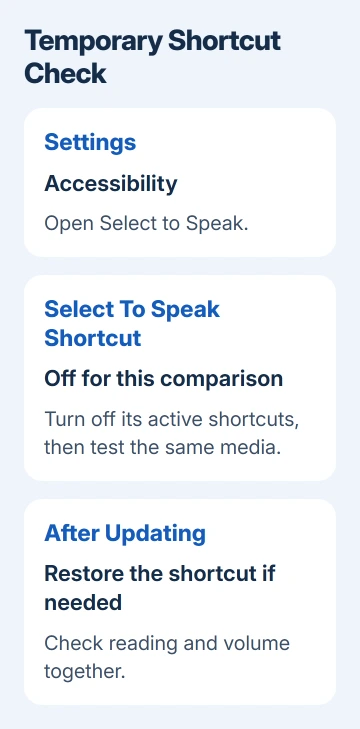
Return to the same song or video and press a volume key. Watch the Media volume slider and listen for louder or quieter sound. If the keys now change media volume, leave the workaround in place only as long as you need it.
The updated volume-key announcement includes this exact workaround. It's about Select to Speak shortcuts, rather than a request to turn off every accessibility service on the phone.
Select to Speak reads selected screen content aloud. If you rely on it, try the update first: turning off its shortcut changes how you start that help. Don't remove Android Accessibility Suite just to test one feature's shortcut.
Phone makers can group downloaded accessibility services differently. Search Settings for Select to Speak if the direct path isn't visible. Don't switch off TalkBack or another service simply because it also appears in Accessibility.
After updating, restore any shortcut you rely on and check both reading and volume control. That final check tells you whether you can keep the feature without the keys changing the wrong slider again.
4. Check Camera and automatic updates separately
Open Camera and try the volume-key shutter action again after the update or workaround. Use your camera app's normal photo mode. The keys can change media volume correctly without working as a Camera shutter, so check both.
The confirmed report included keys failing to take photos with Select to Speak enabled. It didn't cover every camera app's setup. Check the app's volume-key setting if you weren't already using the keys to take photos.
To keep this app updated, open its Play Store details page. Open the three-dot menu and enable Enable auto update. To choose how all your apps update, go through Play Store Settings > Network preferences > Auto-update apps.
Choose a network option that suits your data plan. Wi-Fi-only updates need a working Wi-Fi connection before they can arrive. A Play account sign-in error can also prevent automatic updates, so resolve any visible account prompt first.
5. Treat a different button fault as a different problem
If Select to Speak is off and the keys never show a volume panel, that doesn't match this wrong-slider bug. Take off an obstructing case, then request a button check from the manufacturer if a key sticks or looks damaged.
If a key changes call volume during a call, compare it during media playback before calling it broken. Call audio and media audio have separate controls. Use the sound you actually need to change during the check.
A phone whose screen has also stopped responding needs the Android frozen-phone steps. Don't try changing an accessibility shortcut through a frozen Settings screen and assume the change has taken effect.
If the wrong-slider problem continues after updating, use the accessibility team's Disability Support route or the phone maker's support. Give your phone model, Android and Accessibility Suite versions, and the slider the keys change.
The Short Version
Check the slider selected by the keys during playback. Update Android Accessibility Suite first. If needed, disable Select to Speak shortcuts temporarily, then compare media and Camera before restoring the shortcut.
Checked November 10, 2026.