Subaru Bluetooth that won't reconnect often needs a fresh pairing after removing the old entry from both phone and car. For working calls but silent music, check the audio source and phone's media-audio permission first.
Missing contacts, a failed pairing, and CarPlay or Android Auto not opening are different problems. Match the failure to the feature before removing a pairing that already works.
In this guide
1. Restart your phone and identify the failed connection
Park before changing phone or vehicle settings. Restart your phone, turn Bluetooth back on, and check the saved Subaru connection. On Android, a successfully connected accessory appears as Connected in its Bluetooth device list.
On iPhone, open Settings > Bluetooth, turn Bluetooth off, wait about five seconds, then turn it on again. The Settings device list also shows whether the saved vehicle reconnects.
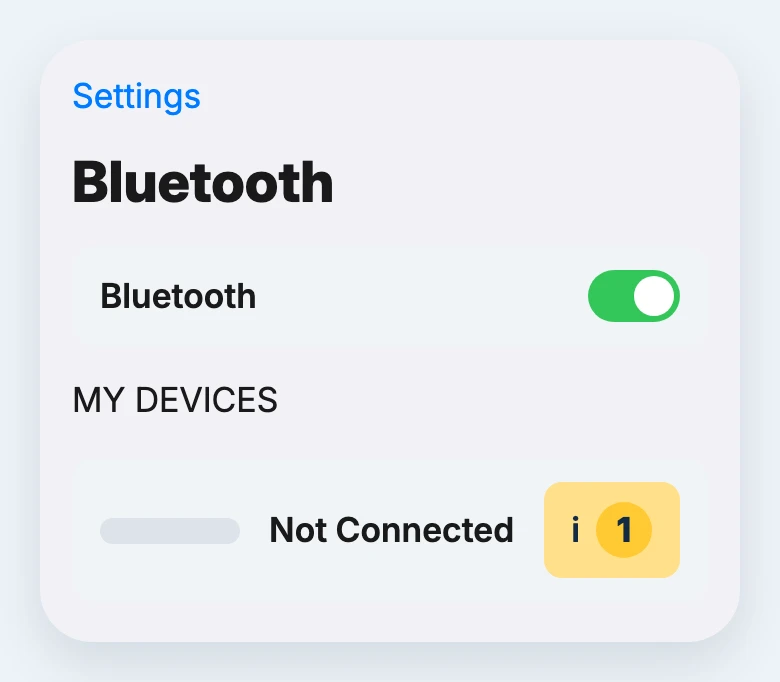
If the car connects now, check a call and music separately. Working calls don't tell you whether music and its permissions are working too. Keep the phone nearby while checking the parked car.
Bluetooth calling and music don't require the CarPlay or Android Auto dashboard to appear. CarPlay and Android Auto put phone apps on the car display and can have their own requirements, including a supported USB port or wireless setup.
For an iPhone that works with other accessories but fails in the car, the iPhone Bluetooth connection checks cover a phone-side fault. Continue with the Subaru pairing steps when it only happens in this vehicle.
2. Remove the old pairing from both sides
Subaru's reconnect instructions say to remove the car from the phone's pairings and the phone from the head unit's Phone screen. Then reconnect them. Both sides need to forget the old pairing.
On iPhone, open Settings > Bluetooth, tap the vehicle's i control, then select Forget This Device. Confirm the choice. The car will need to be paired again afterward.
On Android, press and hold the Quick Settings Bluetooth tile. Open the saved vehicle's settings and tap Forget. Depending on the phone, you may first need See all to reach the saved-device list.
In the Subaru, open Phone and remove this phone's saved entry. Use the deletion control in your model's multimedia manual, because head units don't all use the same menu layout.
The reconnect instructions cover specific 6.5-inch and 8-inch systems, including versions with CD players and navigation. They apply to 2018-2019 Outback/Legacy models and several other ranges, but not every Subaru display.
If your car has a different display, follow its manual for the vehicle-side removal. Don't use a button-hold reset copied from another model just because both radios carry the same brand.
3. Pair again using the car's displayed name
For a 2020-2022 Outback or Legacy, open Phone from the vehicle's Home screen. With no phone connected, answer Yes to Do you want to add a device? Otherwise, select Add Device.
Read the device name shown on the car. It is often SUBARU, but choose the name your own screen displays. Other systems can use a different Bluetooth name, so a nearby entry with a familiar brand isn't enough.
On Android, open Settings > Connected devices or Connections, then Bluetooth. Select the displayed vehicle name, or choose Pair new device first if the phone hasn't started listing nearby devices.
Select Pair when prompted. Compare the PIN on the phone with the PIN on the vehicle screen, then choose Confirm on the touchscreen when they match. Complete the access prompts and phonebook download if you want contacts available.
For iPhone, keep Settings > Bluetooth open while the car is in pairing mode, then select the vehicle. Follow the code prompts on both screens. Use your car's manual to enter pairing mode on a different head unit.
Once the car shows the phone as connected, try the function that originally failed. If the same pairing failure returns, write down the message so you can compare it when trying a second phone later.
4. Restore music, calls, or contacts separately
When pairing succeeds but music is silent, select the car's Bluetooth audio source and start music on the phone. Check the playback volume while music is actually playing, rather than adjusting only the radio source.
On Android, select the settings control for the saved car entry. Google's Bluetooth troubleshooting steps distinguish Media audio for music from Phone audio for calls. Enable the function that's missing.
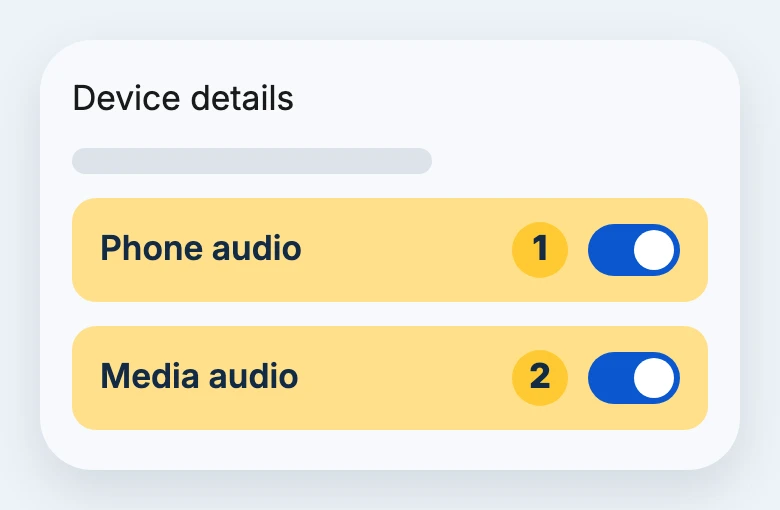
For music that still goes elsewhere, check whether another connected accessory is receiving it. A phone can remember several Bluetooth devices, and connecting to the Subaru doesn't mean every app is sending its audio there.
For missing contacts on the 2020-2022 Outback/Legacy setup, allow the access prompts during pairing and select Download for the phonebook on the touchscreen. A connected phone with no downloaded contacts hasn't necessarily failed to pair.
If you declined access earlier, return to the vehicle's Bluetooth settings on Android and review the available permissions. The car can need permission to read contacts or messages even though audio already works.
5. Check another phone and arrange the right support
Try a second compatible phone with the parked car. If it connects reliably, check the software and pairing on your original phone. If both fail, report the head-unit behavior to the retailer instead of repeatedly resetting one phone.
Also compare the original phone with a different Bluetooth accessory. For failures across several accessories, the guide to Android Bluetooth connections helps check the phone independently of the car.
Check for system updates on your phone. Ask your Subaru retailer about multimedia updates for your model, year, and head unit (the radio and display system). Update files and reset methods aren't interchangeable between systems.
For repeated pairing failures, contact your Subaru retailer or Subaru of America's Customer Advocacy Department. Give the model year, phone model, software version, and whether pairing, calls, or music fails.
The Short Version
After restarting your phone, clear failed pairings from both devices and pair using the car's displayed name. Check music, calling, and contact permissions separately. Failures with two phones need a head-unit software or service check.
Checked November 29, 2026.
 If you have any business, I can build it online