Mapy.com works offline on Android once you're signed in and your maps are fully downloaded. The app's main menu contains Offline maps; download your destination there. Partial downloads won't work offline.
The free version lets you keep one country available for offline downloads; Premium allows multiple countries. An old Mapy.cz installation uses the same service, now named Mapy.com, so check your account and map status before a trip.
In this guide
1. Choose the country under the right account
Sign in to the Mapy.com app before managing offline maps. Your downloads belong to your current Mapy sign-in, even if the phone has other accounts. A map stored by another account isn't automatically yours to use.
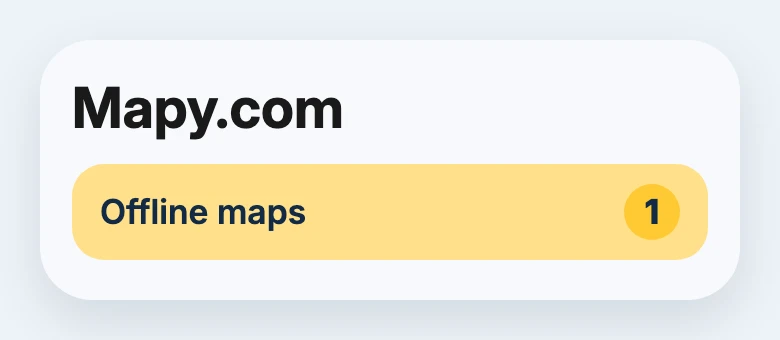
In the main menu, choose Offline maps. If this is your first free download, the promotion screen offers One free offline map. Choose that option to reach the country list without buying a subscription.
For a free account with older downloads, look for Select beside the country you want to keep. That selection can also appear beside a country downloaded under another account on the same device.
Choose the country you'll travel through, not just the one your phone is in now. If you'll cross a border, check the neighboring country too. One country's offline map doesn't supply the roads and places throughout another country.
Mapy's help explains the free and Premium offline rules. Don't assume a collection downloaded years ago gives the account unlimited new downloads or updates today.
2. Download the regions and wait for completion
Open the country to see its regions, where available. Download the whole country if you need it, or select the regions covering your route. The detail page shows how much storage the download will need before you start.
If Android offers more than one storage location, choose where to save the maps. The app remembers that choice for future downloads. Check available space before downloading several large regions.
Start the download while the connection is reliable. The map shades a downloading region gray and shows a clock symbol. You can watch its progress beside the region in the list.
When finished, the region turns green. At that point the map is ready to use without switching on a separate offline mode. A paused download with the gray clock is unfinished, even if some of its files are already on the phone.
I'd finish this at home rather than trust a weak connection just before leaving. Check that every region has finished; a download notification disappearing doesn't mean it's done.
Keep the phone online until the regions you need have finished. If space runs out, remove an unneeded downloaded region using its trash control, then retry the required one. Don't delete the only completed map you still need on the journey.
3. Check the route before switching the connection off
While you still have internet, find the destination and review which regions the route crosses. Then disable Wi-Fi and cellular internet briefly, open Mapy again, and repeat the same search and route plan.
This checks whether you've downloaded the areas you need. A map centered on your hotel can work while a later part of the journey lacks the map files needed for planning. Compare the results while you still have a reliable connection.
Offline maps support browsing, searching, route planning, and navigation within downloaded areas. Aerial imagery isn't included with those map downloads, so its absence offline doesn't mean the country download failed.
The offline search database is smaller than the online one. It includes addresses and places, but business searches are limited to places marked on the map. A missing business result doesn't mean the map download failed.
The app also needs permission to use your location. To show where the phone is, allow the app to use location in Android's location controls. Downloading a country doesn't grant that permission automatically.
Keep location enabled during that offline check. Switching off the internet isn't the same as turning off the phone's location service.
4. Handle free-country changes and expired Premium
Free accounts can change their chosen country. Download the new destination before departure and check what's available afterward. The free plan covers one country and its regions, not just one region.
If an older installation contains several countries, the app may request a single country for the free plan. Until you choose, older maps can remain usable even though you can't download or update maps freely.
After Premium expires, downloaded maps can still work, but the rules for downloading and updating them change. Choosing one country to keep updated removes the others, according to the current instructions.
Don't solve an account-limit message by repeatedly reinstalling the app. Read which country is selected and whether Premium is active for the signed-in account. If your paid subscription is missing, ask Mapy support to check the account.
For a different navigation app on a car display, the Android Auto offline travel guide explains why phone downloads and an internet-free trip need planning together.
5. Finish updates before leaving reliable Wi-Fi
Map updates can change the map drawing, routing, and search data together. Large updates need matching map files across all regions; smaller updates can cover selected regions. Starting an update can therefore affect maps you already had.
Find the controls under Settings > Offline maps. Choose automatic or manual updates there, and check the Wi-Fi restrictions and storage settings. Automatic map updates are enabled by default and download while the phone charges.
If downloads and online searches both fail only on home Wi-Fi, try another Wi-Fi network or cellular internet. Mapy's troubleshooting page says switching connections can restore access when that network is the problem.
If the phone also loses ordinary internet access, follow the Android Wi-Fi connection checks before changing the map account.
Keep an eye on your mobile allowance before using cellular internet for map downloads. Their sizes are displayed in the app; a country can require much more data than a short search.
If neither connection works, send Mapy support your Android and app versions, whether you're signed in with free or Premium access, and the affected country. Report whether online searches fail too, or just one region's download.
The Short Version
Sign in, choose Offline maps, and download your country or regions completely. Green means ready; gray with a clock means unfinished. Test the whole route offline and finish map updates before leaving a dependable connection.
Checked November 29, 2026.
 If you have any business, I can build it online