The No SIM message on Android means the phone isn't detecting an active SIM, while No service can mean the SIM is recognized but can't reach the carrier. First shut the phone down completely, turn it back on, and check its line in Settings.
For a PIN or PUK prompt, get the unlock information from the carrier. Repeated guesses can lock the card, so deal with that message before trying network resets.
In this guide
1. Restart the phone and enable its line
On a Pixel, power the phone off, wait 30 seconds, then turn it on. Airplane mode also needs to be off before you test calls or cellular data.
Open Settings > Network & internet > SIMs, select your carrier, and check Use SIM. Check the switch for cellular internet too if calls work but websites stop loading when Wi-Fi is off.
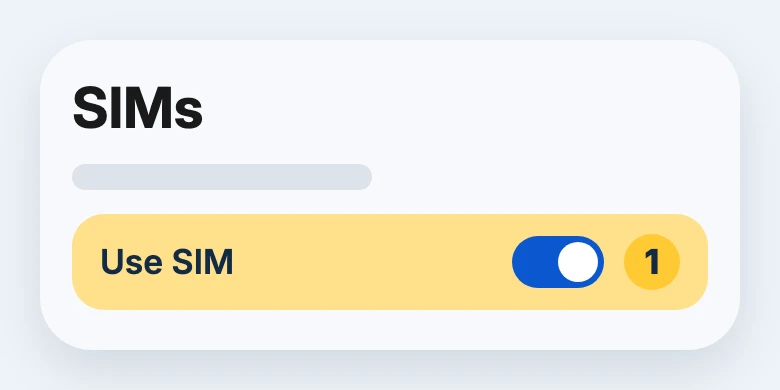
On a Galaxy, choose Restart from Quick settings' power menu. Check Settings > Connections > SIM manager on supported models and enable the intended line. A second SIM can keep working while that line is off.
Try an ordinary outgoing call and ask someone to call you back. Then turn Wi-Fi off briefly and open a website. If calls work but cellular internet doesn't, focus on the data connection.
If only data fails, check your plan's data allowance and the selected data SIM before removing the card. If that happens on a Galaxy, check cellular internet before replacing its SIM.
2. Read the message before moving a physical card
A new phone isn't always compatible with an old SIM. Some older cards aren't supported by Pixel 8 and later. A message saying the SIM is no longer supported calls for a replacement from your carrier.
US Pixel 10 requires eSIM; so do the Pro and Pro XL versions sold there. Ask the carrier to activate those models rather than inserting a card. Other regions can have different hardware.
For No SIM on a phone with a SIM tray, check the tray and card next. For No service with the carrier listed in settings, continue to the carrier and network checks. An eSIM has no removable card to reseat.
On a Galaxy, Settings > About phone > Status information > SIM card status lets you check the network information. If the carrier isn't shown, tell support that detail along with the exact message on the main screen.
A SIM PIN protects the card rather than unlocking the phone's screen. Get a forgotten PIN or requested PUK from your carrier. Don't use your screen-lock code as a guess simply because both prompts ask for numbers.
3. Reseat the card and compare another compatible SIM
Power off a phone with a physical SIM, then remove the tray with the correct eject tool. Use the tray's eject hole identified in the phone's manual. A nearby microphone opening isn't a place for the pin.
Check the card for damage, then lay it flat in the tray's matching cutout. Reinsert the tray fully and restart the phone. Don't force a bent tray or use a cut-down card that doesn't fit correctly.
Google's Pixel SIM instructions describe the tray locations for different models. The location varies, so find the correct tray for your own model.
If possible, try a different active SIM that's compatible with your phone and carrier restrictions. If another card works in the same tray, the original SIM or its account is the likely problem, rather than a broken SIM reader.
Put the original SIM into another compatible phone if you can. If it fails there too, ask your carrier to check its activation or replace it. If several compatible active cards fail only in your phone, have the phone inspected.
I'd make that comparison before a factory reset. It can direct you to a replacement SIM without removing your apps or personal files. Skip the physical-card checks entirely when the affected line is an eSIM.
4. Ask the carrier about activation, restrictions, and outages
Inserting a new card doesn't activate its service. Contact the carrier when service fails after transferring your number, activating a replacement card, or changing phones. Ask whether the intended SIM is active on your account.
Samsung also notes that some carriers offer SIM protection that prevents a card from activating in a new device. Ask whether that service is blocking the transfer. Resetting your phone can't lift a carrier restriction.
For a recognized SIM with No service, ask about local outages, coverage, and account restrictions. Give your location and say whether another phone using the same carrier has service there.
For an eSIM, have the carrier review both the profile and its activation before deleting it. Deleting a profile can leave you needing the carrier's help to add the line again, particularly during a failed transfer.
When you contact the carrier through its secure support channel, have your model and device identification details ready. Don't post the SIM number, IMEI, or account details in a public forum while asking for help.
5. Clear saved cellular settings after checking activation
When the carrier confirms the line is active and the phone still fails, reset the mobile network settings. On a current Pixel, open Settings > System > Reset options > Reset mobile network settings and follow the confirmation.
On a current Galaxy, choose Settings > General management > Reset > Reset mobile network settings. Select Reset settings, read the warning, and confirm Reset.
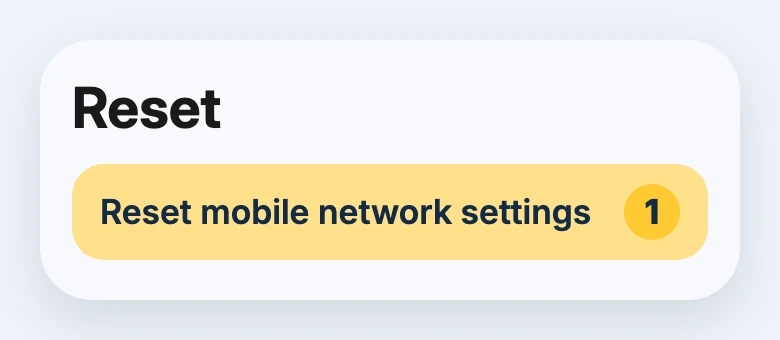
This clears your saved mobile network settings. Older Android versions may combine mobile, Wi-Fi, and Bluetooth reset options; check the warning for any effect on saved Wi-Fi connections or Bluetooth pairings.
Afterward, try calling and cellular internet again. If you still have no service, tell the carrier what you've tried and ask whether the card or phone needs replacing or inspecting.
For a phone that has working mobile service but can't use home Wi-Fi, use the separate Android Wi-Fi connection checks. That connection doesn't depend on replacing the SIM.
The Short Version
Check the line is enabled, then separate No SIM from No service and PIN requests. Reseat physical cards only on models that use them. Compare a compatible SIM and involve the carrier before deleting an eSIM or resetting the phone.
Checked November 29, 2026.
 If you have any business, I can build it online