Google Maps can disappear from Android Auto when a Samsung phone disables an unused app. Open Maps on the phone, then check the car's app launcher again. If Maps is listed but the dashboard shows something else, select Maps there.
If Android Auto itself never opens, fix that connection first. If its other apps work, concentrate on Maps and the phone's app settings rather than resetting the car.
In this guide
1. Open Maps on the phone before reconnecting
Park the car and open Maps directly on your phone. Let the app reach its normal map screen. Complete any permission prompts or setup screens before checking the car again.
Google's missing Android Auto app instructions explain that Samsung's unused-app feature can leave an app visible on the phone while keeping it out of the car's launcher. Opening the app re-enables it.
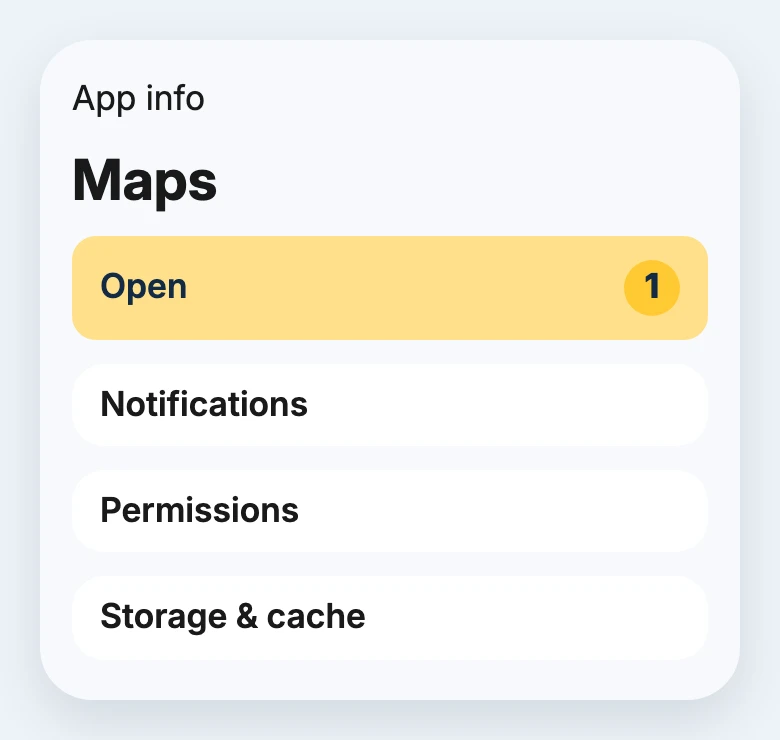
Reconnect Android Auto and open its app launcher on the car display. Look through the apps, not just the dashboard panel. The app should appear the next time the launcher opens.
If Maps opens from that list, the app is available again. A missing dashboard panel alone doesn't call for a cable change, clearing saved cars, or rebuilding your Google Account.
If Maps fails to open on the phone too, use the guide to Google Maps stopping on Android. A crash before the app reaches its map screen needs phone-app troubleshooting first.
2. Check whether Maps is missing or simply not selected
Android Auto can show navigation alongside another activity, and its dashboard isn't the full list of installed car apps. Open the app launcher and select Maps if it is present.
You can choose your navigation app from that launcher. A different navigation app opening doesn't mean Maps was uninstalled. Choose the app you want before trying to reinstall anything.
Once Maps opens, select Search, then use Recent, Categories, or Saved to pick a destination. An empty Saved list means your saved places aren't appearing; Maps itself is still available.
Typing a destination through Android Auto requires the car to be in Park (P). If the keyboard is unavailable while the car is moving, stop safely before testing the search field.
If Maps is visible and opens, but the map cannot locate the car, move to the phone's location settings. Getting Maps back in the launcher won't give it location permission or fix an inaccurate position.
3. Stop a Galaxy from disabling the app again
If opening Maps restores it but it disappears after you haven't used it for a while, check Samsung's sleeping-app settings. Open Settings > Battery and device care > Battery > Background usage limits on Galaxy versions using that layout.
Newer layouts may place Battery directly in Settings. Search Settings for Background usage limits when the older Battery and device care route isn't present, then check the options your phone offers.
The control Put unused apps to sleep lets the phone manage apps it considers unused. Turning it off stops the phone from automatically putting unused apps to sleep, so decide whether all your apps need that change.
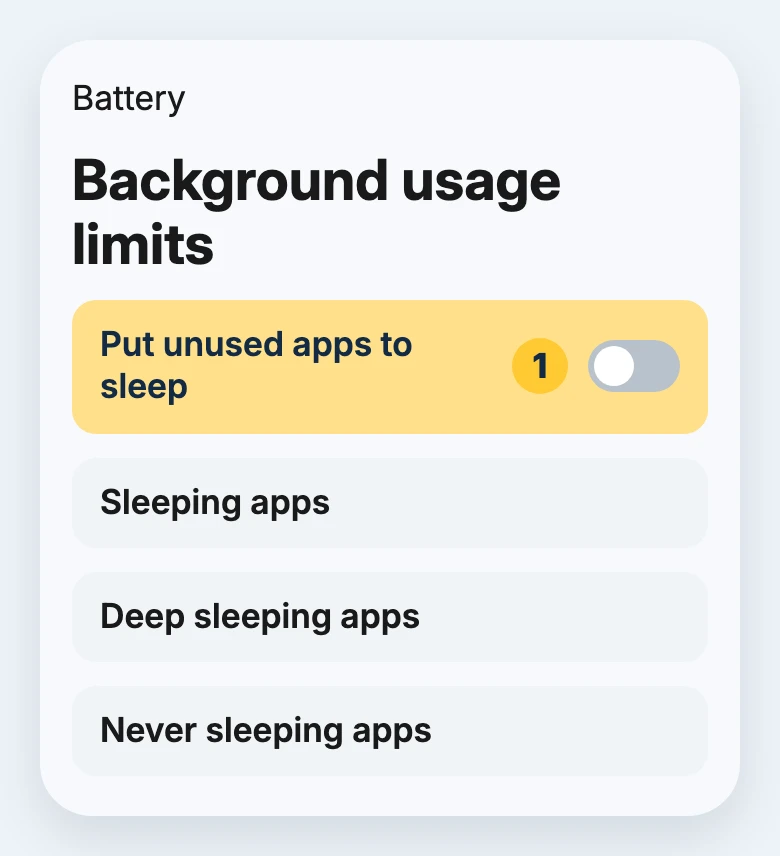
To change only the affected apps, look for Maps in Sleeping apps, then check Deep sleeping apps. Remove it from either list if it appears. Never sleeping apps can keep selected apps out of the sleeping group on supported Galaxy layouts.
To remove Maps from either list, tap its three-dot More options menu, choose Edit apps, select Maps, and tap Remove. To keep it active, use Never sleeping apps > plus, select Maps, then tap Add.
Deep sleeping goes further than ordinary sleeping: those apps work when opened but can't run in the background. Check which list contains Maps before assuming the phone applied the same restriction to every installed app.
I'd remove Maps from the sleeping group first when other phone functions work normally. That keeps the change focused on navigation instead of removing a battery-saving preference you may want for other apps.
4. Update Maps and check its phone permissions
Open the Google Play Store, select your profile picture, and choose Manage apps & device. Install an available Maps update. Check for Android Auto updates there too, then reconnect and look in the launcher again.
If Maps still won't work, open Settings > Apps > Maps. Select Permissions and check Location. Allow the access needed for the navigation you use, and enable the phone's main Location control if it's off.
Permission names vary by Android release. Recent versions also offer precise or approximate location on the app's location page. Enable precise location so Maps can position the phone accurately for navigation.
A missing launcher entry and an inaccurate position are separate results. Check whether the app returned before judging the accuracy of its blue location marker. That tells you which part still needs attention.
For a Maps app that opens but remains broken, follow its dedicated troubleshooting guide linked earlier. Start with updating and cache checks rather than deleting app data and offline downloads as the first response.
5. Use connection troubleshooting only when Android Auto fails
If the car shows its own radio interface but never reaches Android Auto, open the Android Auto connection guide. It covers USB cables, compatible wireless setup, and the receiver's Android Auto setting.
Bluetooth audio and Android Auto use different connections; music alone doesn't confirm that phone projection started. The car may support hands-free audio without starting Android Auto, which displays phone apps on your dashboard.
If other Android Auto apps continue to open and Maps alone is missing after these checks, send feedback through Android Auto's phone settings. Include your phone model, Android version, Maps version, and car or receiver model.
Report whether opening Maps on the phone restored it, whether the launcher lists it, and whether it vanished after an update. Those details tell support whether Maps is missing or its navigation isn't working after it opens.
The Short Version
Launch Maps directly on your phone to re-enable it, then choose it in the car's launcher. On Galaxy, check sleeping-app controls if it vanishes again. A missing app needs different checks from GPS or connection trouble.
Checked November 29, 2026.
 If you have any business, I can build it online