
Android Auto not connecting can involve the cable, compatibility, pairing or USB protection. For wired use, start with the correct car USB port and a direct data cable. Charging alone does not prove the data connection works.
Complete setup while parked with the car's display on.
Check the wired connection first
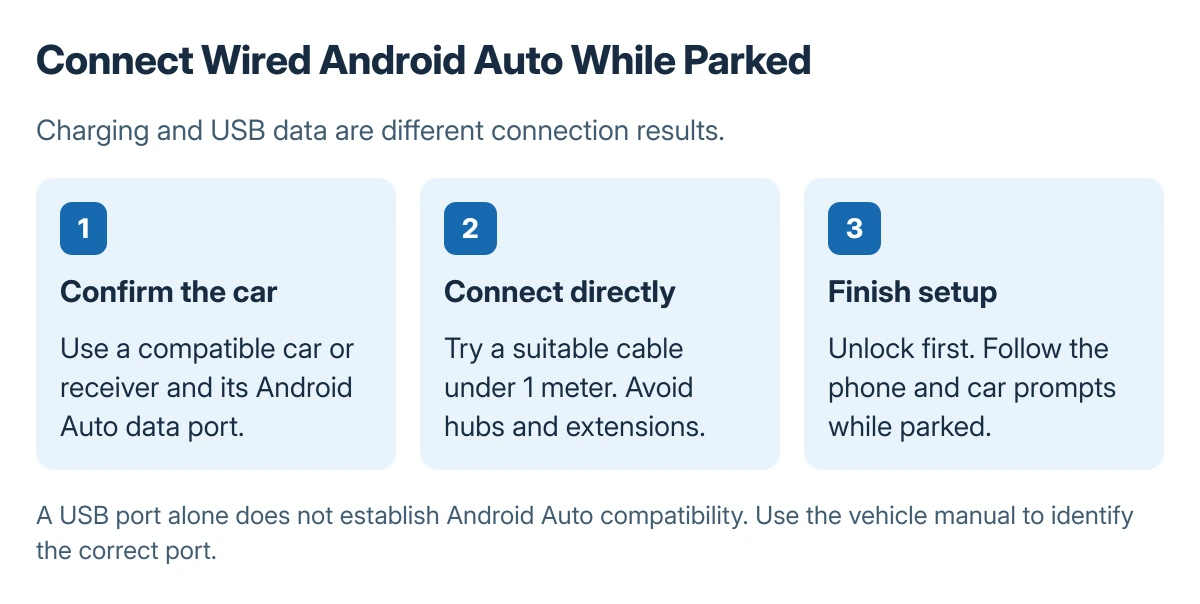
Confirm that the car or aftermarket receiver supports Android Auto. Google says a USB port alone does not establish compatibility. A vehicle can also support wired Android Auto without supporting the wireless version.
Status: Google's Android Auto setup, cable and USB Protection guidance checked 23 October 2026. No car connection was tested. A compatible car, phone and connection method are required.
For a previously working wired connection, try another suitable cable. Google recommends one under 3 feet (1 meter), without a hub or extension, in its Android Auto troubleshooting instructions.
Use the vehicle manual to identify the data port. If the cable only charges there, compare a known working data cable before assuming an app reset will help. A physically damaged port needs the manufacturer or a repair provider.
Unlock a protected Pixel before connecting
Google states that USB Protection on supported Pixel 6 and later devices can block a new USB data connection while the screen is locked. Unlock first, connect the USB cable, then respond to any prompt.
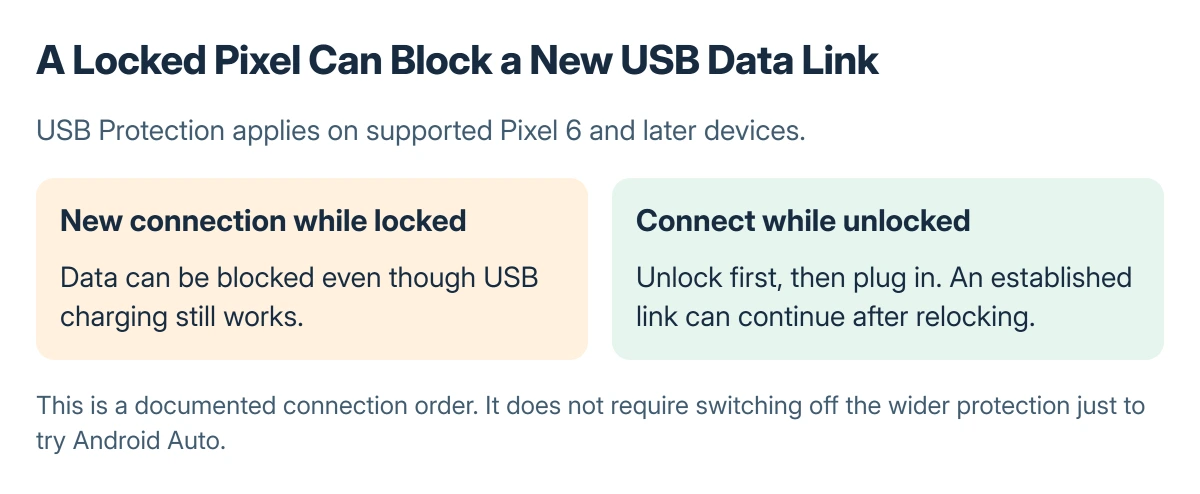
An already established connection can remain active after the screen locks. Charging can also continue while a new data connection is blocked. Those behaviors are described in Google's USB Protection documentation.
There is no need to turn off the wider protection simply to try this documented connection order. If the screen cannot be unlocked, complete that step while parked before testing the cable again.
Pair wirelessly only when both ends support it
Google adds that wireless setup begins with Bluetooth pairing. Keep Bluetooth, Wi-Fi and Location Services on, pair with the car, and follow the prompts. Select Android Auto on the car display if it does not start.

Use the phone-to-car Bluetooth checks when Bluetooth pairing itself fails. If the phone also fails on ordinary Wi-Fi networks, the Android Wi-Fi checks address that broader connection problem.
Check the receiver and previous car entries
Confirm Android Auto is enabled in the car's infotainment settings, then restart that system using the vehicle instructions. For an aftermarket receiver, check its maker's firmware page.
For trouble adding a second car, Google documents Android Auto > Previously connected cars > More > Forget all cars in the phone's connection settings. This removes saved car entries, so expect to set up those cars again.
Ask the vehicle or receiver manufacturer about persistent compatibility failures. Report the phone model, Android version, connection type, exact error and whether another cable or compatible phone works.
The Short Version
Confirm compatibility and try a short cable in the correct USB port. Unlock a protected Pixel before connecting. For wireless setup, pair through Bluetooth with Wi-Fi and Location Services on.

Isaac Smith is the founder and editor of PC Glance, a website that covers computers, laptops, and technology. He is a tech enthusiast and a computer geek who loves to share his insights and help his readers make smart choices when buying tech gadgets or laptops. He is always curious and updated about the latest tech trends.