Android Auto error 8 means the car and phone couldn't complete their security check. An incorrect date or time on the car's display is a frequent cause, so correct the car's clock, time zone and daylight saving setting before reconnecting.
The message can also persist when Google Play services needs an update. Start with the clock settings even when the displayed hour looks right: the date, year or time zone can still be wrong.
In this guide
1. Correct the car's full date and time
Park the car, disconnect the phone and open the infotainment system's date and time settings. Change the clock on the car's center display, not in an Android Auto app. Use the vehicle manual if its settings are hidden.
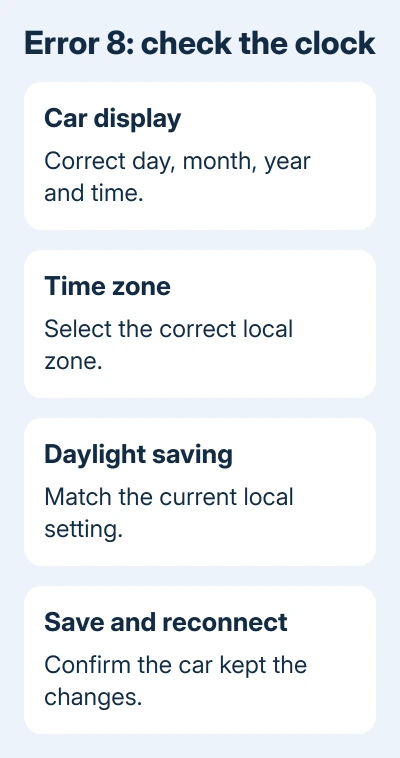
Compare the day, month, year and time with your phone. Set the correct time zone if the receiver offers one. Check any summer time, winter time or daylight saving option too. Matching the hour alone isn't enough.
Google says error 8 is an authentication failure in its Android Auto error guidance. The car and phone couldn't verify their connection, so the receiver's clock comes first.
Save the changes before reconnecting. Some displays have an OK, Apply or Save button; others save when you leave the menu. Return to the clock page once to confirm that the changes stayed, then reconnect the phone.
Success means the Android Auto interface opens without returning to error 8. If the clock changes back after you switch the car off, tell the vehicle or receiver maker that it isn't saving the date settings.
I'd check the year before spending time on app resets. A car can show the correct time of day while its calendar is months out, and resetting phone apps won't correct that.
2. Check the phone's clock separately
Disconnect again if error 8 remains. Open the phone's Settings and search for Date & time. On a Pixel, the usual route is System > Date & time. Galaxy phones normally put it under General management > Date and time.
Let the phone set its date and time automatically, then turn on automatic time zone selection where available. Compare the resulting time and date with the car again. A manually selected phone time zone can leave the pair out of step.
Phone labels vary by Android version and manufacturer, so use Settings search when the route differs. What matters is getting the clock and time zone right, even if your phone arranges the switches differently.
If the automatic setting returns the wrong time, check the phone's mobile connection and confirm the correct local time before reconnecting. Avoid choosing an intentionally incorrect date to get past error 8.
Once the clocks agree, reconnect and read the error again. A new error number changes the next step. Error 8 is the security check; an ordinary connection failure belongs to the Android Auto cable and setup checks.
3. Update Google Play services and Android Auto
Google Play services handles tasks that Android apps share. Updating Android Auto alone doesn't necessarily update it. The error guidance recommends checking Play services if correcting the clock doesn't work.
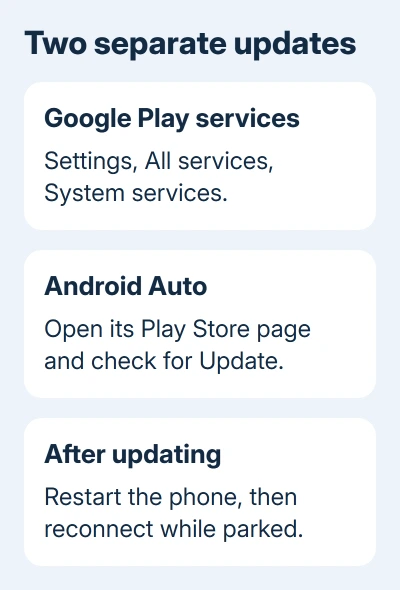
Open Settings, open the profile picture, then select All services. Under Privacy & Security, open System services > Google Play services. Select Update or Install if offered.
That's the current route in the Play services update instructions. On a phone with different menus, search Settings for Google Play services and open its app details.
Next, open Google Play Store, search for Android Auto and install an available update. Restart the phone after the updates finish, then reconnect while the car is parked and its display is awake.
Don't clear Google Play services storage as an early fix. That action can erase saved information and make you authenticate payment methods or accounts again. Updating it is a much smaller change.
If neither app offers an update, record the installed versions instead of repeatedly reinstalling them. Those version numbers help support tell whether you're running current software or still waiting for an update.
4. Restart the receiver and check its software
Restart the car's infotainment system using the vehicle manual's procedure. Turning the display off doesn't always restart the system. Use the procedure for your model, since another car's button combination can be different.
For an aftermarket receiver, check the maker's firmware instructions for the exact model. Firmware is the receiver's own software. A phone update can't install a receiver update, and similarly named receiver models can use different files.
Follow the manufacturer's power and update requirements. If the update needs a USB drive or a workshop visit, use that method rather than installing a file intended for another unit.
Reconnect after the restart or approved update and check whether Android Auto opens. If error 8 persists with both clocks correct and the phone updated, try another phone or car to check which device needs support.
5. Compare another compatible phone or car
Try another compatible Android phone in the same car, with its owner's permission. Keep the connection method the same. If that phone works, report the failure to phone or Android Auto support with your phone's software versions.
If both phones show error 8 in this car, have the receiver checked. A second compatible car can help too: if your phone connects there, include that result in your request for the vehicle maker to check the original receiver.
For wired connections, use a direct data cable and the correct car USB port during the comparison. Charging can work while USB data fails. Use the same cable in both cars so you're only changing one part of the setup.
If Bluetooth itself won't pair, use the phone-to-car pairing procedure for that separate failure. Working Bluetooth audio doesn't mean Android Auto has passed its security check.
For an unresolved case, post in Android Auto Help Community's connection category or use the receiver maker's support form. Include error 8, phone model, Android version, both app versions, receiver model and your clock checks.
Ask the vehicle dealer whether an infotainment update applies to that model and year. Describe it as a security-check failure. Reporting only that Bluetooth doesn't work can send the repair in the wrong direction.
The Short Version
Correct the car's complete date, time zone and daylight saving setting, then reconnect. Check the phone clock and update Play services next. A persistent error 8 needs a receiver restart, approved firmware check and a phone/car comparison.
Checked November 13, 2026.