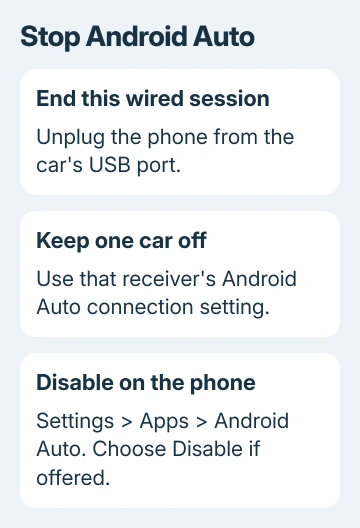
Turn Android Auto off from its app information page if your phone offers a Disable button. To stop just one car connecting, turn off Android Auto in that car's phone connection settings instead.
Unplugging the USB cable ends a wired session, but it won't stop a separate wireless connection.
The right choice depends on whether you want Android Auto turned off permanently, one car forgotten, or your phone to charge without opening maps. Start with the smallest change that does that job.
In this guide
Choose between ending a drive and disabling the app
Make changes while parked. Android Auto puts phone apps on the car's display; the car's built-in navigation and entertainment system are separate.
Switching away from Android Auto on the dashboard doesn't necessarily stop your phone from connecting again.
For a wired session, unplug the phone's USB cable. If the car returns to its own home screen and Android Auto stays closed, you've ended that wired connection. Use a separate power socket or car charger when you only need charging.
Wireless Android Auto needs a different approach because removing a charging cable doesn't end the wireless connection.
Use the car's Android Auto or smartphone connection menu to disconnect the phone, then follow the permanent options in the next sections.
I'd change the car's setting first when you still use Android Auto in a different vehicle. That avoids switching the phone app off everywhere just to stop one dashboard opening it.
Disable Android Auto on the phone when available
Open Settings > Apps and find Android Auto. On a Pixel, open All apps to reach the complete list. Some phones call that list See all apps. Search Settings for Android Auto if the app list is hard to find.
Open its app information page and look for Disable. If it's available, tap it and confirm the change. The page should then offer Enable, which is also how you reverse the change later.
Google's system-app instructions describe disabling preinstalled software instead of deleting it. Android Auto is built into current supported Android phones.
If Disable is absent or unavailable, use the car's connection controls instead. Don't try to replace the missing button by removing other system apps or running computer commands that delete software from your phone.
Force stop only stops the app's current activity. It doesn't permanently stop future car connections. Likewise, removing an icon from your Home screen only removes that shortcut.
An Uninstall updates option is also different: it changes the installed app version rather than giving you a reliable off switch. Stick with Disable or the receiver's Android Auto setting to turn it off.
After disabling, reconnect in the way you normally use the car and check that Android Auto doesn't open on the dashboard. Your phone can still charge with Android Auto disabled; charging and the dashboard app work separately.
Stop one car from starting the interface
Open the car's phone or smartphone projection settings and select your phone. Look for its Android Auto permission or enable setting.
The menu depends on your car or aftermarket receiver, so there isn't one button sequence for every model.
Turn off Android Auto for that phone if the receiver offers it. Otherwise, remove the saved phone connection. Check the owner's manual for the section about Android Auto or smartphone projection, rather than a general audio setting.
Ordinary Bluetooth calls and music are separate from the projected interface. Some cars let you keep those while disabling Android Auto.
Removing the complete Bluetooth pairing can remove hands-free calling too, so turn off just Android Auto when that option is available.
If calls or music stop after deleting the pairing, the car Bluetooth guide explains the two-sided pairing process.
Reconnect only the services you want, using the receiver's available controls.
Restart the car's entertainment system as its manual directs, then check the next connection while parked. Android Auto should stay closed without requiring you to dismiss it on every drive.
Remove remembered cars from Android Auto
To clear the phone's saved Android Auto car history, unplug it first. On Google's documented layout, open Settings > Connected devices > Connection preferences > Android Auto > Previously connected cars.
Open the upper-right menu, then select Forget all cars. This clears the saved Android Auto entries together, so expect to set up any other vehicle you use again later.
On a Galaxy or another Android brand, search Settings for Android Auto to reach its preferences. Don't confuse that preferences page with the app information page that contains Disable and Force stop.
Forgetting cars removes their saved setup information. It doesn't prevent you from setting them up again. A later USB connection or new wireless pairing can offer Android Auto again if the car and phone still allow it.
That makes this useful when selling a car, clearing an old receiver, or starting the pairing list over. To keep Android Auto off, combine it with the receiver's Android Auto off setting or the phone's available Disable control.
Keep the car's saved phone list in mind too. Clearing one side doesn't necessarily erase the other side's Bluetooth pairing. Remove your phone from a vehicle you're handing over to someone else.
Check what still starts before changing more settings
Reconnect once while parked and watch which interface opens. A car radio resuming music over Bluetooth isn't Android Auto returning. Look for the projected phone app launcher or navigation interface, rather than judging by sound alone.
If the phone charges but the dashboard stays on the car's home screen, charging-only use is working. If Android Auto appears with no USB cable attached, review the wireless connection and receiver permissions.
For the opposite problem, Android Auto connection checks cover USB data cables, supported receivers, and wireless setup. Use those when you decide to restore the feature.
When a receiver ignores its off setting, send its manufacturer the receiver model, firmware version, phone model, and whether the connection is wired or wireless.
Ask how to disable smartphone projection while preserving ordinary Bluetooth calls.
The Short Version
Use Disable in Android Auto's app information page when offered. For one vehicle, change the receiver's Android Auto setting.
Unplugging ends a wired session, and Forget all cars clears setup history without permanently banning a new connection.
Checked November 11, 2026.