A flashing Bluetooth icon on a Hume scale means it isn't connected; a solid icon can mean another nearby phone already has the connection. Open the Hume Health app, wake the scale, and check that icon before resetting anything.
For a shared scale, ask the other person to close their Hume app first. For a flashing icon, check your phone's Bluetooth permission and start a device search in the app while the scale is awake.
In this guide
1. Wake the scale and read its Bluetooth state
Open the Hume Health app on your phone and tap the scale with your foot to wake it. Check the connection straight away, because the scale goes back to sleep to save power.
Look at the Bluetooth symbol on the scale itself. A flashing symbol means the scale isn't connected. A solid symbol means it already has a nearby phone connection, which might not be the phone you're holding.
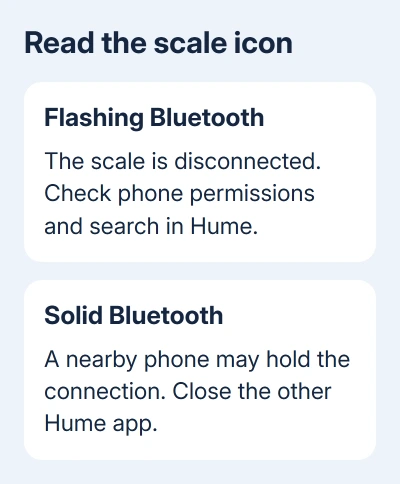
Hume's scale connection instructions give different steps for those two states. Check that symbol before searching again: the scale needs to be awake and free to connect to your phone.
These steps follow the HumePod scale sections of the FAQ. The same page also covers the Hume Band, so don't apply its band charging times, range specifications, or reset instructions to the scale.
If the scale doesn't turn on, deal with its power first. For the rechargeable model described in those instructions, charge it for at least two hours using the supplied cable. A screen that won't wake can't complete a phone connection.
If your scale uses a different power system, follow that model's manual instead. Check that the case design and power source match the instructions before charging or resetting it.
2. Release another household member's connection
If the Bluetooth icon is solid and another person uses the scale, ask them to close the Hume app on their phone. Wait 10 seconds for the scale to sleep, then wake it again and try your phone.
The scale can be used with multiple accounts, but its Bluetooth connection goes to one phone at a time. Separate accounts don't let two phones take a reading from it simultaneously.
Keep your own app open during the attempt. If the scale becomes available after the other app closes, the existing connection explains why your phone couldn't take over. You only need to free up that connection, without resetting the scale.
I'd try this before removing the scale from either account. It frees up the connection without making each person set up the scale again.
If the icon stays solid and no other household phone is using it, go to the saved-device check in section 4. If the icon flashes but the scale isn't found, check the phone's permissions next.
3. Give the Hume app Bluetooth access
Turn on Bluetooth in the phone's Settings app. Then check the permission for Hume itself. Turning on the phone's Bluetooth radio doesn't automatically mean every app has permission to use it.
On Android, open Settings > Apps > Hume > Permissions. Allow the Bluetooth or Nearby devices permission offered by your Android version. The installed app may appear as Hume Health rather than simply Hume.
Older Android versions can use different permission labels for Bluetooth discovery. Follow the request shown by the app and your version's permission screen instead of searching indefinitely for a switch named exactly Bluetooth.
On iPhone, open Settings > Privacy & Security > Bluetooth and allow Hume Health to use Bluetooth. If the app hasn't requested access yet, return to Hume and start its device connection process so the permission request can appear.
Our iPhone Bluetooth settings guide explains the different effects of Settings and Control Center. Use Settings when checking whether Bluetooth is actually enabled.
After allowing access, return to the Hume app, wake the scale again, and start searching immediately. If the app finds the scale now, permission or the scale going to sleep was the problem, rather than faulty Bluetooth hardware.
4. Reconnect through the app's device section
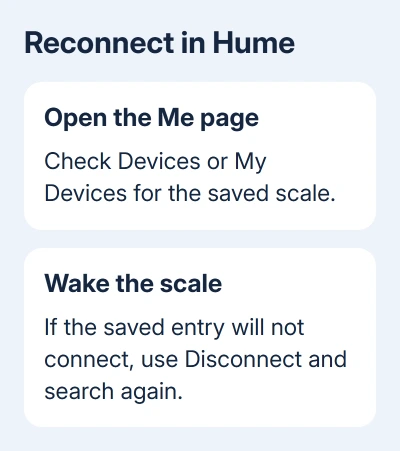
Open the app's Me page and find its Devices or My Devices section. The scale instructions use both labels. Check whether your HumePod is already listed before adding another device.
If it is listed, tap the scale with your foot to wake it and watch for connected status in the app. If the entry doesn't connect, select Disconnect, then search for the scale again through the app.
For a flashing Bluetooth icon, use the device search from the Me page, with the scale awake. Keep the phone beside the scale while doing this so you can read both screens and respond to any pairing prompt.
Use the device search inside Hume. The scale can be missing from your phone's ordinary Bluetooth accessories list, so check the Hume app before deciding it hasn't paired.
If a Pixel can't turn Bluetooth on at all, our Pixel Wi-Fi and Bluetooth guide covers that phone fault. A Hume-only failure needs the scale-specific steps here.
5. Reset only the scale model whose instructions match
For a solid icon with no HumePod listed in your app, Hume recommends a factory reset to clear the old connection. Check the scale model and its reset instructions before pressing any recessed control.
The instructions describe a tiny reset hole you can see after pulling the handles, but another section puts the reset button underneath the scale. Those descriptions don't give one location that applies to every version.
Use the reset control in your model's manual. For the hole revealed by the handles, the instructions say to insert a pin and press. They don't give a hold time, so don't keep it pressed for a long reset.
After the reset, wake the scale and check that its Bluetooth icon flashes. Start the device search again in Hume. If your case doesn't match those descriptions, ask support to identify the correct reset control from a photo first.
When the app still can't discover the scale
If the icon flashes but Hume still doesn't discover the scale after you've allowed Bluetooth access and searched in the app, contact support.
Email support@myhumehealth.com with the scale model, phone model, operating-system version, and app version.
Include a short video of the icon, the app search, and the scale waking. Say whether it connected before and whether another household phone connects now. Ask for pairing or replacement advice for your model.
The Short Version
Wake the scale and check its Bluetooth icon. Release another phone's connection when it is solid; check permissions and search through the Hume app when it flashes. Use only the reset instructions for your exact scale model.
Checked November 11, 2026.