A Cricut that won't connect to Bluetooth often needs its old pairing cleared. Unpair it from other devices, restart both ends, then pair again. If it never appears in the list, check discovery or app permissions instead.
A saved pairing doesn't mean the Cricut is connected right now. A Mac can show Not connected while the Cricut is waiting for a project, so check whether Design Space can select the machine before treating that label as a fault.
In this guide
1. Clear the old connection and reconnect one device
Save your project and close Design Space on other computers and phones that use this Cricut. Another device's connection can interfere, even when you're trying to cut from the laptop beside it.
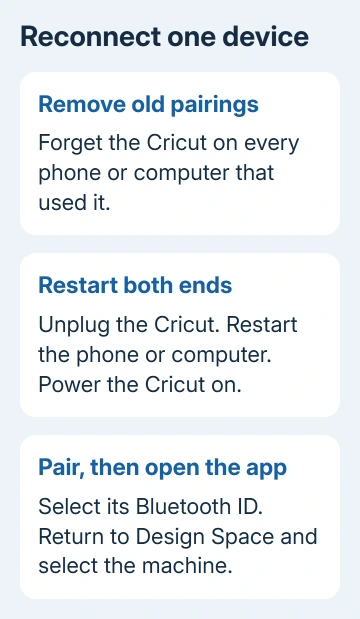
Cricut's connection troubleshooting steps start by unpairing the machine from every device that has used it. Clear the saved pairing, rather than only closing the app.
On Windows 11, open Settings > Bluetooth & devices > Devices, open the Cricut's three-dot menu, and choose Remove device. On Windows 10, use Settings > Devices > Bluetooth & other devices, select the Cricut, and remove it.
On a recent Mac, use System Settings > Bluetooth, click the information button beside the machine, and choose Forget This Device. On older macOS, open Bluetooth through System Preferences.
On iPhone or iPad, open Settings > Bluetooth, tap the Cricut's information button, and choose Forget This Device. On Android, open the saved device's settings in Bluetooth and choose Forget or Unpair.
Unplug the Cricut from power, restart the computer or phone, then plug the machine back in and turn it on. Keep it within 15 feet, with Wi-Fi and Bluetooth on. Update Design Space before pairing again.
Choose the machine's Bluetooth ID, which is printed or engraved near its serial number. A PIN prompt on an Explore Air 2 or older machine may need 0000. Newer machines don't need that PIN.
Return to Design Space and retry setup or your project. If pairing succeeds and you can select the machine in Design Space, the connection is working. If the machine never appears in Bluetooth, use the platform checks next.
2. Make Windows show more Bluetooth devices
Windows 11 can hide a Cricut from its initial discovery list. Open Settings > Bluetooth & devices, choose Add device, then Bluetooth. If the window offers Show all devices, select it and wait for the list to refresh.
On builds that instead have the older discovery control, open Settings > Bluetooth & devices > Devices and change Bluetooth devices discovery from Default to Advanced. Then search for the machine again.
These controls change which devices Windows shows when you search. They won't fix disconnections during a cut. For a machine that appears but then disconnects, check app permissions, then try the comparison in section 5.
Explore 4 and Maker 4 can initially appear as Bluetooth Device or Generic rather than their proper ID. With your machine powered on nearby, connect to its entry. The correct Bluetooth ID should appear after connection.
If other household Bluetooth devices are also appearing, don't choose entries at random. Compare the list with the Cricut switched off and on so you're connecting to the intended machine.
3. Let Design Space use Bluetooth on Mac or iPhone
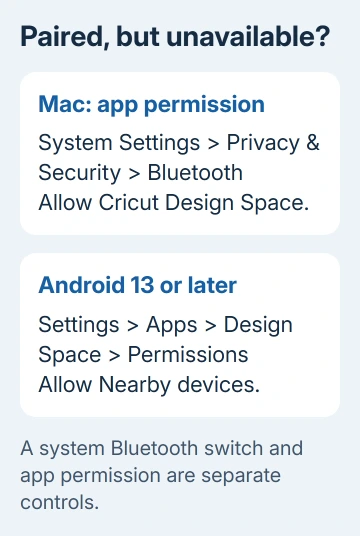
On macOS Sonoma 14 and later, open System Settings > Privacy & Security > Bluetooth. Turn on the switch for Cricut Design Space, then reopen the app and try selecting the machine.
The main Bluetooth switch can be on while this app permission is off. Pairing in System Settings alone doesn't give every app access to the connection.
If the Mac lists your Cricut under My Devices as Not connected, try a project in Design Space. That label can mean the paired machine isn't currently in use. Repeated clicks on Connect won't show whether Design Space can use the machine.
On iPhone or iPad, open Settings > Privacy & Security > Bluetooth and allow Design Space if it's listed. Apple recommends checking an app's Bluetooth access separately from pairing.
If several accessories fail on the Mac, troubleshoot the Mac's Bluetooth connection too. A fault affecting the mouse and keyboard needs a wider check than one Cricut pairing.
4. Check Android permission and the Pixel 8 exception
On Android 13 and later, open Settings > Apps > Design Space > Permissions and allow Nearby devices. The wording can differ by phone maker. Return to Design Space after granting access and retry the machine selection.
Without that permission, your phone can see Bluetooth devices in Settings while Design Space can't use the Cricut. If access is already allowed, don't keep changing unrelated app permissions.
Pixel 8 phones have a separate problem with Explore 4 and Maker 4: the first connection can work, then later connections fail. Clearing the Bluetooth legacy cache is a documented workaround.
Open Settings > Apps > See all apps, tap the three-dot menu, and select Show system. Find Bluetooth legacy, then use Storage & cache > Clear cache. Retry the Cricut connection afterward.
If that system entry isn't available on your build, give Member Care your exact Pixel and Cricut models. Don't clear every app's storage in an attempt to reproduce a menu your phone doesn't have.
5. Compare another device before replacing anything
I'd try one other supported phone or computer before buying a Bluetooth adapter. A Cricut that works there points back to the first device's settings, app, or Bluetooth hardware.
If the same phone also can't pair with other accessories, check its wider Bluetooth problem before blaming the cutting machine. A Cricut that won't connect to any device needs a different check.
For a Cricut model that supports USB, try a direct USB connection to a supported Windows PC or Mac. Use a data cable and connect directly while checking. For a Bluetooth-only model, you'll need another phone or computer to compare.
If USB works but Bluetooth doesn't, tell support that USB worked. If both fail across supported computers after the pairing reset, ask Cricut Member Care to check the machine's connection hardware and model-specific recovery options.
Use the Contact Member Care link on the connection help page. Include the machine model, its Bluetooth ID, your operating system, Design Space version, and say whether it is missing from Bluetooth or can't be selected in Design Space.
The Short Version
Remove the Cricut's old pairings, restart both ends, and reconnect one device. Missing devices need Windows discovery or app permission checks. If Design Space still fails, compare another device or supported USB connection.
Checked November 12, 2026.