Gmail notifications on Android need phone permission and alerts enabled for the right account. Turn on that account's email notifications and check Sync Gmail. Mail that appears only when Gmail opens also needs a sync check.
Messages arriving quietly are different from messages that haven't arrived at all. A missing sound needs the notification controls; an inbox that updates only after a refresh needs the sync checks later in the sequence.
In this guide
1. Enable email notifications for the affected account
Open Gmail > Menu > Settings and select the email address that isn't alerting you. Under Notifications, tap Email notifications and choose the types of mail you want notifications for.
For a broad check, select All where that option appears. High priority only intentionally limits alerts. It can explain why some mail produces a notification while other mail reaches the inbox quietly.
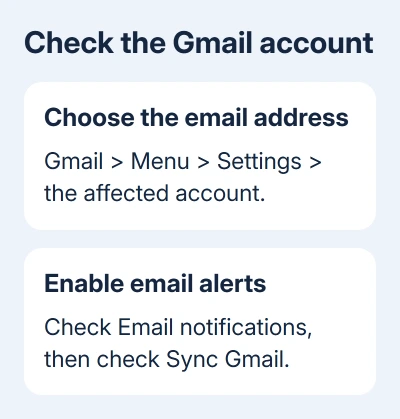
Repeat the setting for each affected account. Changing one account doesn't fix the others automatically. Send a new test message from another account so you're checking mail sent after the settings change.
Google's Gmail notification instructions include both account alerts and the Sync Gmail setting. The phone's main notification switch alone doesn't cover everything inside the app.
If the account receives mail but still produces no alert, check Android's permission next. If the test message doesn't arrive in Gmail until you refresh, continue through the sync checks too.
2. Allow Gmail notifications in Android settings
Touch and hold the Gmail app icon, then open App info > Notifications. Turn on the main permission for notifications. Another route on many phones is Settings > Apps > Gmail > Notifications.
On Android 13 and later, apps ask for permission to send notifications. If that request was declined, Gmail's own email setting can be on while Android still blocks its alerts. The app's Notifications page lets you change that decision.
Check the mail notification categories offered on that page. A permitted app can still have an individual category set to silent or disabled. Choose the email category for the account when your phone lists accounts separately.
Samsung and Pixel menus can use different labels for these controls. Start from Gmail's App info page to reach the correct app, then check its notification options so you don't change another email app's permission.
After turning notifications on, lock the phone and send another fresh message. If a notification now appears, the Android permission was stopping it. If the card appears without sound, use the next check.
3. Fix silent alerts separately from missing notifications
In Gmail, open Menu > Settings > your account > Notification sounds. Under the email notification controls, choose Notification sound > Sound and select a sound instead of None.
Check the phone's notification volume too. Media volume controls video and music; changing it doesn't necessarily change the loudness of mail alerts. Open the full volume panel or the phone's sound settings for notification volume.
Check Do Not Disturb, including any schedule that activates it overnight or during work. Turn it off briefly for the comparison, or adjust its allowed apps if you want Gmail to alert while that mode is active.
If an alert appears in the notification shade (pull down from the top) but has no banner, check the email category's pop-up or on-screen setting if offered. Many phones also control lock-screen visibility separately.
If a new message is in the inbox and its notification appears in the shade, the alert is getting through. Don't clear Gmail's storage to fix a problem that only affects sound.
4. Turn on syncing for the account and its labels
Return to Gmail > Menu > Settings > your account. Under Data usage, make sure Sync Gmail is checked. Without syncing, Gmail can miss the new information needed to trigger an alert.
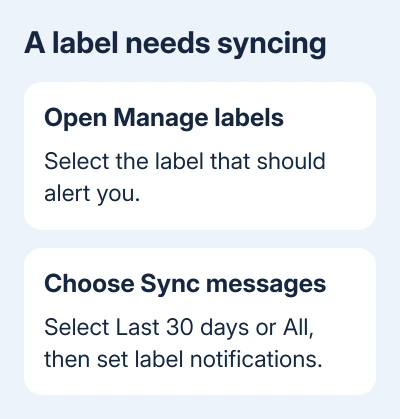
For notifications from a particular label, open Manage labels, then select that label. Choose Sync messages > Last 30 days or All, then enable the label's notification settings.
A label that doesn't sync can't have notifications enabled. Also check whether High priority only is selected for the account: that choice overrides other notification settings for certain labels.
Check the phone's Google Account sync controls if Gmail still updates only when opened. In Settings, find the affected Google Account and open Account sync. Make sure Gmail is enabled, then use Sync now where offered.
The route to Account sync varies by phone. Search Settings for that label if needed, and confirm the email address before changing a switch. A second Google Account can have different sync settings.
5. Repair delayed message delivery
In the Gmail inbox, swipe down from the top to refresh. A refresh symbol briefly appears and disappears. Google notes that syncing can take up to 15 minutes, and longer if you haven't used the device for some time.
Check internet access by loading a website on the phone. If it won't load, fix the connection first. Our Android Wi-Fi connection guide helps when Wi-Fi itself isn't working.
Update Gmail through the Play Store, then restart your phone. These are useful when the controls look correct but syncing stopped after the app had been working. Test a new message again after restarting.
Check available phone storage and Google Account storage. Low phone storage can stop Gmail syncing. If your Google Account is full, you can't receive new mail. Changing notification settings won't help until messages can arrive again.
For an Outlook address inside Gmail, use the Outlook account in Gmail guide to check the account setup. Fix any account sign-in errors before checking its new-message alerts again.
6. Clear Gmail's stored data only after the other checks
If syncing still fails, save any important unsent drafts first. Clearing Gmail's stored data can erase drafts, the signature, ringtone choice, and other app settings.
Open Settings > Apps > Gmail > Storage & cache > Clear storage, then restart the phone. Your phone may call the button Clear data. Reopen Gmail, let the account sync, and check its alert choices again.
If mail still doesn't arrive, use Gmail > Menu > Help & feedback and report the account type, phone model, Android version, and whether manual refresh works. For a work account, ask its administrator to check account access too.
The Short Version
Enable alerts for the correct Gmail account, allow Android notifications, and check sound separately. Turn on Gmail and label syncing. If messages themselves are delayed, check the connection, updates, and storage before clearing app data.
Checked November 11, 2026.