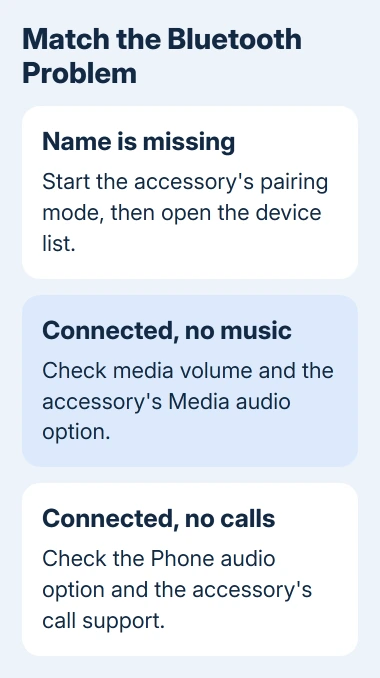
A Bluetooth accessory often needs pairing mode to appear on your phone; switching it on isn't enough. Open Android's device list while pairing mode is active. For a Connected label without sound, check the media or call settings.
These steps cover Android, including Pixel and Samsung Galaxy. An iPhone uses different menus; its pairing guide is linked in the first section. A Bluetooth switch stuck off also needs attention, even without a headset nearby.
In this guide
1. Make the accessory discoverable and try again
Charge the accessory and bring it close to your phone. Start the pairing mode described in its manual. Headphones may use a held power button, a Bluetooth button, or a case control; the ready signal depends on the model.
On Pixel-style Android, open Settings > Connected devices > Pair new device. Some phones place a Bluetooth entry inside Connected devices. On a Galaxy, open Settings > Connections > Bluetooth and turn it on.
Select the accessory and accept the pairing request. Use its instructions for a required code. Check that it shows as connected afterward, then try the function you need, such as music or typing.
Google's Android Bluetooth instructions say to check discovery, music, and calls separately. That distinction matters: a headset already saved in the list needs different checks than an accessory missing from the list.
For an iPhone, follow the iPhone discovery and pairing steps, including its Bluetooth app permission. Android's Connected devices menu won't appear there.
If the Android list stays empty, turn Bluetooth off and on, restart the phone and accessory, and activate pairing mode again. Check whether the accessory is still waiting to pair before refreshing the phone's list.
2. Release an existing connection and rebuild the pairing
Check the last phone, tablet, or laptop that used the accessory. It may reconnect there automatically. Disconnect it from that device before pairing with this phone, or follow the maker's instructions for adding another paired device.
I'd check the old phone first. A headset can look ready while its sound is actually going to a laptop in another room. The accessory's connection light doesn't always tell you which device has it.
For a saved pairing that won't connect, remove its saved entry. On Pixel-style Android, open Connected devices, find the saved accessory, tap its settings control, then choose Forget > Forget device where offered.
On Samsung, open Settings > Connections > Bluetooth, tap the gear beside the device, then choose Unpair or Forget device, depending on the release. Start the accessory's pairing mode again and choose it from the available list.
This creates a fresh pairing instead of retrying the same saved connection. If the accessory also needs its pairing list cleared, use the exact model's instructions. Don't substitute another headset's factory-reset sequence.
For a car, delete your phone's entry in the stereo's pairing list too. The two-sided car pairing procedure explains that extra half. A car remembering the old phone can prevent a clean new connection.
3. Fix a connection that plays no music or misses calls
Start a song and raise the phone's media volume while it plays. Check the speaker or headset's own volume too. Then check whether another paired device is receiving the audio instead of the accessory you want to use.
On Android layouts with separate connection options, open the settings control beside the paired accessory. Enable Media audio for music. Enable Phone audio for calls. On Samsung, these switches may be labeled Audio and Calls.
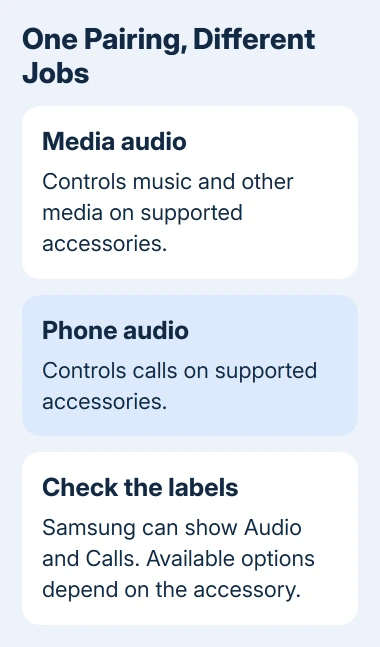
These switches control different jobs. Working music doesn't mean calls are enabled; a successful call doesn't mean music playback is supported. Check the options the accessory provides rather than expecting both.
Some older cars support hands-free calls without Bluetooth music. Check the stereo's manual and select its Bluetooth audio source if supported. A pairing reset won't add a playback function that the stereo doesn't have.
Test one song and one call separately after changing the relevant option. If only one still fails, report that specific function to the accessory maker. That is more useful than removing every pairing on the phone.
4. Use the required setup app or manual pairing route
A watch, fitness accessory, or earbuds may need the maker's companion app. Add the device through that app when its instructions call for it. For supported Samsung wearables, this can mean Galaxy Wearable instead of just the Bluetooth list.
If that app requests permission to find nearby devices, allow it so you can set up the accessory. Return to the app and start its connection process again. An app permission and the phone's main Bluetooth switch are separate controls.
For a missing Fast Pair notification, turn on Bluetooth and Location and bring the supported accessory close. This setup route also needs Wi-Fi or mobile connectivity. Without the pop-up, try manual Bluetooth pairing.
Try Pair new device in Settings when the accessory supports that route. If manual pairing works but the setup app fails, tell the maker your app version and the permissions you've allowed. The fault may be in the app, not Bluetooth itself.
5. Update and reset Galaxy connection settings if needed
Check for phone updates and accessory firmware updates before resetting connection settings. Firmware is the accessory's own built-in software.
On Galaxy, use Settings > Software update > Download and install; carrier wording can differ. Get accessory updates through its supported app or maker.
If several accessories still fail on a Galaxy, open Settings > General management > Reset > Reset Wi-Fi and Bluetooth settings. Have your Wi-Fi passwords ready: this clears saved Wi-Fi connections and Bluetooth pairings.
Tap Reset settings, unlock the screen if asked, and confirm. Older Galaxy releases can combine these under Reset network settings. Choose the Wi-Fi/Bluetooth reset available on your model, not the factory-data reset.
Pair one accessory again and check its function before rebuilding the rest. On another Android brand, use that manufacturer's connection-reset instructions; the Samsung menu names won't necessarily exist on your phone.
6. Compare another accessory before arranging repair
Connect a working, compatible accessory to this phone, then try the troublesome accessory with a second phone. If the latter fails on both, ask its manufacturer for setup or repair advice and describe its pairing signal.
If this phone fails with several compatible accessories, tell the phone maker its model, Android version, and your test results. Mention a switch that stays off after restarting. For Galaxy, use Samsung Support's phone repair route.
The Short Version
Activate pairing mode for a missing accessory. Rebuild failed saved pairings, and check Media audio or Phone audio when connected without sound. Use any required setup app, then compare another accessory before repair.
Checked November 12, 2026.