

BMW Bluetooth trouble often clears after a fresh pairing. Restart the phone, then remove its saved pairing from iDrive and clear the phone's BMW entry before pairing again. If calls work without music, check the audio setting separately.
Check which connection you're trying to use: ordinary Bluetooth, Apple CarPlay, or Android Auto. A working phone-call connection doesn't mean the connection for music, CarPlay, or Android Auto is ready.
In this guide
1. Start with the phone and connection mode
Park safely before using these controls. Turn your phone off, turn it back on, and leave Bluetooth enabled. Open the car's Mobile devices list and check whether the intended phone is connected.
BMW recommends restarting the phone before rebuilding its Bluetooth pairing. This is especially useful when the problem began after a phone update.
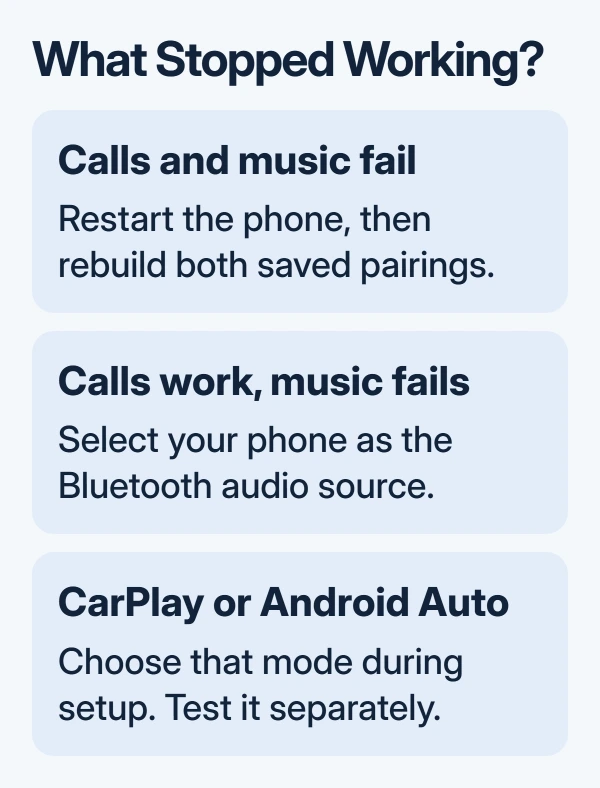
Try a call and a music track separately while parked. Note which one fails. If music plays from the handset while calls use the car, continue to the audio section rather than treating the phone as completely disconnected.
If CarPlay or Android Auto is the missing feature, note that specifically. Reconnecting ordinary Bluetooth can restore calls while CarPlay or Android Auto still won't work. When pairing finishes, choose the connection mode you want.
2. Remove the saved pairing from both sides
In iDrive's Mobile devices list, select your phone. Scroll to Remove device and confirm. Older layouts use Communication or COM to reach Mobile devices; newer layouts offer it from the main menu or apps area.
On an iPhone, open Settings > Bluetooth and tap BMW's information button, then choose Forget This Device. Keep the Bluetooth screen open afterward to watch for the next pairing request.
On Android, open the saved BMW connection in Bluetooth settings and choose Forget or Unpair. Pixel phones usually reach saved devices through Settings > Connected devices; Galaxy phones use Settings > Connections > Bluetooth.
Removing only the phone's entry leaves the car's old record in place. Remove both saved entries before pairing again. For another Android accessory that also fails, the separate phone Bluetooth checks cover the handset settings.
Don't erase the car's entire driver profile to remove one phone. A saved pairing is a smaller change. If the BMW entry can't be removed because iDrive won't respond, use the restart section before attempting the pairing again.
3. Pair again and confirm the matching code
In iDrive, choose Mobile devices > Connect new device. With Bluetooth enabled on the phone, select the phone on the car's display or select the BMW in the phone's available-device list.
Approve the six-digit code only when the phone and iDrive display the same number. Finish prompts on both screens, including your phone's. An unanswered confirmation can stop setup even though each device appears in the other's list.
Allow contacts and favorites to sync if you want them in iDrive. Then choose Bluetooth, Apple CarPlay, or Android Auto when offered. The choices depend on your phone and the equipment in your car.
Once paired, try the call or music that failed. Check an outgoing call, then play a track. A contact list appearing in the car is useful, but it doesn't tell you whether music is enabled for that phone.
If the phone never appears, make sure you're looking at its Bluetooth discovery screen during pairing. Google's Android connection instructions explain the handset side when its labels differ.
I'd complete one fresh pairing with just the intended phone before reconnecting the other regular driver's phone. It makes it much easier to see which device the car has selected for the test.
4. Enable Bluetooth audio when calls already work
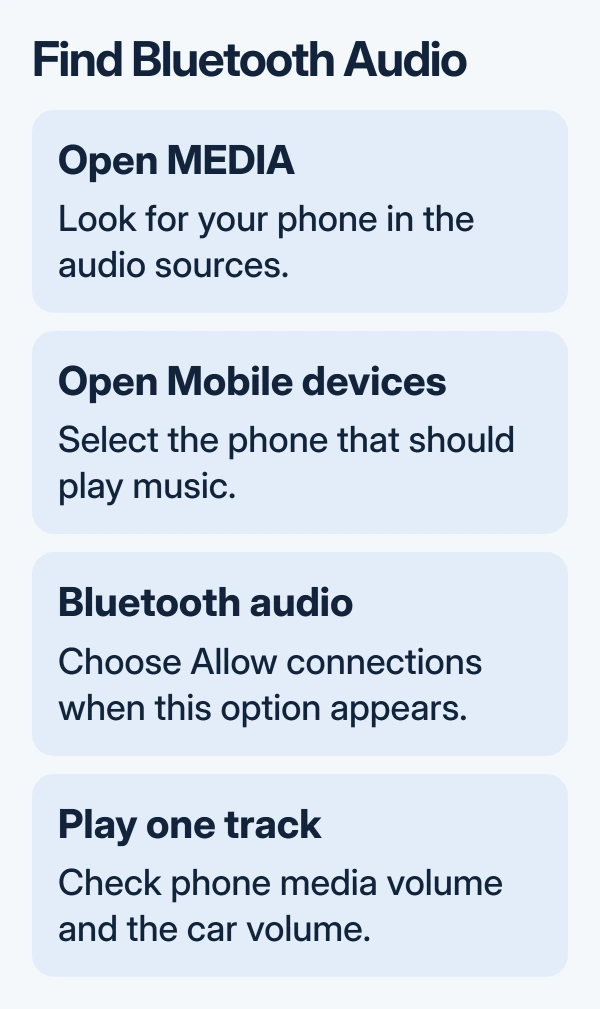
Open MEDIA and select the intended Bluetooth device. If the phone isn't offered as an audio source, open MEDIA > Mobile devices, select it, then check Bluetooth audio > Allow connections on layouts with those controls.
On Android, open the BMW's Bluetooth connection details and check Media audio for music and Phone audio for calls. Galaxy phones may label these Audio and Calls. Read the switches beside the saved BMW entry.
Play a track on your phone, adjust its media volume, and then set the car's volume during playback. A call-volume adjustment isn't the same check. Confirm that the selected iDrive source is your phone rather than radio.
For iPhone, check the playback destination in the audio controls and select the BMW when available. If other iPhone accessories also disconnect, use the iPhone Bluetooth troubleshooting before changing car settings again.
A missing track control isn't always a failed connection. Available iDrive controls depend on the supported Bluetooth functions. If audio plays but one control is absent, compare the phone's controls and tell support what's missing.
5. Restart iDrive using the procedure for its version
For BMW Operating System 7, 8, or 8.5, keep the car safely parked with iDrive active in its radio-ready state. Hold the audio unit's volume control for up to 70 seconds. Release it when the screen goes blank and wait for the restart.
For Operating System 9, first open Apps > ConnectedDrive store > Manage > Update all. After that finishes, hold the center-console mute (VOL) button for up to 70 seconds with the car parked in drive-ready mode.
Release the button when the screen goes blank, then let iDrive finish restarting before driving. These are the version-specific steps in the maker's iDrive restart instructions.
For an older system, use that car's handbook rather than another generation's button combination. If you can't identify the operating system, give the dealer your vehicle details before trying a different reset.
After restart, reconnect the phone and test the same call or track. If the menu works again but that function still fails, record that result. Tell support whether the iDrive screen froze or just the call or music connection failed.
6. Compare another phone before booking service
Try another compatible phone in the same connection mode. One phone failing while the other works points toward that phone's software or saved settings. If both fail in this BMW, tell the service team so they can check the car's connection.
Contact BMW ConnectedDrive support or your BMW Center. Give the vehicle model, iDrive version, phone model, software version, and failed function. Ask them to check compatibility and software for that connection mode.
The Short Version
Restart the phone, remove both saved pairing records, and reconnect with matching codes. Enable Bluetooth audio when calls work but music doesn't. For an unresponsive system, use the restart procedure that matches your BMW Operating System.
Checked November 13, 2026.
 If you have any business, I can build it online






