Xiaomi Bluetooth Speaker Essential pairing problems often start with the wrong mode or another connected phone. Press Bluetooth once to start phone pairing, then choose Xiaomi Speaker ES-XXXX in the phone's Bluetooth list.
Blue indicates Bluetooth pairing; purple belongs to stereo pairing or speaker grouping. A speaker missing from the phone's list, one connected without sound, and two speakers that won't link together need different checks.
In this guide
1. Use one press for phone pairing
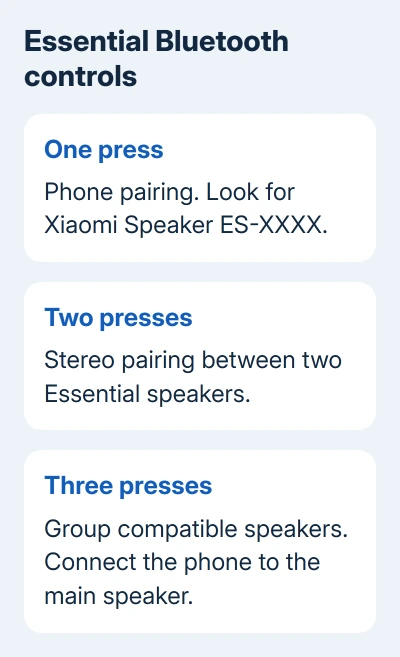
Turn the speaker on, then press its Bluetooth button once. Search for Xiaomi Speaker ES-XXXX, where the final four characters correspond to the speaker's serial number. The serial number is beside the charging port.
The first startup normally enters pairing mode. For a speaker that's already been used, start pairing again with the Bluetooth button rather than assuming it is still discoverable.
On iPhone, open Settings > Bluetooth and look under Other Devices. On a Pixel, open Settings > Connected devices > Pair new device. On Samsung phones, use Settings > Connections > Bluetooth.
Select the discovered Xiaomi entry and complete the pairing request. Play a short audio track after it connects. Hearing that track through the speaker tells you more than seeing its name in the saved-device list.
Xiaomi explains the different phone, stereo and group modes in its Essential pairing instructions. Instructions for the larger Xiaomi Bluetooth Speaker or its Mini model aren't interchangeable with this Essential.
2. Release the connection to another device
The Essential supports one connected Bluetooth source at a time. A nearby tablet, laptop or old phone may already be using that connection, even when you intend to play music from a different phone.
Press the Bluetooth button once to enter pairing mode again. This disconnects the current source so a new device can pair. Then scan from your chosen phone.
If the old phone keeps interfering, turn its Bluetooth off while making the new connection. Once the speaker works with the intended phone, you can decide whether to remove the old phone's saved entry.
Don't confuse the one-source limit with speaker grouping. A group can contain several compatible speakers while still receiving its music from one connected phone.
The Essential doesn't support Xiaomi Home app connection, NFC pairing or AirPlay. Searching those apps or tapping the phone against the casing won't replace the Bluetooth pairing sequence.
For a different speaker used alongside it, the JBL phone-pairing guide covers that speaker's own controls. It doesn't make JBL and Xiaomi speaker-group modes compatible.
3. Scan again or rebuild a saved connection
If the name doesn't appear, restart pairing on the speaker and keep the phone nearby while scanning. The speaker won't necessarily stay ready to pair the whole time it's on.
Switch the phone's Bluetooth off in Settings, turn it on again, and repeat the scan. Move away from a crowded cluster of wireless devices if discovery or playback becomes unreliable there.
If the speaker is already saved but won't reconnect, remove its saved entry. On iPhone, use that entry's information button, then confirm Forget This Device. On Android, open its device settings and choose Forget or Unpair.
Start a fresh phone pairing after removing that entry. Apple's accessory connection checks use the same unpair-and-discover approach for a previously connected accessory that won't reconnect.
Try another phone if the speaker still can't be found. If that phone finds it, check the original phone's Bluetooth settings. If neither discovers it, check the speaker's operating mode and power next.
For failures involving several accessories on the same Android phone, the Android Bluetooth checks address the phone side. Repeated speaker resets won't repair a phone that can't discover anything.
4. Leave USB mode and check a silent connection
The speaker can operate as a USB sound device when connected to a computer with a data cable. It can enter USB mode automatically, which is different from receiving music over Bluetooth.
Hold the Bluetooth button for 3 seconds to switch between USB and Bluetooth modes. Return to Bluetooth mode, start phone pairing, and choose the speaker on the phone.
If the phone says connected but music is silent, select the Xiaomi speaker as the phone's media output and raise the media volume. Check that the music app is actually playing rather than waiting for a network stream to load.
Play a downloaded audio track rather than a stream. A local file that plays cleanly while online music keeps stopping points toward streaming or the internet connection rather than a pairing failure.
Keep the speaker close for this comparison. Walls and distance can interrupt Bluetooth playback, even when the phone has saved the speaker's pairing.
5. Pair two Essentials as speakers, then connect the phone
For stereo, use two speakers of the same Essential model and place them within about a meter while setting up. Double-press the Bluetooth button on each speaker to start stereo pairing. Their indicators flash purple.
Wait for them to link. The main speaker then starts phone pairing and flashes its blue indicator. Connect the phone to that main speaker's Xiaomi Speaker ES-XXXX entry.
After the connection, the main speaker handles the left channel and the other handles the right. Starting stereo pairing can disconnect a phone that was already connected; finish the speaker pairing before reconnecting the source.
For a larger group, first connect the phone to one Essential, making it the main speaker. Triple-press its Bluetooth button, then triple-press the Bluetooth button on the additional compatible speakers to join the group.
That grouping mode supports up to ten identical speakers. It isn't the same as pairing ten audio sources to one speaker. Leave your phone paired with the main speaker while the group plays its audio.
I'd get one speaker playing from the phone before building a group. Then you'll know whether the problem is connecting the phone or linking the extra speakers.
6. Restart, then reset if the speaker remains stuck
If the speaker won't respond normally, press its power button and hold it for 10 seconds to restart it. Try the appropriate pairing sequence again after it powers up.
If that fails, hold power and Bluetooth together for 10 seconds to restore factory settings. This clears speaker grouping records, so you'll need to rebuild any groups afterward.
Charge a depleted speaker before testing pairing. If its battery is completely empty, give it some time to charge before trying to turn it on. A speaker that shuts down can't remain available for discovery.
If neither phone connects after that reset, contact Xiaomi support in the country of purchase. Give the serial number, light color, operating mode and both phones' results. Ask for a Bluetooth or hardware assessment.
The Short Version
One press starts phone pairing, two start stereo pairing, and three start speaker grouping. Connect to Xiaomi Speaker ES-XXXX, release any old source connection, and check USB mode before restarting or resetting the speaker.
Checked November 16, 2026.