

The usual reason 3M WorkTunes Connect won't pair is that the button presses didn't start Bluetooth pairing mode. With the headset on, double-press its power button quickly, then select WorkTunes Connect in your phone's Bluetooth settings.
Listen for the pairing announcement before working on the phone. If the headset announces pairing but never appears, check the phone's device list. For a visible entry that refuses the connection, forget the saved pairing and add it again.
In this guide
1. Start pairing mode, not playback
On the original WorkTunes Connect, hold the right-cup button for 3 seconds to power on, then double-press it to start pairing. A single press controls playback. Connect + Solar also uses a double-press of its Power button for pairing.
3M's WorkTunes troubleshooting instructions say the presses need to be less than half a second apart. Keep trying the timing until the unit announces Bluetooth pairing.
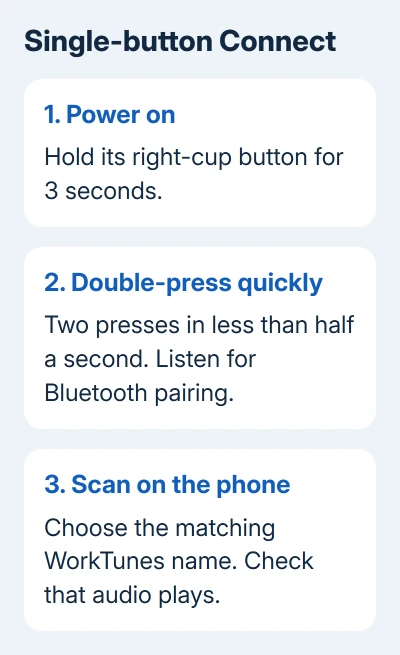
The spoken announcement tells you the button sequence worked. If you don't hear it, try the button timing again. Refreshing the phone's scan won't put the headset into pairing mode.
Read the product name first: WorkTunes Connect, Connect + Solar, and Connect + AM/FM are different versions. Radio controls and newer reset combinations may differ from the original single-button Connect.
For Connect + AM/FM, power on with the volume knob and press Source twice to select Bluetooth. Hold Func until pairing is announced. Disconnect any currently connected phone first; that radio model can't start a new pairing while connected.
2. Search from the phone's Bluetooth settings
On an iPhone, open Settings > Bluetooth, leave Bluetooth on, and look under Other Devices while the headset is announcing pairing. Tap the WorkTunes entry rather than a previously paired speaker or similarly named accessory.
For a Pixel-style Android menu, open Settings > Connected devices > Pair new device. On Samsung phones, open Settings > Connections > Bluetooth and look for the headset in the available-device list.
Menu wording varies across Android phones, but the task is the same: start a scan for a new Bluetooth accessory. If you only see saved devices, check that you've opened the screen for finding a new accessory.
Keep the phone and headset close while pairing. Once the connection succeeds, the original Connect announces that Bluetooth is connected, and its right-cup light turns blue. Then play a short audio track to check the connection.
The original model's name is WorkTunes Connect. A Solar version can identify itself as WorkTunes Connect + Solar. Choose the name that matches the unit in your hands instead of waiting for every version to use the same label.
3. Disconnect the phone that used it previously
If the headset worked with an old phone, tablet or computer, check that device before resetting anything. It may be reconnecting while you are trying to connect a different phone.
On the device that used the headset before, switch Bluetooth off temporarily. Put the headset into pairing mode again, then scan from the new phone. If the new phone connects now, the old device was holding onto the headset's connection.
If changing phones still fails, remove the headset's pairing on the old phone. That is a different action from pausing music or closing the app that was playing it.
I'd do this before clearing every Bluetooth device from the new phone. Your other accessories stay paired, and you're checking the device that already has a connection to the headset.
For a Sony headset used alongside it, the Sony pairing instructions describe that separate accessory's controls. Its pairing-button timing shouldn't be applied to WorkTunes.
4. Forget the failed connection and pair again
Use this when WorkTunes appears in the saved list but repeatedly fails to connect. On iPhone, open Settings > Bluetooth, use the WorkTunes entry's information button, and confirm Forget This Device.
On Android, open the saved WorkTunes device's settings and choose Forget or Unpair. Samsung uses its settings button beside the paired device and an Unpair command.
Next, return to the new-device scan, start pairing mode on the headset, and select its newly discovered entry. The phone should treat it as a new accessory rather than retrying the old saved connection.
For a previously working accessory, remove its pairing and make it discoverable again. Both the phone and headset need to complete their part of the new connection.
If the entry immediately returns as unavailable, confirm that the headset is still on and in pairing mode. If it never appears at all, continue with the phone restart and comparison next.
5. Restart the phone and compare another accessory
In the phone's Settings, switch Bluetooth off, then switch it on again. If discovery still fails, restart the phone completely, then return to the pairing screen and try again.
Check whether the phone can discover another accessory that is also in pairing mode. If the phone can't find either accessory, the problem goes beyond WorkTunes. If it finds the other one, keep checking the WorkTunes connection.
For an Android phone failing with several accessories, use the Android Bluetooth repair steps. Work on the phone when several accessories fail there; another headset reset won't address that broader failure.
Install a system update offered for the phone, then repeat the original connection. A phone update can address its Bluetooth problems. You don't need a WorkTunes app for this pairing procedure.
Try the headset with another phone if one is available. Success there points to the original phone's saved connection or Bluetooth setup. Failure on both calls for a closer look at the headset's power and controls.
6. Check power before a model-specific reset
A headset that powers off during discovery can't finish pairing. Follow that model's charging instructions. The original Connect has a micro-USB charging connection; don't force a different plug into that port.
For that original model, the charging light blinks blue and becomes solid blue when charging is complete. Listen for the pairing announcement to check its mode; the charging light alone won't tell you it's ready to pair.
One owner reset the original single-button Connect by starting with it off and holding its control button for about 10 seconds. It announces power on, plays a tone, then powers off. Release it and pair again.
For the current model with a Volume lever, start powered on. Hold Power with the Volume lever up for 10 seconds. Its light flashes three times before it powers off. Don't apply this combination to a model without that lever.
If the correct pairing announcement still never plays after charging, contact 3M customer service at 1-800-494-3552 in the US. Give them the model number, what the light does, and whether the power and pairing announcements play.
For a headset that pairs elsewhere, ask the phone maker to review Bluetooth discovery and pairing on your phone. Give them the system version and the result with another accessory so they can pick the right repair.
The Short Version
Power on WorkTunes, double-press until pairing is announced, and select its name on your phone. Check the old phone and rebuild a failed pairing. Compare another accessory before using a model-specific reset.
Checked November 16, 2026.
 If you have any business, I can build it online






