

Android's Bluetooth keeps stopping message means the phone's Bluetooth system is crashing. Restart first. If the alert returns with Bluetooth off and no accessories connected, turn off Bluetooth scanning in Location settings.
That scanning workaround helped several Pixel owners, but others reported no improvement. When Wi-Fi fails alongside Bluetooth, include both failures in a repair request. If only one accessory won't pair, start with the accessory checks.
In this guide
1. Restart the phone and check what actually stops
Close the alert, restart the phone, and leave your accessories switched off for this first check. Watch whether the message returns before connecting anything. A crash at startup isn't a problem with one saved headset pairing.
On Pixel 6 and later, hold Power + Volume Up to open the power menu, then tap Restart. On earlier Pixels, hold Power. Galaxy phones generally use Side + Volume Down to open that menu.
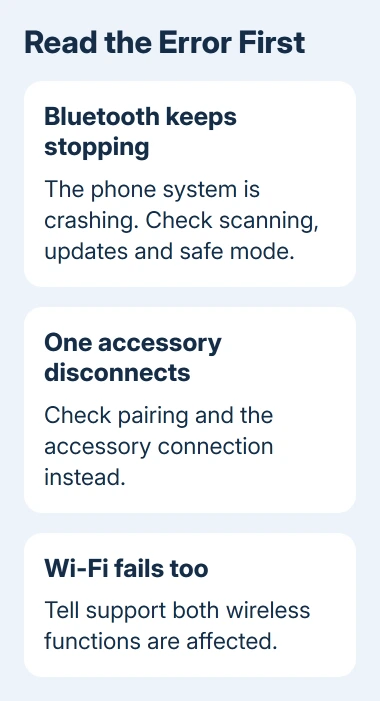
Check Wi-Fi as well. Note whether its switch stays on, whether networks appear, and whether the phone connects. This gives support a useful description if both wireless functions fail together.
If no crash alert appears and just one accessory disconnects, use the Android pairing and audio checks. Those address failed pairing, missing accessories and silent devices that still appear connected.
For the repeating system alert, continue with scanning. Tapping Close app dismisses the current message; it doesn't repair the service that's crashing and starting again.
2. Turn off background Bluetooth scanning
On current Pixel software, open Settings > Location > Location services > Bluetooth scanning and turn it off. Older releases use Location > Wi-Fi and Bluetooth scanning. Search Settings for Bluetooth scanning if necessary.
This switch lets location services scan for nearby devices even when the main Bluetooth connection switch is off. Turning Bluetooth off in Quick Settings doesn't necessarily stop that background activity.
After disabling scanning, restart once and try using the phone normally. Then turn the main Bluetooth switch on and reconnect one accessory. Success means the crash popup stops and the accessory stays connected.
Several owners on Google's forum fixed the alert by disabling scanning. Others reported no improvement, and one reported the opposite result, with scanning on helping temporarily. Leave scanning disabled if your connection improves.
Some Galaxy models also have Settings > Connections > More connection settings > Nearby device scanning. One owner stopped the crashes by turning that off after a network reset had failed. It's a separate Samsung discovery setting.
Try Samsung's discovery switch separately from the Location scanning switch. That way, you'll know which change helped. Leave the other location features on while testing this setting.
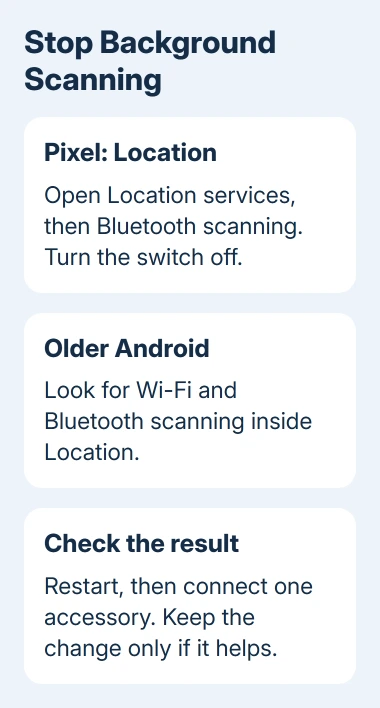
If the alert continues, restore scanning if you need it for location features and proceed. Repeatedly switching the same control won't repair a different cause.
3. Install the phone's available system updates
Connect to working Wi-Fi, then check for system updates. On a current Pixel, open Settings > System > Software updates. On Galaxy, use Settings > Software update > Download and install.
Finish the offered update by restarting when the phone asks. Then check the Bluetooth switch and repeat the same accessory connection. Keep track of whether the popup returns after that completed installation.
An owner in the long-running Pixel thread reported days without the error after moving to Android 11. Other owners still had the fault after that update. That older result isn't a reason to install Android 11 on a current phone.
Use the newest supported update offered for your own model. If repeated Wi-Fi failures interrupt the download, tell the manufacturer about both wireless failures instead of restarting that download again.
4. Compare safe mode before removing apps
In safe mode, downloaded apps are temporarily unavailable. If the alert stops there, check your downloaded apps next rather than assuming the Bluetooth hardware has failed. If it continues, keep moving toward a system or device repair.
On a Pixel, open the power menu using the buttons from section 1. Touch and hold Power off, then confirm the safe-mode restart. Google's safe-mode procedure covers the supported Pixel controls.
Safe mode turns Airplane mode on automatically on Pixel, so turn Airplane mode off before comparing wireless behavior. Keep downloaded apps disabled while you check Bluetooth for another crash.
To exit safe mode, restart again. If the alert stays away in safe mode, an app you've installed could be responsible. Remove recent apps that manage wireless connections one at a time, checking for the popup after each removal.
When a popup names Google instead of Bluetooth, use the Google app crash procedure. Clearing the search app's cache is a different repair from fixing this system Bluetooth alert.
5. Reset connections, then ask about wireless repair
Try a connection reset only after the earlier checks. It removes saved connections, so keep your Wi-Fi password ready and expect to pair accessories again. It doesn't erase your photos like a factory reset.
On a current Pixel, open Settings > System > Reset options and choose Reset Bluetooth & Wi-Fi. Older Pixels combine these under Reset Wi-Fi, mobile & Bluetooth. Read the confirmation for the exact connections being removed.
On recent Galaxy software, look under Settings > General management > Reset > Reset Wi-Fi and Bluetooth settings. Older releases may call it Reset network settings and include mobile settings too.
Reconnect to Wi-Fi and pair one accessory afterward. The original Pixel 2 asker confirmed that a connection reset stopped their loop. Other owners reported that resets, including factory resets, failed or helped only briefly.
I'd stop before wiping a phone that still loses both Wi-Fi and Bluetooth in safe mode. Back up the data you can still access and contact the phone maker's repair team. Ask them to check the combined wireless failure and warranty options.
For a Pixel, open Settings > Tips & support if available. Give support the model, Android build, exact popup, and whether Wi-Fi also disappears. Include the results of safe mode and the connection reset so the case can move forward.
The Short Version
Restart, then disable scanning if the crash returns with Bluetooth off. Update, compare safe mode, and reset saved connections if needed. Persistent Bluetooth crashes with failing Wi-Fi need the phone maker's repair assessment.
Checked November 15, 2026.
 If you have any business, I can build it online






